Pages

Sunday, March 4, 2012

Installing Epson TM-U325 drivers onto an HP Compaq t5730 thin client throws the error message: “Unable to install printer driver EPSON TM-U325 Receipt. Error code = 126.” “The specified module could not be found.”

I ran into an issue a few weeks back when trying to install an Epson TM-U325 (receipt printer) driver onto an HP Compaq t5730 thin client with Windows XP embedded where it would throw the error messages:

Unable to install printer driver EPSON TM-U325 Receipt. Error code = 126.

The specified module could not be found.

image

Unable to install printer driver EPSON TM-U325 Validation. Error code = 126.

The specified module could not be found.

image

Unable to install printer driver EPSON TM-U325 Receipt. Error code = 1797.

The printer driver is unknown.

image

Unable to install printer driver EPSON TM-U325 Validation. Error code = 1796.

The specified port is unknown.

image

The reason why we needed to install it onto the thin client was because the virtual desktop that will be running on this thin client was going to be used by bank tellers who needed to print off receipts for customers.  The Epson printer was connected via USB to the thin client and each teller would have one locally attached so in order for the virtual desktop to print to this printer, the thin client had to have the driver installed.  I’m sure someone’s going to ask the following question so I’ll answer it now:

“Am I printing to this receipt printer via a redirected printer from the thin client or am I actually going to print to a printer that is recognized by the virtual desktop as being attached to it?”

The answer to the question above is that we’ll be printing the receipt to a redirected printer within the virtual desktop because we made numerous attempts to try to connect it directly to the virtual desktop but would get a “device could not be started” error code within device manager.  Doing a bit of searching on the internet showed a post where another professional made the attempt and ran into the same problem from that point on, we didn’t want to spend anymore time on it.

So after doing a bit of searching on the internet, it looked like someone had success with getting the printer driver to install by copying over and replacing the following 2 DLL files from a full Windows XP workstation:

1. C:\Windows\system32\srclient.dll

image

2. C:\Windows\system32\wbem\framedyn.dll

image

The srclient.dll file wasn’t on the thin-client so I simply copied it over without second thoughts but the framedyn.dll was already there so I did a few comparisons between what was on a Windows XP SP3 workstation and the thin-client:

image

image

image

image

As shown in the screenshots above, the version of the framedyn.dll file was actually newer on the thin-client so I ended up renaming the existing file and copied the older one over anyways.  Once I copied these 2 DLL files over, the installation of the Epson printer drivers completed and I was now able to print to the printers.

image

Profiled Adobe Acrobat X Pro streamed to server for Citrix XenApp 6.5 throws the error: “A problem has occurred with the licensing of this product. Restart your computer or re-launch the product.” “Error: 213:8”

I recently had to profile Adobe Acrobat X Pro so I could stream the application to a Citrix XenApp 6.5 server and then published to Windows XP XenDesktop virtual desktops so I could limit the amount of people who had access to the application as well as have the ability to rapidly deploy it as needed.  The problem I had was that I could not find any official Citrix documentation on how to properly profile it and the research I’ve done shows that there were several registry changes required to be made for Adobe Acrobat 9.  Proceeding to simply profile the application as normal without any modifications lead me to the following Configuration error when trying to use the application after publishing it on the XenApp 6.5 server:

Configuration error

A problem has occurred with the licensing of this product. Restart your computer or re-launch the product.

If this problem still occurs after restarting, contact Customer Support for further assistance, and mention the error code shown at the bottom of the screen.

Error: 213:8

http://www.adobe.com/support

image

Since I didn’t really have an idea what changes that were required to get this going, I placed a call into Citrix.  The support engineer wasn’t sure either so he went on to do some research for me.  Out of a few of the articles he sent me, the one that ended up working was the following:

http://cjharms.info/citrix-application-streaming-adobe-acrobat-x

I tried the instructions out last week and preliminary tests show that the streamed to server application works.

Saturday, March 3, 2012

Connecting through Citrix NetScaler VPX (1000) 9.3 Access Gateway with Blackberry Playbook

Lately, I’ve been having trouble getting Blackberry Playbooks to remotely access a Citrix XenApp 6.5 farm through a NetScaler VPX (1000) 9.3 Access Gateway.  The proper configuration additions were made to the NetScaler VPX appliance (I’ll write another blog post on how to get it set up at a later time) and while I was able to get an iPad to connect without any issues, the Playbook would continuously throw errors.  A bit of research via Google shows certain users have had similar issues and while some appeared to be able to get it going, I was unable to find clear (or Citrix) instructions on how to configure the account settings appropriately.  Unwilling to give up, I did some more tests this weekend and was able to get the Playbook to connect and launch the applications so I figured I’d blog it in case anyone else faces the same challenges as me.

First, let me put down the versions of applications I’m using:

Blackberry OS version:  2.0.0.7971 (also tried 1.0.8.6067)

Citrix Receiver for Blackberry Playbook:  1.0

Citrix NetScaler VPX:  9.3

Citrix Web Interface:  5.4

Citrix XenApp:  6.5

The Problem

Setting up the account within the Citrix Receiver on the Playbook gives you the following 2 options after entering the Server Address, Description and Username:

  • Use Citrix Access Gateway
  • Web Interface

image

Naturally, we’d select Use Citrix Access Gateway because we’re connecting through the internet and that’s what we’re going to access the Citrix farm with so we check the checkbox and select Enterprise Edition for the Gateway Type and Domain Only  for Authentication Type:

image

You notice that you’re able to connect successfully connect but unable to start applications and receive the following error message:

Cannot start app. Please contact your help desk.

image

Since the Use Citrix Access Gateway didn’t appear to work, the next logical (and easy) step was to try selecting the Web Interface option but that threw the following error:

Cannot complete your request. Please check whether you’re accessing correct server or contact your help desk with this information: Invalid configuration XML file.

image

Determined to get this going, I switched back to the Citrix Access Gateway option and did a bit more research.  I came across the following document:

System Requirements for Receiver for PlayBook

http://support.citrix.com/proddocs/topic/receiver-playbook-10/playbook-receiver-sys-reqs.html

While the Playbook prompts you and allows you to accept a non-trusted certificate, I went ahead and installed the intermediate certificate because it was in the Playbook’s trusted root certificates:

image

To install the certificate, navigate to Security –> Certificates on the Playbook and make sure you place any root or intermediate certificate onto the Blackberry Playbook.  More information on how to get certificates onto the Blackberry Playbook can be found here:

How to import security certificates on the BlackBerry PlayBook

http://btsc.webapps.blackberry.com/btsc/search.do?cmd=displayKC&docType=kc&externalId=KB26515

After I got all the certificates onto the Playbook, the errors above went away and the the account settings presented to me during the setup no longer had Use Citrix Access Gateway and Web Interface checkboxes.  From here on, the Citrix Receiver worked as it did internally through the Web Interface servers.

Thursday, March 1, 2012

Updating Citrix XenDesktop 5.5 desktop catalogs with PowerShell cmdlet

Those who have worked with Citrix XenDesktop pools would probably understand the pain of updating their desktop catalogs via the Update Machine option within Desktop Studio:

image

First of all, I find the Desktop Studio responsiveness / wait times with VMware sluggish at most times and when you have quite a few desktop pools to update with updated master images, waiting for the spinning ticker can seem like a life time:

image

Now when you have to go through 4 windows for the Update Machine wizard, updating your desktop pools can quickly become a tedious and annoying task:

imageimage

imageimage

As I’ve been recently building out 2 new Citrix XenDesktop environments, I found it extremely annoying to have to navigate through the GUI when I wanted to quickly update desktop pools.  I’m not usually a scripting person but when I run into situations like this where I feel the speed of my work is hindered by constant waiting, I immediately start thinking about ways to expedite and automate the process.

Citrix actually provides the cmdlet Publish-ProvMasterVmImage which more information can be found here: http://support.citrix.com/static/kc/CTX127254/help/Publish-ProvMasterVmImage.htm, which is available via PowerShell that allows you to update your desktop pools.  A detailed KB explaining the process and providing examples is also available here: http://support.citrix.com/article/CTX129205 to walk you through the process.

As nice as having this command in PowerShell is, I was a bit disappointed with the amount of detail the KB provided in regards to what the Rollout Strategy was when using the cmdlet.  The KB article doesn’t tell you and the page explaining the cmdlet doesn’t provide you with the option either.  I could be wrong but through my tests, it looks like the rollout strategy when using the cmdlet is set to None because regardless of whether I had active sessions with the virtual desktops or not, they were never rebooted after the update was completed.  My guess is that Citrix expects us to follow up with another command to reboot the desktops.

Whenever I need to learn something, I always go through the manual and dissect each line while taking notes so that when I need to use it again in the future, I can reference my notes to refresh my memory rather than going through the same process of dissecting the instructions again so the following are my notes on updating desktop pools with the Publish-ProvMasterVmImage PowerShell command.

Step #1 – Get the ProvisioningSchemeName and MasterImageVM of the desktop pool you want to update

The first step for updating a desktop pool is to obtain the following 2 values for the pool you want to update:

  • ProvisioningSchemeName
  • MasterImageVM

These 2 values can be obtained with the command Provscheme but if you were to simply execute that command, it will return all the information of your desktop catalogs which will most likely fill a few screens of your PowerShell window.  I’m not a big fan of scrolling and weeding through lines of code so to filter out only the information I want, I use the format-list command to list only the 2 variables I need:

provscheme | format-list ProvisioningSchemeName,MasterImageVM

image

Notice how there are 8 pools listed and it already pretty much fills up the command window but because we’re only listed 2 values for each pool, there is just enough information to prevent us from having to scroll.

With the output above, make a note of the 2 values for the pool you want to update.  For the purpose of this example, we’ll be updating the pool with the:

ProvisioningSchemeName: Internal Win7 Random – Windows 7 64-bit_Datacenter_01

… and …

MasterImageVM: XDHyp:\HostingUnits\Datacenter_01\W7_PRO_SP1-X64_v1.vm

Note that the value I wrote above for the MasterImageVM is:

XDHyp:\HostingUnits\Datacenter_01\W7_PRO_SP1-X64_v1.vm

… and not:

XDHyp:\HostingUnits\Datacenter_01\W7_PRO_SP1-X64_v1.vm\Snappy Snap.snapshot

The reason why I did not include the snapshot path is because the next step will be to list the snapshots of this master image and omitting the snapshot details will give us a cleaner output.

Step #2 – Get the snapshots for the master VM

The next step is to list out the snapshots the master VM currently has and to do so, we need to execute the following:

Get-ChildItem -Recurse -Path 'XDHyp:\HostingUnits\Datacenter_01\W7_PRO_SP1_x64_v1.vm'

Note that the above command is simply:

Get-ChildItem -Recurse -Path

with the MasterImageVM value we retrieved in step 1 WITHOUT the snapshot at the end:

XDHyp:\HostingUnits\Datacenter_01\W7_PRO_SP1-X64_v1.vm

Once we’ve executed this command, we’ll be provided with the following output:

image

The beginning value of each snapshot is the PSPath and as seen in the above output, we have 2 snapshots for this master image:

  • Snappy Snap
  • Snapperoo

The snapshots are listed in the oldest to newest order so Snappy Snap is the first snapshot and Snapperoo is the second snapshot.  Copy down the FullPath value of the snapshot you want to update your master image with into notepad.  For the purpose of this example, we’ll be using the following:

XDHyp:\HostingUnits\Datacenter_01\W7_PRO_SP1_x64_v1.vm\Snappy Snap.snapshot\Snapperoo.snapshot

image

Step #3 – Update the pool with the master image snapshot

The final step is to proceed with updating your desktop catalog / pool with a snapshot that’s on the master image.  The Citrix KB states the following:

Publish-ProvMasterVmImage -ProvisioningSchemeName "%provisioningSchemeName%" - MasterImageVM "%templatePSPath%"

The notes I have to help myself understand this more is:

Publish-ProvMasterVmImage -ProvisioningSchemeName <provisioningSchemeName that we retrieved with Step #1> -MasterImageVM <the FullPath value you retrieved in Step #2>

For this example, the command would look as follows:

Publish-ProvMasterVmImage -ProvisioningSchemeName "Internal Win7 Random - Windows 7 64-bit_Datacenter_01" -MasterImageVM "XDHyp:\HostingUnits\Datacenter_01\W7_PRO_SP1_x64_v1.vm\Snappy Snap.snapshot\Snapperoo.snapshot"

Once you execute this command, you’ll notice that you won’t get to type in the PowerShell command prompt and this is an indication that the update is in progress:

image

You can view the status of the update from within the Recent Tasks window of your vCenter:

image

Based on my tests, I did not see the status being listed within Desktop Studio’s Machines or Actions tab and I’m using XenDesktop 5.5.

Upon completion, you’ll see output similar to the following:

image

As I mentioned earlier, it looks like the Rollout Strategy from using this deployment defaults to none as I did not see any of my virtual desktops automatically reboot.  A quick way to check to see if your virtual desktops are still on the old master image’s snapshot or the current one is to execute the following:

Get-BrokerDesktop -DesktopGroupName <Desktop Group Name> | format-list MachineName,ImageOutOfDate

Note that the desktop group name is found in the Assignments node:

image

Or via the cmdlet:

Get-BrokerDesktopGroup | format-list Name

image

So for example, the cmdlet would look something like the following:

Get-BrokerDesktop -DesktopGroupName "Windows 7 64-bit Internal Static" | format-list MachineName,ImageOutOfDate
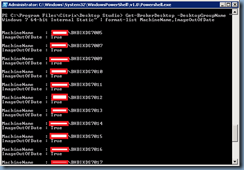
image

Note that all of the values for the variable ImageOutOfDate is listed as being True.  To complete the update, you can proceed with rebooting the virtual desktops either via the Desktop Studio GUI or PowerShell cmdlet which I haven’t looked into you but will update this post when I get the chance.

Shortening the process of updating the desktop pools with PowerShell

So rather than constantly repeating these steps, you can actually cut short the process by documenting the generic paths of your pools so that you can quickly execute step #3 without having to constantly go through steps #1 and #2.  By this I mean that if your desktop pools haven’t changed and your master image hasn’t changed, all that’s really going to change as you update your pools is the snapshot name.  So as an example, the following cmdlet we used to update our catalog:

Publish-ProvMasterVmImage -ProvisioningSchemeName "Internal Win7 Random - Windows 7 64-bit_Datacenter_01" -MasterImageVM "XDHyp:\HostingUnits\Datacenter_01\W7_PRO_SP1_x64_v1.vm\Snappy Snap.snapshot\Snapperoo.snapshot"

… will only have the following changes:

Publish-ProvMasterVmImage -ProvisioningSchemeName "Internal Win7 Random - Windows 7 64-bit_Datacenter_01" -MasterImageVM "XDHyp:\HostingUnits\Datacenter_01\W7_PRO_SP1_x64_v1.vm\Snappy Snap.snapshot\Snapperoo.snapshot"

The snapshot information can easily be obtained via the vSphere Client.

I really wished there was a way to set the Rollout Strategy with this cmdlet but maybe there’s a way to do it that I don’t yet know of so please feel free to share this with me in the comments.  Hope this post has been helpful.

Removing the Windows Desktop Search “Windows Search Deskbar” and reverting Windows XP’s search to regular search

Those who have been frustrated with the constant prompt from Office 2007 about fast searching is not available because Windows Desktop Search is not installed would know that when we finally submit and install Windows Desktop Search, we get the annoying Windows Search Deskbar located on our taskbar:

image

This Windows Search Deskbar isn’t that big of a deal in most situations as users can just right click on their taskbar then toolbars and remove it.  When it becomes extremely annoying is when you’re in a situation where you want to disable it for all users.  I recently had to deploy a large set of Windows XP with Office 2007 virtual desktops in a Citrix XenDesktop environment and had to figure out how to remove this for all users as I worked on a master image.

In addition to this annoying search bar, I also did not like having Windows Desktop Search as the default search for Windows XP:

image

So after browsing around trying to figure out how to disable both of these, I finally found that the follow 2 registry keys were what I needed to modify:

[HKEY_LOCAL_MACHINE\Software\Policies\Microsoft\DesktopSearch]
"DB"=dword:00000001

[HKEY_LOCAL_MACHINE\SOFTWARE\Microsoft\Windows Desktop Search\DS]
"ShowStartSearchBand"=dword:00000000

imageimage

I know I’m bound to come across this as I continue with my virtual desktop deployments in the future so I figured I’d blog it so I can reference this post in the future.

How to stop Outlook 2007 from setting up a new profile for users using Citrix XenDesktop virtual desktops when the pool gets refreshed with an updated image

As with one of my previous posts:

How to stop Outlook 2010 from setting up a new profile for users using Citrix XenDesktop virtual desktops when the pool gets refreshed with an updated image
http://terenceluk.blogspot.com/2012/02/how-to-stop-outlook-2010-from-setting.html

… and:

Customizing Microsoft Office 2010 with Microsoft Office Customization Tool for Citrix XenDesktop
http://terenceluk.blogspot.com/2012/02/customizing-microsoft-office-2010-with.html

This post serves to demonstrate how to get around the fact that Outlook profiles do not get retained by redirected profiles and whenever a desktop catalog’s pool is refreshed with an updated image, users who log onto their virtual desktops will be asked to set up a new Outlook profile.  This post will also include the extra settings we’ll be configuring in the OCT tool to remove the annoying prompts that Outlook presents when a new profile is configured.

The solution to address this, as with Outlook 2010, is to simply customize your Office 2007 installation with a custom.msp file created in the OCT (Office Customization Tool) so that if an Outlook profile does not exist, Office will automatically create one.  Prior to installing your Office 2007, you’ll need to download AdminTemplates.exe from the following Microsoft KB article: http://support.microsoft.com/kb/929767 as one of the settings we need to configure in the OCT tool requires the update.  Once the /admin folder has been updated as per the KB, proceed by executing the command setup.exe /admin to bring up the OCT wizard and create a new customization file:

image

Install location and organization name

Navigate to the Install location and organization name node and enter the

  • Default installation path
  • Organization name

image

Licensing and user interface

Unlike Office 2010, Office 2007 licensing does not require a KMS server so proceed with entering the serial number in the Licensing and user interface node:

image

The level of display controlled by the Display level does not matter so set it as it pertains to your environment.

Remove previous installations

This setting is optional as the default also removes earlier installations of Office components:

image

Prevent the annoying Windows Desktop Search installation prompt

The following prompt:

Windows Desktop search is not currently installed or not up to date. Outlook will not be able to provide fast search results when using the new Instant Search functionality unless this Windows component is installed.
Please contact your system administrator.

Can be suppressed by disabling the setting Prevent installation prompts when Windows Desktop Search component is not present located in Microsoft Office Outlook 2007 –> Tools | Options… –> Preferences –> Search Options

image

Disable RSS feeds prompt

The following prompt:

Outlook, Windows Internet Explorer, and other applications save lists of RSS Feeds that you subscribe to.

The Common Feed List in Microsoft Windows maintains one synchronized list of RSS Feeds. Do you want your RSS Feeds in Outlook to be synchronized with the Common Feed List?

image

Can be suppressed by disabling the settings:

  • Synchronize Outlook RSS Feeds with Common Feed List
  • Turn off RSS feature

… located in Microsoft Office Outlook 2007 –> Tools | Account Settings –> RSS Feeds

image

Disable Welcome to the 2007 Microsoft Office system message

The following prompt:

image

Can be suppressed by disabling the settings:

  • Disable Opt-in Wizard on first run
  • Enable Customer Experience Improvement Program
  • Automatically receive small updates to improve reliability

… located in Microsoft Office 2007 system –> Privacy –> Trust Center

image

Configure Office 2007 to automatically create Outlook profile

Navigate to Outlook –> Outlook profile then Select the Modify Profile radio button and in the Define changes to profile named: txt field, type in Outlook:

image

Select the Specify Exchange Server Settings node and select the Configure an Exchange Server connection radio button an fill in the following:

User Name: %UserName%

Exchange Server: yourExchangeServerCASFQDN

Select the Do not configure Cached Exchange Mode radio button.

image

Install Office 2007 with the custom.msp file

Save the customization as custom.msp in the Updates folder of your Office installation folder and install Office 2010 via the following command:

setup /adminfile c:\Office_Pro2007_WSP2\Updates\custom.msp

image

imageimage

imageimage

Now regardless of whether an Outlook profile exists on the virtual desktop, Office will automatically create one for the user with the settings set above which to the user will appear seamless.

Citrix Receiver configured for pass-through authentication for XenApp 6.5 published applications in a XenDesktop 5.5 virtual desktop throws the error: “The credentials supplied were invalid. Please try again.”

Problem

You’ve configured your XenDesktop virtual desktop’s Citrix Receiver to authenticate against your Web Interface server but notice that you get prompted for authentication and when you type in the credentials:

image

… you receive the following error:

The credentials supplied were invalid.  Please try again.

image

You’ve verified that the credentials are correct and have tried other accounts.

Solution

The reason why you’re receiving this error even though the credentials are correct is because you did not configure the environment for kerberos authentication but have forced the XenApp Services Site to use kerberos only:

image

image

image

If you have all the other components configured properly for pass-through authentication, unchecking the box should fix your problem:

image