Pages

Showing posts with label Exchange 2010. Show all posts

Wednesday, March 14, 2018

Monitoring Exchange 2013 and 2016 message queues with PowerShell

I’ve been asked several times in the past by colleagues how would they go about monitoring Exchange message queues so that they would be notified if a threshold is exceeded and while I usually recommend looking for this feature in their existing monitoring solution, an alternative and free method of achieving this is to use a PowerShell script with conjunction of the task scheduler.

What I’ve used in the past is to modify a script found here at the Microsoft Office TechCenter:

Powershell - Check Exchange 2010 Queue and mail alert on queue threshold
https://gallery.technet.microsoft.com/office/e0bb250e-e699-4c6c-a5be-f1af245a2219

As this script was written for Exchange 2010, a slight modification to the line:

Add-PSSnapin Microsoft.Exchange.Management.PowerShell.E2010 

… would need to get changed to:

Add-PSSnapin Microsoft.Exchange.Management.PowerShell.SnapIn;

The script would look as such for Exchange 2013 or 2016 (The variables you’ll need or could to change are highlighted in red):

$s = New-PSSession -ConfigurationName Microsoft.Exchange -ConnectionUri yourExchangeServer/PowerShell/ -Authentication Kerberos

Import-PSSession $s

Add-PSSnapin Microsoft.Exchange.Management.PowerShell.SnapIn;

. $env:ExchangeInstallPath\bin\RemoteExchange.ps1

Connect-ExchangeServer -auto

$filename = “c:\Scripts\ExchangeQueues.txt”

Start-Sleep -s 10

if (Get-ExchangeServer | Where { $_.isHubTransportServer -eq $true } | get-queue | Where-Object { $_.MessageCount -gt 30 })

{

Get-ExchangeServer | Where { $_.isHubTransportServer -eq $true } | get-queue | Where-Object { $_.MessageCount -gt 30 } | Format-Table -Wrap -AutoSize | out-file -filepath c:\Scripts\ExchangeQueues.txt

Start-Sleep -s 10

$smtpServer = “yourSMTPserver”

$msg = new-object Net.Mail.MailMessage

$att = new-object Net.Mail.Attachment($filename)

$smtp = new-object Net.Mail.SmtpClient($smtpServer)

$msg.From = “Monitor@contoso.com”

$msg.To.Add("admin1@mycompany.com")

#$msg.To.Add("admin2@mycompany.com")

#$msg.To.Add("admin3@mycompany.com")

#$msg.To.Add("admin4@mycompany.com")

$msg.Subject = “Exchange queue threshold of 30 reached.”

$msg.Body = “Please see attached queue log file for queue information”

$msg.Attachments.Add($att)

$smtp.Send($msg)

}

Note that the cmdlet used to check the queues can be modified to omit queues such as the Shadow Redundancy by adjusting:

if (Get-ExchangeServer | Where { $_.isHubTransportServer -eq $true } | get-queue | Where-Object { $_.MessageCount -gt 30 })

… into this:

if (Get-ExchangeServer | Where { $_.isHubTransportServer -eq $true } | get-queue | Where-Object { $_.MessageCount -gt 30 -and $_.DeliveryType -notlike "ShadowRedundancy"})

Adding the notlike operator will exclude the Shadow Redundancy queues when evaluating whether the threshold has been exceeded.

Once the script has been tested and verified to be in working order, you can then schedule it as a task to run every, say, 15 minutes as such:

imageimage

Program/script: powershell.exe

Add arguments (optional): -command "& 'C:\Scripts\CheckExchangeQueues.ps1'"

image

Sunday, March 11, 2018

Monitoring Microsoft Exchange Server 2010, 2013 and 2016 services with PowerShell script and task scheduler

Most enterprise environments have solutions that provide monitoring services to ensure Microsoft Exchange Server services are running and if they are not, restart the service and send an email notification to administrators but I have constantly come across smaller business that may not be able to afford such applications and therefore have implemented scripts with task manager scheduled tasks to provide some form of service monitoring. The Exchange Health Check Report by Paul Cunningham (https://practical365.com/exchange-server/powershell-script-exchange-server-health-check-report/) is great for daily reports but it is not practical to constantly use it for monitoring so what I’ve typically used is implement the service_check.ps1 script written by Kevin Olson:

Check for hung or stopped services
https://gallery.technet.microsoft.com/scriptcenter/Check-for-hung-or-stopped-67bc718d

The small adjustment I’ve made to the script is to move the Send-Mailmessage cmdlet to execute after the Start-Service because if you do not have another SMTP relay setup and need to rely on the Exchange server this script is monitoring, the email will not be sent out if the service that is hung or stopped is the transport service. The following are the scripts along with the Exchange services added into the script for each version:

Microsoft Exchange 2010

#NAME: service_check.ps1 

#AUTHOR: Kevin Olson

#DATE: 4/29/2011

#Machine to be monitored

$Computer = "brcl-exchange"

#Create an array of all services running

$GetService = get-service -ComputerName $Computer

#Create a subset of the previous array for services you want to monitor

$ServiceArray = "MSExchangeADTopology","MSExchangeAB","MSExchangeAntispamUpdate","MSExchangeEdgeSync","MSExchangeFDS","MSExchangeIS","MSExchangeMailSubmission","MSExchangeMailboxAssistants","MSExchangeMailboxReplication","MSExchangeProtectedServiceHost","MSExchangeRepl","MSExchangeRPC","MSExchangeSearch","MSExchangeServiceHost","MSExchangeSA","MSExchangeThrottling","MSExchangeTransport","MSExchangeTransportLogSearch","MSExchangeFBA","W3SVC";

#Find any iWFM service that is stopped

foreach ($Service in $GetService)

{

    foreach ($srv in $ServiceArray)

    {

        if ($Service.name -eq $srv)

        {

            #check if a service is hung

            if ($Service.status -eq "StopPending")

            {

            $servicePID = (gwmi win32_Service | where { $_.Name -eq $srv}).ProcessID

            Stop-Process $ServicePID

            Start-Service -InputObject (get-Service -ComputerName $Computer -Name $srv)

            #email to notify if a service is down

            Send-Mailmessage -to administrator@someDomain.com -Subject "$srv is hung on $Computer" -from exchange@contoso.com -Body "The $srv service was found hung." -SmtpServer localhost

            }

            # check if a service is stopped

            elseif ($Service.status -eq "Stopped")

            {

            #automatically restart the service.

            Start-Service -InputObject (get-Service -ComputerName $Computer -Name $srv)

                   #email to notify if a service is down

            Send-Mailmessage -to administrator@someDomain.com -Subject "$srv is stopped on $Computer" -from exchange@contoso.com -Body "The $srv service was found stopped." -SmtpServer localhost

            }

        }

    }

}

The services I included in the script are all of the ones listed as Automatic as well as Automatic (Delayed Start):

image

Microsoft Exchange 2013

#NAME: service_check.ps1 
#AUTHOR: Kevin Olson
#DATE: 4/29/2011
 
#Machine to be monitored
$Computer = "bm1-azim-40-001"
 
#Create an array of all services running
$GetService = get-service -ComputerName $Computer
 
#Create a subset of the previous array for services you want to monitor
$ServiceArray = “HostControllerService","MSExchangeADTopology","MSExchangeAntispamUpdate","MSExchangeDagMgmt","MSExchangeDelivery","MSExchangeDiagnostics","MSExchangeEdgeSync","MSExchangeFastSearch","MSExchangeFrontEndTransport","MSExchangeHM","MSExchangeIS","MSExchangeMailboxAssistants","MSExchangeMailboxReplication","MSExchangeRepl","MSExchangeRPC","MSExchangeServiceHost","MSExchangeSubmission","MSExchangeThrottling","MSExchangeTransport","MSExchangeTransportLogSearch","MSExchangeUM","MSExchangeUMCR","W3SVC";
 
#Find any iWFM service that is stopped
foreach ($Service in $GetService)
{
     foreach ($srv in $ServiceArray)
     {
         if ($Service.name -eq $srv)
         {
             #check if a service is hung
             if ($Service.status -eq "StopPending")
             {
             $servicePID = (gwmi win32_Service | where { $_.Name -eq $srv}).ProcessID
             Stop-Process $ServicePID
             Start-Service -InputObject (get-Service -ComputerName $Computer -Name $srv)
             #email to notify if a service is down
             Send-Mailmessage -to administrator@someDomain.com -Subject "$srv is hung on $Computer" -from exchange@contoso.com -Body "The $srv service was found hung." -SmtpServer localhost
             }
             # check if a service is stopped
             elseif ($Service.status -eq "Stopped")
             {
             #automatically restart the service.
             Start-Service -InputObject (get-Service -ComputerName $Computer -Name $srv)
         #email to notify if a service is down
             Send-Mailmessage -to administrator@someDomain.com -Subject "$srv is stopped on $Computer" -from exchange@contoso.com -Body "The $srv service was found stopped." -SmtpServer localhost
             }
         }
     }
}

The services I included in the script are all of the ones listed as Automatic as well as Automatic (Delayed Start):

image

World Wide Web Publish Service is also included.

Microsoft Exchange 2016

#NAME: service_check.ps1 
#AUTHOR: Kevin Olson
#DATE: 4/29/2011
 
#Machine to be monitored
$Computer = "prpmbx16-02"
 
#Create an array of all services running
$GetService = get-service -ComputerName $Computer
 
#Create a subset of the previous array for services you want to monitor
$ServiceArray = "HostControllerService","MSComplianceAudit","MSExchangeADTopology","MSExchangeAntispamUpdate","MSExchangeCompliance","MSExchangeDagMgmt","MSExchangeDelivery","MSExchangeDiagnostics","MSExchangeEdgeSync","MSExchangeFastSearch","MSExchangeFrontEndTransport","MSExchangeHM","MSExchangeHMRecovery","MSExchangeIS","MSExchangeMailboxAssistants","MSExchangeMailboxReplication","MSExchangeRepl","MSExchangeRPC","MSExchangeServiceHost","MSExchangeSubmission","MSExchangeThrottling","MSExchangeTransport","MSExchangeTransportLogSearch","MSExchangeUM","MSExchangeUMCR","W3SVC";
 
#Find any iWFM service that is stopped
foreach ($Service in $GetService)
{
     foreach ($srv in $ServiceArray)
     {
         if ($Service.name -eq $srv)
         {
             #check if a service is hung
             if ($Service.status -eq "StopPending")
             {
             $servicePID = (gwmi win32_Service | where { $_.Name -eq $srv}).ProcessID
             Stop-Process $ServicePID
             Start-Service -InputObject (get-Service -ComputerName $Computer -Name $srv)
             #email to notify if a service is down
             Send-Mailmessage -to administrator@someDomain.com -Subject "$srv is hung on $Computer" -from exchange@contoso.com -Body "The $srv service was found hung." -SmtpServer localhost
             }
             # check if a service is stopped
             elseif ($Service.status -eq "Stopped")
             {
             #automatically restart the service.
             Start-Service -InputObject (get-Service -ComputerName $Computer -Name $srv)
         #email to notify if a service is down
             Send-Mailmessage -to administrator@someDomain.com -Subject "$srv is stopped on $Computer" -from exchange@contoso.com -Body "The $srv service was found stopped." -SmtpServer localhost
             }
         }
     }
}

The services I included in the script are all of the ones listed as Automatic (Microsoft Exchange Notifications Broker is excluded) as well as Automatic (Delayed Start):

image

World Wide Web Publish Service is also included.

Task Scheduler Configuration

One of the methods to execute the script repeatedly on the server is to create a task in the Task Scheduler as such:

image

Create a trigger and specify a Repeat task every however frequently you like:

image

Then create an action with powershell.exe as the Program/script and the following as the Add arguments (optional) field:

-command "& 'C:\Scripts\service_check.ps1'"

image

Extra Setup Information

This script can be used for other services as well and an easy way of obtaining the service names to monitor is use cmdlets such as the one below to list all the services that contains, say, Microsoft Exchange:

Get-Service | Where {$_.DisplayName -like "Microsoft Exchange*"} | format-table -autosize

Status  Name                          DisplayName
------  ----                          -----------
Running HostControllerService         Microsoft Exchange Search Host Controller
Running MSComplianceAudit             Microsoft Exchange Compliance Audit
Running MSExchangeADTopology          Microsoft Exchange Active Directory Topology
Running MSExchangeAntispamUpdate      Microsoft Exchange Anti-spam Update
Running MSExchangeCompliance          Microsoft Exchange Compliance Service
Running MSExchangeDagMgmt             Microsoft Exchange DAG Management
Running MSExchangeDelivery            Microsoft Exchange Mailbox Transport Delivery
Running MSExchangeDiagnostics         Microsoft Exchange Diagnostics
Running MSExchangeEdgeSync            Microsoft Exchange EdgeSync
Running MSExchangeFastSearch          Microsoft Exchange Search
Running MSExchangeFrontEndTransport   Microsoft Exchange Frontend Transport
Running MSExchangeHM                  Microsoft Exchange Health Manager
Running MSExchangeHMRecovery          Microsoft Exchange Health Manager Recovery
Stopped MSExchangeImap4               Microsoft Exchange IMAP4
Stopped MSExchangeIMAP4BE             Microsoft Exchange IMAP4 Backend
Running MSExchangeIS                  Microsoft Exchange Information Store
Running MSExchangeMailboxAssistants   Microsoft Exchange Mailbox Assistants
Running MSExchangeMailboxReplication  Microsoft Exchange Mailbox Replication
Stopped MSExchangeNotificationsBroker Microsoft Exchange Notifications Broker
Stopped MSExchangePop3                Microsoft Exchange POP3
Stopped MSExchangePOP3BE              Microsoft Exchange POP3 Backend
Running MSExchangeRepl                Microsoft Exchange Replication
Running MSExchangeRPC                 Microsoft Exchange RPC Client Access
Running MSExchangeServiceHost         Microsoft Exchange Service Host
Running MSExchangeSubmission          Microsoft Exchange Mailbox Transport Submission
Running MSExchangeThrottling          Microsoft Exchange Throttling
Running MSExchangeTransport           Microsoft Exchange Transport
Running MSExchangeTransportLogSearch  Microsoft Exchange Transport Log Search
Running MSExchangeUM                  Microsoft Exchange Unified Messaging
Running MSExchangeUMCR                Microsoft Exchange Unified Messaging Call Router
Stopped wsbexchange                   Microsoft Exchange Server Extension for Windows Server Backup

Copy the output to a text file and extract the services as such:

HostControllerService

MSComplianceAudit

MSExchangeADTopology

MSExchangeAntispamUpdate

MSExchangeCompliance

MSExchangeDagMgmt

MSExchangeDelivery

MSExchangeDiagnostics

MSExchangeEdgeSync

MSExchangeFastSearch

MSExchangeFrontEndTransport

MSExchangeHM

MSExchangeHMRecovery

MSExchangeIS

MSExchangeMailboxAssistants

MSExchangeMailboxReplication

MSExchangeRepl

MSExchangeRPC

MSExchangeServiceHost

MSExchangeSubmission

MSExchangeThrottling

MSExchangeTransport

MSExchangeTransportLogSearch

MSExchangeUM

MSExchangeUMCR

Wednesday, August 23, 2017

Attempting to export an Exchange Server mailbox to PST throws the error: “Couldn’t locate a database suitable for storing this request.”

I’ve noticed that many of my colleagues and clients have asked me about the following error that is thrown when they attempt to export an Exchange Server mailbox to PST so I thought it would be a good idea to quickly write a post about the error.

Problem

You attempt to export a mailbox to PST via the Exchange Admin Center but received the following error:

Couldn’t locate a database suitable for storing this request.

image

Using the New-MailboxExportRequest feature displays a similar error:

[PS] C:\Windows\system32>New-MailboxExportRequest -Mailbox mbraithwaite -FilePath "\\tmrfp09\archive$\Outlook Archive\mb
raithwaite.pst"
Couldn't locate a database suitable for storing this request.
     + CategoryInfo          : InvalidArgument: (mbraithwaite:MailboxOrMailUserIdParameter) [New-MailboxExportRequest],
     MailboxDatabase...manentException
     + FullyQualifiedErrorId : [Server=contBMEXMB01,RequestId=c7446094-7d17-4e06-90c4-07be8ca10829,TimeStamp=8/23/2017 2
    :46:00 PM] [FailureCategory=Cmdlet-MailboxDatabaseVersionUnsupportedPermanentException] 4B192EAA,Microsoft.Exchang
   e.Management.Migration.MailboxReplication.MailboxExportRequest.NewMailboxExportRequest
     + PSComputerName        : contbmexmb01.contoso.com

[PS] C:\Windows\system32>

image

Solution

The reason why this error would be thrown is if you are trying to export a mailbox that is on a different version than the admin console you are working from.  In the example above, the attempt was made from the Exchange 2016 admin center but the mailbox actually resides on an Exchange 2010 server.  Simply execute the export job from the PowerShell prompt of one of the Exchange 2010 servers to get the mailbox to export.

Tuesday, August 22, 2017

Exchange 2010 users are no longer able to connect via Outlook Anywhere while migrating to Exchange 2016

I’ve recently had to migrate a client from Exchange 2010 to 2016 and quickly noticed that Outlook Anywhere no longer worked after redirecting Outlook Anywhere and other services such as autodiscover and webmail to the new server.  Outlook Anywhere continued to work for users migrated to Exchange 2016 but not for users still on the legacy Exchange server.  Using the Remote Connectivity Analyzer (https://testconnectivity.microsoft.com/) Outlook Connectivity feature would fail and throw the following error:

Attempting to send an Autodiscover POST request to potential Autodiscover URLs.

Autodiscover settings weren't obtained when the Autodiscover POST request was sent.

clip_image001[8]

Additional Details

Elapsed Time: 1504 ms.

clip_image001[9]

Test Steps

clip_image003[4]

The Microsoft Connectivity Analyzer is attempting to retrieve an XML Autodiscover response from URL https://autodiscover.domain.com:443/Autodiscover/Autodiscover.xml for user user@domain.com.

The Microsoft Connectivity Analyzer failed to obtain an Autodiscover XML response.

clip_image001[10]

Additional Details

A Web exception occurred because an HTTP 400 - BadRequest response was received from Unknown.
HTTP Response Headers:
request-id: 0d7c484b-cdfb-42eb-bd3b-8d5b6dfb4844
X-CalculatedBETarget: exchange2010-02.domain.com
Persistent-Auth: true
X-FEServer: exchange-2016-02
Strict-Transport-Security: max-age=157680000
Content-Length: 346
Cache-Control: private
Content-Type: text/html; charset=us-ascii
Date: Wed, 16 Aug 2017 17:06:18 GMT
Set-Cookie: X-BackEndCookie=S-1-5-21-206374890-975330658-925700815-6573=rJqNiZqNgauyrbqnt7zPzdGLkJSWkJKWk5OakZGWipLRnJCSgc7GzMjGxsjGy8iBzc/OyNLPx9LOyavOyMXOycXOxw==; expires=Wed, 16-Aug-2017 17:16:18 GMT; path=/Autodiscover; secure; HttpOnly
Server: Microsoft-IIS/8.5
X-AspNet-Version: 4.0.30319
X-Powered-By: ASP.NET

Elapsed Time: 1504 ms.

I was unable to find an official Microsoft KB which described this issue but I was able to come across this blog post for migrating from Exchange 2007 to Exchange 2013:

Exchange 2013 to 2007 Outlook Anywhere Proxy Issue
https://smtp4it.net/2013/12/05/exchange-2013-to-2007-outlook-anywhere-proxy-issue/

… and I can confirm that after adding the registry keys onto the Exchange 2010 servers as such:

image

… then restarting the servers was able to correct the Outlook Anywhere problem for Exchange 2010 users during the Exchange 2016 migration:

image

Monday, July 3, 2017

Attempting to migrate mailboxes from Exchange 2010 to 2016 stalls with StatusDetail: StalledDueToTarget_MailboxCapacityExceeded

Problem

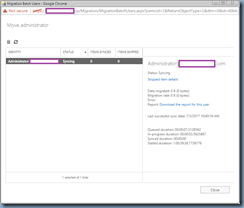
You’re in the process of migrating mailboxes from Exchange 2010 to Exchange 2016 with both a live as well as an archive mailbox and while some mailboxes successfully move to the new databases, you noticed that others remains in Syncing status indefinitely:

image

image

Expanding the More Details… option show the synchronization has stalled for quite some time:

image

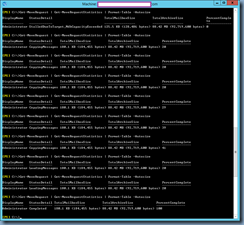
Executing the cmdlet Get-MoveRequest | Get-MoveRequestStatstics -Format-Table -AutoSize displays the StatusDetail StalledDueToTarget_MailboxCapacityExceeded:

image

Executing the cmdlets:

Get-MoveRequest administrator | FL

… or:

Get-MoveRequest | Get-MoveRequestStatistics | FL

… does not provide additional information.

Reviewing the properties of the migration job and clicking on Report: Download the report for this user:

image

… displays a report with the following log output:

7/2/2017 10:14:11 AM [CONTBMEXMB01] '' created move request.
7/2/2017 10:14:11 AM [CONTBMEXMB01] '' allowed a large amount of data loss when moving the mailbox (50 bad items, 0 large items).
7/2/2017 11:07:56 AM [CONTBMEXMB01] Relinquishing job because of large delays due to unfavorable server health or budget limitations with a request throttling state 'StalledDueToTarget_Processor'.
7/2/2017 11:51:16 AM [CONTBMEXMB01] Relinquishing job because of large delays due to unfavorable server health or budget limitations with a request throttling state 'StalledDueToTarget_Processor'.
7/2/2017 11:15:00 PM [CONTBMEXMB01] '' suspended move request.
7/2/2017 11:15:02 PM [CONTBMEXMB01] Suspending job.
7/2/2017 11:15:02 PM [CONTBMEXMB01] Relinquishing job.
7/3/2017 10:04:41 AM [CONTBMEXMB01] '' resumed move request.
7/3/2017 10:04:45 AM [CONTBMEXMB01] Job resumed with status 'Queued'.
7/3/2017 10:04:45 AM [CONTBMEXMB01] Relinquishing job.

Attempting to log onto the Exchange 2016 server and adjusting the parameters MaxActiveJobsPerSourceMailbox and MaxActiveJobsPerTargetMailbox in the configuration file MSExchangeMailboxReplication.exe.config located in the directory E:\Program Files\Microsoft\Exchange Server\V15\Bin does not correct the issue:

image

imageimage

image

Solution

Attempting to search for the error messages:

StalledDueToTarget_MailboxCapacityExceeded:

… and:

StalledDueToTarget_Processor

… did not return any helpful posts and what ended up being the problem was the archive mailbox server we were using to move the archive mailboxes to.  The server’s CPU utilization wasn’t particularly high (2%), memory usage was average (90%) but the server uptime was 82 days and there were pending Windows patches asking for a reboot. Previous mailboxes that were stalled would successfully completed after the server restart:

image

Hope this helps anyone who may encounter this issue and unable to find any useful information on the internet.

Thursday, June 8, 2017

Setting up Get-ExchangeEnvironmentReport.ps1 PowerShell script in Task Scheduler to automatically run daily

One of the scripts I've often used when trying gather information about a current Exchange environment prior to performing a migration is the Get-ExchangeEnvironmentReport.ps1 PowerShell script written by Steve Goodman.  The information provided by the report provides great information that would allow me to get a good understanding of the current Exchange topology as well as the mailbox databases.  If you are unfamiliar with this script, further details about the script can be found in the following links:

Generate Exchange Environment Reports using Powershell
https://gallery.technet.microsoft.com/office/Generate-Exchange-2388e7c9

Generate Exchange Environment Reports using Powershell
http://www.stevieg.org/2011/06/exchange-environment-report/

This script could be scheduled to automatically run via the Task Scheduler and this post serves to provide the configuration for the action which sometimes can be difficult to find.  Note that I won’t go into the details of creating the scheduled task as that could be found in one of my previous posts here:

Setting up vCheck PowerShell health check script in Task Scheduler to automatically run daily
http://terenceluk.blogspot.com/2017/03/setting-up-vcheck-powershell-health.html

The following is the syntax required to configure the action:

Program/script: powershell.exe

Add arguments (option): -command ". 'E:\Program Files\Microsoft\Exchange Server\V15\bin\RemoteExchange.ps1'; Connect-ExchangeServer -auto; . 'C:\PS-Scripts\Get-ExchangeEnvironmentReportModified.ps1'

clip_image002

Tuesday, May 30, 2017

Setting up Test-ExchangeServerHealth.ps1 PowerShell health check script in Task Scheduler to automatically run daily

One of the scripts I've used a lot over the past few years is the Test-ExchangeServerHealth.ps1 PowerShell health check script written by Paul Cunningham.  The red, yellow and green colour coded report generated by this script allows me to easily review the status of critical Exchange services on devices with small viewing space such as a smartphone.  If you are unfamiliar with this script, further details about the script can be found in the following links:

Test-ExchangeServerHealth.ps1 – PowerShell Script to Generate a Health Check Report for Exchange Server 2016/2013/2010
https://practical365.com/exchange-server/powershell-script-exchange-server-health-check-report/

Generate Health Report for an Exchange Server 2016/2013/2010 Environment
https://gallery.technet.microsoft.com/office/Generate-Health-Report-for-19f5fe5f

This script could be scheduled to automatically run via the Task Scheduler and this post serves to provide the configuration for the action which sometimes can be difficult to find.  Note that I won’t go into the details of creating the scheduled task as that could be found in one of my previous posts here:

Setting up vCheck PowerShell health check script in Task Scheduler to automatically run daily
http://terenceluk.blogspot.com/2017/03/setting-up-vcheck-powershell-health.html

The following is the syntax required to configure the action:

Program/script: powershell.exe

Add arguments (option): -command "& 'C:\PS-Scripts\Test-ExchangeServerHealth.ps1' -ReportMode -SendEmail"

clip_image002

Friday, April 21, 2017

Attempting to run an Export job with Microsoft Forefront Identity Manager 2010 R2 throws the error: “stopped-extension-dll-exception”

Problem

You’ve noticed that your previously operational Microsoft Forefront Identity Manager 2010 R2 throws the error the following error when you execute an Export job:

stopped-extension-dll-exception

image

Exchange 2010 contacts in the are either no longer updated or created in the source domain. 

You proceed into the connector’s properties under Management Agents:

image

Review and confirm that the service account is correct:

imageimage

Reviewing the event logs show the following errors displayed in the Application logs:

Log Name: Application

Source: FIMSynchronizationService

Event ID: 6803

Level: Error

Task Category: Management Agent Run Profile

image

The management agent "FIM Connector" failed on run profile "Export" because the server encountered errors.

image

Log Name: Application

Source: FIMSynchronizationService

Event ID: 0

Level: Error

Task Category: None

image

The description for Event ID 0 from source FIMSynchronizationService cannot be found. Either the component that raises this event is not installed on your local computer or the installation is corrupted. You can install or repair the component on the local computer.

If the event originated on another computer, the display information had to be saved with the event.

The following information was included with the event:

There is an error in Exch2010Extension BeginExportToCd() function.Type: System.Management.Automation.Remoting.PSRemotingTransportException

Message: Connecting to remote server failed with the following error message : The WS-Management service cannot process the request. The system load quota of 1000 requests per 2 seconds has been exceeded. Send future requests at a slower rate or raise the system quota. The next request from this user will not be approved for at least 1316187520 milliseconds. For more information, see the about_Remote_Troubleshooting Help topic.

Stack Trace: at System.Management.Automation.Runspaces.Internal.RunspacePoolInternal.EndOpen(IAsyncResult asyncResult)

at System.Management.Automation.Runspaces.RunspacePool.Open()

at System.Management.Automation.RemoteRunspace.Open()

at Exch2010Extension.Exch2010ExtensionClass.OpenConnection(String uri, PSCredential credential)

at Exch2010Extension.Exch2010ExtensionClass.BeginExportToCd(String connectTo, String domain, String server, String user, String password)

the message resource is present but the message is not found in the string/message table

You attempt to use the following TechNet article to further troubleshoot by disabling Exchange provisioning confirming that the export now completes and manually executing the included PowerShell cmdlet:

FIM Troubleshooting: stopped-dll-exception: WinRM cannot process the request: Access Denied
https://social.technet.microsoft.com/wiki/contents/articles/15091.fim-troubleshooting-stopped-dll-exception-winrm-cannot-process-the-request-access-denied.aspx

imageimage

.. but you run into the error:

'contoso.com/contoso/Employees/TMRUK/GalContacts/Matthew  Evans' have been modified.
WARNING: The command completed successfully but no settings of
'contoso.com/contoso/Employees/TMRUK/GalContacts/Buu Truong' have been modified.
WARNING: The command completed successfully but no settings of
'contoso.com/contoso/Employees/TMRUK/GalContacts/Gemma Gregson' have been modified.
"DG_TMRUK_Pricing" is a MailForestContact and can't be modified.
    + CategoryInfo          : NotSpecified: (contoso...G_TMRUK_Pricing:ADObjectId) [Set-MailContact], TaskInva
   lidOperationException
    + FullyQualifiedErrorId : 69D6CABF,Microsoft.Exchange.Management.RecipientTasks.SetMailContact

"Terence Luk" is a MailForestContact and can't be modified.
    + CategoryInfo          : NotSpecified: (contoso...cts/Terence Luk:ADObjectId) [Set-MailContact], TaskInva
   lidOperationException
    + FullyQualifiedErrorId : 1DAD038F,Microsoft.Exchange.Management.RecipientTasks.SetMailContact

WARNING: The command completed successfully but no settings of
'contoso.com/contoso/Employees/TMRUK/GalContacts/Anna Ivanova' have been modified.
WARNING: The command completed successfully but no settings of
'contoso.com/contoso/Employees/TMRUK/GalContacts/DG_Operations' have been modified.
"Taro Murakami" is a MailForestContact and can't be modified.
    + CategoryInfo          : NotSpecified: (contoso...s/Taro Murakami:ADObjectId) [Set-MailContact], TaskInva
   lidOperationException
    + FullyQualifiedErrorId : 5FD06EB8,Microsoft.Exchange.Management.RecipientTasks.SetMailContact

"Sara Perdichizzi" is a MailForestContact and can't be modified.
    + CategoryInfo          : NotSpecified: (contoso...ara Perdichizzi:ADObjectId) [Set-MailContact], TaskInva
   lidOperationException
    + FullyQualifiedErrorId : E298C7BF,Microsoft.Exchange.Management.RecipientTasks.SetMailContact

"Giuseppe Ieraci" is a MailForestContact and can't be modified.
    + CategoryInfo          : NotSpecified: (contoso...Giuseppe Ieraci:ADObjectId) [Set-MailContact], TaskInva
   lidOperationException
    + FullyQualifiedErrorId : 28CFBAA8,Microsoft.Exchange.Management.RecipientTasks.SetMailContact

"Ken Tarbet" is a MailForestContact and can't be modified.
    + CategoryInfo          : NotSpecified: (contoso...acts/Ken Tarbet:ADObjectId) [Set-MailContact], TaskInva
   lidOperationException
+ FullyQualifiedErrorId : 2EE5477,Microsoft.Exchange.Management.RecipientTasks.SetMailContact

image

The AD and Exchange contacts also does not get created.

Other TechNet articles such as the following does not correct the issue:

FIM Troubleshooting: stopped-dll-exception troubleshooter document
https://social.technet.microsoft.com/wiki/contents/articles/8759.fim-troubleshooting-stopped-dll-exception-troubleshooter-document.aspx

Solution

After going through numerous TechNet articles and posts without making any progress, I went ahead and tried changing the Exchange 2010 RPS URI to another Exchange 2010 HT/CAS server:

image

… and the export job immediately worked.  This lead me to change my search query, which was when I found the following blog post that resolved the issue:

http://www.vspbreda.nl/nl/exchange/exchange-2010/exchange-2010-load-quota-1000-requests-exceeded/

What I needed to do was simply perform an iisreset on the problematic server to prevent the export job from erroring out:

image

Monday, April 3, 2017

Unable to expand Exchange 2010 public folders from an Exchange 2016 hosted mailbox with Outlook 2013

Problem

You’ve used the following TechNet article to allow Exchange 2016 mailboxes to access your Exchange 2010 public folders during a migration:

Configure legacy public folders where user mailboxes are on Exchange 2013 servers
https://technet.microsoft.com/en-us/library/dn690134(v=exchg.150).aspx

You’ve confirmed that the configuration in the article has been completed but receive the following message when you attempt to expand an Exchange 2010 hosted public folder with Outlook 2013:

Cannot expand the folder. Microsoft Exchange is not available. Either there are network problems or the Exchange server is down for maintenance.

image

You’ve also used the following KB article to configure Outlook Anywhere to use NTLM as the authentication method:

Users of Exchange Server 2013 or later or Exchange Online can't open public folders or shared mailboxes on a legacy Exchange server
https://support.microsoft.com/en-us/help/2834139/users-of-exchange-server-2013-or-later-or-exchange-online-can-t-open-public-folders-or-shared-mailboxes-on-a-legacy-exchange-server

Solution

One of the reasons why the error message above would be displayed is if one or more of the RPC directory on the Exchange CAS servers have Negotiate listed above NTLM as an Enabled Provider.  To check, log onto each CAS server and launch the Internet Information Services (IIS) Manager, expand the Default Web Site, select the RPC directory and click on Authentication:

image

Select Windows Authentication and click on the Providers… link under Actions:

image

Notice that Negotiate could be listed at the top of the list in the Enabled Providers section even if you’ve configured NTLM as the ClientAuthenticationMethod or IISAuthenticationMethods:

image

Change this by selecting NTLM in the list and clicking on the Move Up button:

image

Perform an IISReset and this would correct the issue allowing you to expand the public folder hosted on an Exchange 2010 server in an Outlook 2013 client.

Friday, March 31, 2017

Attempting to add the CAS role to an Exchange 2010 mailbox server with SP3 Rollup 13 throws the error: “The installed product does not match the installation source(s)…”

Problem

You need to install the CAS (Client Access Server) role onto an existing Exchange 2010 server with SP3 Rollup 13 that has the mailbox role already installed.  You’ve downloaded Exchange 2010 SP3, unpacked it, run setup.exe:

image

… select the CAS role to be installed but receive the following message during the install:

Update Rollup 13 for Exchange Server 2010 Service Pack 3

The installed product does not match the installation source(s). Until a matching source is provided or the installed product and source are synchronized, this action can not be performed.

image

Solution

The solution to this is actually quite simple and that is to click on the Browse button and manually select the exchangeserver.msi file in the unpacked Exchange 2010 SP3 folder:

image

Manually selecting this file will allow the install to proceed:

image

It is important to reapply the rollup update to the server once the install is complete.  In the example above, the version listed via the following cmdlet is SP3 RU13:

Get-Command ExSetup | ForEach {$_.FileVersionInfo}

Exchange Server Updates: build numbers and release dates
https://technet.microsoft.com/en-us/library/hh135098(v=exchg.150).aspx

image