I don’t usually perform upgrades of Nutanix blocks from 5.1 to 5.5 but I’ve noticed that whenever I do, I’ve always had to reference an email in my Outlook’s Draft folder with the notes and screenshots I’ve captured during a previous upgrade so just in case I needed to reference it in the future, I’m going to go ahead and get a post written on my blog.
The configuration I’ll be upgrading in this example consists of an older Nutanix 2000 series block with 2 blades and a newer Nutanix 7000 series block with one blade running ESXi 5.1.0 build 1065491:


This upgrade was performed a while ago so the version we’ll be upgrading to is VMware ESXi 5.5 build 1331820.
Step #1 – Download Upgrade Package
I find that one of the questions I get asked most from colleagues and clients are that they cannot find the the upgrade package by navigating through VMware’s download section. The reason for this is usually because they are navigating to an update of version 5.5.0 with the path such as:
Home –> All Downloads –> VMware vSphere –> VMware ESXi 5.5.0 Update 1
The section above provides the following options:
- ESXi 5.5 Update 1 Driver Rollup 2 (includes VMware Tools)
- ESXi 5.5 Update 1 Driver Rollup 2 README
- ESXi 5.5 Update 1 ISO image (includes VMware Tools)
- ESXi 5.5 Update 1 Offline Bundle


None of the above can actually be used to upgrade our blades from ESXi 5.1 to 5.5 because the ESXi 5.5 Update 1 Offline Bundle is only used for updating 5.5.0 to 5.5.0 U1. Downloading the first package on the list would provide you with ISOs for installing ESXi 5.5U1 on a new blade. As an example, here’s what the contents of the VMware-ESXi-5.5U1-Rollup_2ISO.iso contain:


The correct page that you’re looking for is to select the RTM version of 5.5.0 as such:

Here is where you will find the ESXi Offline Bundle:

The upgrade package should be in the form of a zip package that ends with -depot.zip:


Opening the zip package should show the following file and folders:
vib20 – Folder
vmv-ESXi-5.5.0-metadata.zip – File
index.xml – File
vendor-index.xml – File

Step #2 – Upload Upgrade Package to Datastore
With the upgrade package downloaded, proceed by uploading the package to a datastore accessible by all of the hosts:


Step #3 – Connect to CVM to Execute Upgrade With the upgrade package uploaded, proceed by SSH-ing to any one of the CVMs:

… then execute the following:
i in `hostips`;do echo $i && ssh root@$i "esxcli software vib install -d /vmfs/volumes/NutanixNFS/VMware-ESXi-5.5.0-1331820-depot.zip";done
Note that you will need to change the path to the upgrade package (highlighted in red) to reflect the environment you are working in.
--------------------------------------------------------------------------------------------------------------------------------------------------------------
Note that if you receive the following error:
ssh: Could not resolve hostname hosttips: Name or service not known

It’s because you need to replace the characters for hostips with the symbol beside the 1 key:
for i in 'hostips';do echo $i && ssh root@$i "esxcli software vib install -d /vmfs/volumes/NutanixNFS/VMware-ESXi-5.5.0-1331820-depot.zip";done
--------------------------------------------------------------------------------------------------------------------------------------------------------------
The output of the upgrade should look something similar to the following:


The output from the SSH session should display the following for each successfully upgraded blade in the cluster:
Installation Result
Message: The update completed successfully, but the system needs to be rebooted for the changes to be effective.
Reboot Required: true
Step #4 (Optional) – Upgrading individual blades
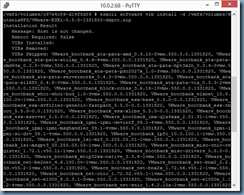
If there is any issue with upgrading a specific blade in the cluster via the command ran in the CVM or if you would like to upgrade one blade to test, it is possible to simply SSH directly to the ESXi host and use the regular esxcli command to upgrade the host as such:
esxcli software vib install -d /vmfs/volumes/NutanixNFS/VMware-ESXi-5.5.0-1331820-depot.zip


Step #5 – Apply Update Packages
With the hosts upgraded to the latest version, you can proceed with repeating the same process as Step #3 or #4 to apply Update packages downloaded from the appropriate section of the site:


