Pages

Showing posts with label XenApp. Show all posts

Monday, November 2, 2020

Successfully logging onto Citrix StoreFront displays the message: "There are no apps or desktops available to you at this time."

Problem

Users have complained that they no longer see published apps and desktops after successfully logging onto Citrix as they only see the message:

There are no apps or desktops available to you at this time.

image

Reviewing the Citrix Delivery Services event logs on the Citrix StoreFront server displays the following errors:

None of the Citrix XML Services configured for farm Controller are in the list of active services, so none were contacted.

Log Name: Citrix Delivery Services
Source: Citrix Store Service
Event ID: 4012
Level: Error

image

Failed to launch the resource 'Controller.GP' as it was not found.

Log Name: Citrix Delivery Services
Source: Citrix Store Service
Event ID: 28
Level: Warning

image

None of the Citrix XML Services configured for farm Controller are in the list of active services, so none were contacted.

Log Name: Citrix Delivery Services
Source: Citrix Store Service
Event ID: 4012
Level: Error

image

Solution

The most important entry in the event logs written for this issue could easily be missed because the entry that provides the cause of the issue is actually labeled as Information. Continuing to move to earlier logs will reveal the following entry indicating that the SSL certificate on the Delivery Controller has expired:

The Citrix XML Service at address svr-ctxdc-02.ccs.int:443 has failed the background health check and has been temporarily removed from the list of active services. Failure details: An SSL connection could not be established: The server sent an expired security certificate. The certificate *.ccs.int, *.ccs.int is valid from 10/29/2018 9:37:20 AM until 10/28/2020 9:37:20 AM.. This message was reported from the Citrix XML Service at address https://svr-ctxdc-02.ccs.int/scripts/wpnbr.dll[UnknownRequest].

image

You would not be able to see this entry if you are reviewing the logs in the Administrative Events, which does not display Information entries.

image

To correct the issue, simply issue a new SSL certificate to replace the expired certificate on the Delivery Controller (or controllers if there are more than one), then update the bindings in IIS Manager:

imageimage

Successfully updating the SSL certificate will re-establish communication between the StoreFront server and the Delivery Controller(s).

Saturday, October 3, 2020

Successfully authenticating with Citrix ADC / Netscaler Gateway displays the error: "Http/1.1 Internal Server Error 43531"

I recently ran into an issue with a Citrix ADC / NetScaler NS13.0 36.27.nc after a reboot where the following error is displayed upon successfully authenticating:

Http/1.1 Internal Server Error 43531

The URL displayed ends with /cgi/dlge:

https://workspace.contoso.com/cgi/dlge

image

No configuration changes have been made for months. I combed through the configuration but could not determine why this error was being thrown so a ticket was opened with Citrix. The engineer went through the configuration and decided to change the Web Interface Address FQDN in the Citrix Gateway Session Profile to use the IP address instead of the DNS of the StoreFront server as shown in the screenshot below, which immediately corrected the issue:

image

We originally thought that there was something wrong with DNS but a DIG for the storefront.contoso.com URL returned the correct IP address for the Load Balancing Virtual Server that load balanced the two StoreFront servers:

root@CTXNETSCALER# dig storefront.contoso.com

; <<>> DiG 9.10.6 <<>> storefront.contoso.com

;; global options: +cmd

;; Got answer:

;; ->>HEADER<<- opcode: QUERY, status: NOERROR, id: 31561

;; flags: qr aa rd ad; QUERY: 1, ANSWER: 1, AUTHORITY: 0, ADDITIONAL: 1

;; WARNING: recursion requested but not available

;; OPT PSEUDOSECTION:

; EDNS: version: 0, flags:; udp: 1280

;; QUESTION SECTION:

;storefront. contoso.com. IN A

;; ANSWER SECTION:

storefront. contoso.com. 3600 IN A 10.0.1.17

;; Query time: 0 msec

;; SERVER: 127.0.0.2#53(127.0.0.2)

;; WHEN: Tue Sep 29 19:25:36 UTC 2020

;; MSG SIZE rcvd: 69

root@CTXNETSCALER#

I haven’t gotten to the root cause of this issue but noticed that there were no recent posts for this error and thought I’d write a post in case someone else encounters this issue. We were told that an upgrade from the current version 13 Build 36.28 to version 13 Build 64.35 would resolve the issue so I will update this post when I determine whether it resolves the issue.

Thursday, May 21, 2020

Upgrading Citrix Licensing from 11.14.0.1 build 23101 to 11.16.3.0 build 30000 fails with: "Upgrade failed. The server.xml and other configuration files were not found. Contact Citrix."

Problem

You attempt to upgrade Citrix Licensing from 11.14.0.1 build 23101 to 11.16.3.0 build 30000 but the process fails with:

Failed to configure Citrix Licensing.

Upgrade failed. The server.xml and other configuration files were not found. Contact Citrix.

image

image

Fiddling around with the executable and MSI to ensure that it is not blocked does not correct the issue:

imageimage

Solution

I’m not sure about what causes this issue but it has happened to me several times during my upgrades of the Licensing server role. To complete the upgrade, simply uninstall the Citrix Licensing application in Programs and Features:

image

Then install the licensing server role again:

image

image

The license files aren’t removed during an uninstall but ensure that you have access to the Citrix portal to redownload the license if it is not present.

Friday, April 10, 2020

Enabling and configuring Windows 10 and Server 2019 Storage Sense with registry keys applied via Group Policy

I’ve found that maintaining storage usage on a Remote Desktop Session Host (RDSH) has always been a challenge as there can be so many ways a user would inadvertently fill up the storage if items such as profile management and folder redirection is not configured to safely manage disk space usage. One of the clients I’ve been working with saw an increase in storage consumption on their Citrix shared desktop servers after moving the entire organization to work from home. This did not come to a surprise but the original design was not meant to accommodate the change so we began reviewing the additional policies we could apply to these Windows Server 2019 shared desktops published through Citrix.

One of the components we noticed that had increased growth was the recycling bin. Many of the users did not have the habit of purging the items so we had to determine a way of cleaning out the items. The immediate ideas were:

  1. Disable the recycle bin as the previous Citrix XenDesktop and VMware Horizon View optimization scripts did
  2. Configure a logoff script that emptied the recycle bin upon logging off for the user
  3. Educate the users to manually purge them

None of the above ideas were ones we wanted to adopt so we looked into whether there was a way to delete the files in the recycle bin after a specified amount of time. What we found to be available is a feature in Windows 10 named Storage Sense as shown in the following screenshots:

imageimageimageimage

Reviewing the shared desktop servers with the Windows Server 2019 operating system showed that this feature was also available without the need to install any additional features. However, the native group policy templates on the domain controllers did not provide the settings found on the Windows 10 operating system:

Computer Configuration > Administrative Templates > System > Storage Sense:

imageimage

We had restrictions on installing additional policy templates for the Active Directory domain controllers so I decided to use Process Monitor to determine where the configuration registry keys reside and use them to configure the servers. The following is where these registry keys reside:

HKEY_CURRENT_USER\Software\Microsoft\Windows\CurrentVersion\StorageSense\Parameters\StoragePolicy

image

The following is a table for the configuration mappings:

Setting

Name

Type

Data

Enabling Storage Sense

01

REG_DWORD

1 – Enable

0 – Disable

Delete temporary files that my apps aren’t using

04

REG_DWORD

1 – Enable

0 – Disable

Delete files in my recycle bin if they have been there for over

08

REG_DWORD

0 – Never

1 – 1 day

Run Storage Sense

2048

REG_DWORD

1 – Every day

7 – Every week

30 – Every month

0 – During low free disk space

Delete files in my recycle bin if they have been there for over

256

REG_DWORD

14 – 14 days

30 – 30 days

60 – 60 days

Delete files in my Downloads folder if they have been there for over

32

REG_DWORD

0 – Never

1 – 1 day

Delete files in my Downloads folder if they have been there for over

512

REG_DWORD

14 – 14 days

30 – 30 days

60 – 60 days

The settings we decided on are as follows:

Storage Sense: Enabled

Run Storage Sense: Every month

Delete temporary files that my apps aren’t using: Enabled

Delete files in my recycle bin if they have been there for over: 60 days

Delete files in my Downloads folder if they have not be used for: Never

image

Setting

Name

Type

Data

Enabling Storage Sense

01

REG_DWORD

1

Delete temporary files that my apps aren’t using

04

REG_DWORD

1

Delete files in my recycle bin if they have been there for over

08

REG_DWORD

1

Run Storage Sense

2048

REG_DWORD

30

Delete files in my recycle bin if they have been there for over

256

REG_DWORD

60

Delete files in my Downloads folder if they have been there for over

32

REG_DWORD

0

Delete files in my Downloads folder if they have been there for over

512

REG_DWORD

0

To apply these registry settings via group policy on the servers, the following GPO with User Configuration were configured:

image

Here is an example of one of the registry changes:

Key Path: Software\Microsoft\Windows\CurrentVersion\StorageSense\Parameters\StoragePolicy

Value name: 01

Value type: REG_DWORD

Value data: 1

image

Note that as this GPO will be applied to computer objects, namely the Citrix shared desktops, we will need to enable loopback settings as such:

Computer Configuration > Administrative Templates > System > Group Policy > Configure user Group Policy loopback processing mode

Enabled / Merge

image

Link the GPO to the OU that contains the shared desktop computer object, run gpupdate /force and you verify that the settings are applied.

Monday, April 15, 2019

Remotely terminating a remote session on a Citrix XenApp or RDS server

I’ve been asked several times in the past about the following error that is presented if a user attempts to RDP (remote desktop) to a Citrix XenApp application server:

The target session is incompatible with the current session.

The reason why this message would be presented is because account used for the RDP connection already has an previous ICA session in a disconnected state.  You can verify this by using the net use command to connect to the server, then the query session command to list the sessions on the server:

Step #1 – Connect to the remote server

Launch the command prompt and execute the following:

net use \\<serverName> /user:<adminUserName> <Password>

The command should display the following message if the connection is successful:

The command completed successfully.

Step #2 – Query session on the remote server

Execute the following command to list the sessions on the remote server:

query session /server:<serverName>

The command should display sessions along with the following headings:

  • SESSIONNAME
  • USERNAME
  • ID
  • STATE
  • TYPE
  • DEVICE

Locate the username you are looking as well as the ID number.

Step #3 – Terminate session on the remote server

With the ID of the username you want terminate located, execute the following command to terminate it:

reset session <ID> /server:<serverName>

Step #4 – Confirm that the session on the remote server has been terminated

The command will not provide any output after completion so execute the query session command to confirm that the session has been terminated:

query session /server:<serverName>

Below is an example of the output from the commands executed above:

You should be able to RDP to the server now that the session is no longer present for the account connecting.

Thursday, April 11, 2019

Attempting to launch a NetScaler published Citrix XenDesktop / XenDesktop application or desktop fails with: “(Unknown client error 0).”

Problem

You attempt to launch a NetScaler published Citrix XenDesktop / XenDesktop application or desktop but immediately receive the following error for the desktop:

The connection to “XenApp Desktop” failed with status (Unknown client error 0).

Launching an application fails with the following message:

Unable to launch your application. Contact your help desk with the following information:

Cannot connect to the Citrix XenApp server.Protocol Driver error

Solution

In the case of this environment, there were 2 issues.

#1 – Certificate on Delivery Controller expired

Reviewing the event logs on the Delivery Controller indicated that the certificate bounded to IIS has expired:

An SSL connection could not be established: The server sent an expired security certificate. The certificate *.domain.int is valid from 10/27/2016 1:45:38 PM until 10/27/2018 1:45:38 PM.. This message was reported from the Citrix XML Service at address https://svr-ctxdc-02.domain.int/scripts/ctxsta.dll[UnknownRequest]. The specified Secure Ticket Authority could not be contacted and has been temporarily removed from the list of active services.

Log Name: Citrix Delivery Services

Source: Citrix Store Service

Event ID: 0

Level: Error

#2 – There were no STAs defined for the NetScaler Virtual Server

Reviewing the settings on the NetScaler virtual server also showed that there were no STAs defined:

Notice how Published Applications was an option on the right side of the Advanced Settings options.

Configuring the appropriate STAs (the Delivery Controllers) should correct the issue:

Monday, February 18, 2019

Mapping drives and printers for Citrix XenApp / XenDesktop published applications with batch and VBS scripts based on AD group membership

One of the more frequent questions I’ve been asked for Citrix XenApp / XenDesktop published applications is whether there is a way to map network drives and printers based on AD group membership for applications that are published via a batch file. There are several ways to do this but if you want to specifically control the mappings from within a VBS script then below is an example of how to do this.

The first step in the process is to create two files:

  1. A batch file that the published application within Citrix XenApp / XenDesktop will execute to launch the application
  2. A VBS script that will map the respective network drives and printers based on group membership

For this example, the batch file will be named MapLaunch.bat and the vbs script that will control the network drives and printers mapping will be MapDrivesPrinters.vbs as shown below:

The contents of the batch file MapLaunch.bat will be simple as it simply calls the VBS script to map the network drives and printers, followed by starting the Citrix application defined in the Command line argument (option): field in the Application Settings:

cscript C:\Scripts\MapDrivesPrinters.vbs

start "Citrix" %*

timeout /T 1 /nobreak

The next step is to create a vbs script that would map the network drives and printers based on AD membership. There are plenty of scripts available and one of the scripts I’ve used in the past is by Richard L. Mueller and can be found here: https://www.rlmueller.net/Logon6.htm

The script is fairly straight forward to use but I’ll paste a sample one below with the customizations highlighted in red.

' Logon6.vbs
' VBScript logon script program.
'
' ----------------------------------------------------------------------
' Copyright (c) 2004-2010 Richard L. Mueller
' Hilltop Lab web site - http://www.rlmueller.net
' Version 1.0 - March 28, 2004
' Version 1.1 - July 30, 2007 - Escape any "/" characters in DN's.
' Version 1.2 - November 6, 2010 - No need to set objects to Nothing.
'
' You have a royalty-free right to use, modify, reproduce, and
' distribute this script file in any way you find useful, provided that
' you agree that the copyright owner above has no warranty, obligations,
' or liability for such use.

Option Explicit

Dim objRootDSE, objTrans, strNetBIOSDomain, objNetwork, strNTName
Dim strUserDN, strComputerDN, objGroupList, objUser, strDNSDomain
Dim strComputer, objComputer
Dim strHomeDrive, strHomeShare
Dim adoCommand, adoConnection, strBase, strAttributes

' Constants for the NameTranslate object.
Const ADS_NAME_INITTYPE_GC = 3
Const ADS_NAME_TYPE_NT4 = 3
Const ADS_NAME_TYPE_1779 = 1

Set objNetwork = CreateObject("Wscript.Network")

' Loop required for Win9x clients during logon.
strNTName = ""
On Error Resume Next
Do While strNTName = ""
     strNTName = objNetwork.UserName
     Err.Clear
     If (Wscript.Version > 5) Then
         Wscript.Sleep 100
     End If
Loop
On Error GoTo 0

' Determine DNS domain name from RootDSE object.
Set objRootDSE = GetObject("LDAP://RootDSE")
strDNSDomain = objRootDSE.Get("defaultNamingContext")

' Use the NameTranslate object to find the NetBIOS domain name from the
' DNS domain name.
Set objTrans = CreateObject("NameTranslate")
objTrans.Init ADS_NAME_INITTYPE_GC, ""
objTrans.Set ADS_NAME_TYPE_1779, strDNSDomain
strNetBIOSDomain = objTrans.Get(ADS_NAME_TYPE_NT4)
' Remove trailing backslash.
strNetBIOSDomain = Left(strNetBIOSDomain, Len(strNetBIOSDomain) - 1)

' Use the NameTranslate object to convert the NT user name to the
' Distinguished Name required for the LDAP provider.
objTrans.Set ADS_NAME_TYPE_NT4, strNetBIOSDomain & "\" & strNTName
strUserDN = objTrans.Get(ADS_NAME_TYPE_1779)
' Escape any forward slash characters, "/", with the backslash
' escape character. All other characters that should be escaped are.
strUserDN = Replace(strUserDN, "/", "\/")

' Bind to the user object in Active Directory with the LDAP provider.
Set objUser = GetObject("LDAP://" & strUserDN)

' Map a network drive if the user is a member of the group.
If (IsMember(objUser, "Contoso_Services") = True) Then
     On Error Resume Next
     objNetwork.MapNetworkDrive "G:", "\\fileserver\conto"
     If (Err.Number <> 0) Then
         On Error GoTo 0
         objNetwork.RemoveNetworkDrive "G:", True, True
         objNetwork.MapNetworkDrive "G:", "\\fileserver\conto"
     End If
     On Error GoTo 0
End If

' Map a network drive if the user is a member of the group.
If (IsMember(objUser, "HPC_Users") = True) Then
     On Error Resume Next
     objNetwork.MapNetworkDrive "R:", "\\HPCServer\HPC_WorkArea$"
     If (Err.Number <> 0) Then
         On Error GoTo 0
         objNetwork.RemoveNetworkDrive "R:", True, True
         objNetwork.MapNetworkDrive "R:", "\\HPCServer\HPC_WorkArea$"
     End If
     On Error GoTo 0
End If

' Map a network drive if the user is a member of the group.
If (IsMember(objUser, "Domain Users") = True) Then
     On Error Resume Next
     objNetwork.MapNetworkDrive "S:", "\\fileserver\s_root$"
     If (Err.Number <> 0) Then
         On Error GoTo 0
         objNetwork.RemoveNetworkDrive "S:", True, True
         objNetwork.MapNetworkDrive "S:", "\\fileserver\s_root$"
     End If
     On Error GoTo 0
End If

' Map a network drive if the user is a member of the group.
If (IsMember(objUser, "SecureClaims") = True) Then
     On Error Resume Next
     objNetwork.MapNetworkDrive "T:", "\\fileserver\SecureClaimsArea$"
     If (Err.Number <> 0) Then
         On Error GoTo 0
         objNetwork.RemoveNetworkDrive "T:", True, True
         objNetwork.MapNetworkDrive "T:", "\\fileserver\SecureClaimsArea$"
     End If
     On Error GoTo 0
End If

' Map a network drive if the user is a member of the group.
If (IsMember(objUser, "ReInsur_Services") = True) Then
     On Error Resume Next
     objNetwork.MapNetworkDrive "X:", "\\fileserver\ReLife"
     If (Err.Number <> 0) Then
         On Error GoTo 0
         objNetwork.RemoveNetworkDrive "X:", True, True
         objNetwork.MapNetworkDrive "X:", "\\fileserver\ReLife"
     End If

     On Error GoTo 0
End If

' Use the NameTranslate object to convert the NT name of the computer to
' the Distinguished name required for the LDAP provider. Computer names
' must end with "$".
strComputer = objNetwork.computerName
objTrans.Set ADS_NAME_TYPE_NT4, strNetBIOSDomain _
     & "\" & strComputer & "$"
strComputerDN = objTrans.Get(ADS_NAME_TYPE_1779)
' Escape any forward slash characters, "/", with the backslash
' escape character. All other characters that should be escaped are.
strComputerDN = Replace(strComputerDN, "/", "\/")

' Add a printer connection if the user is a member of the group.
If (IsMember(objUser, "Domain Users") = True) Then
     Set objNetwork = CreateObject("WScript.Network")
     objNetwork.AddWindowsPrinterConnection "\\PrintServer\Xerox7855B PCL6"
     objNetwork.AddWindowsPrinterConnection "\\PrintServer\Xerox7855A PCL6"
     objNetwork.AddWindowsPrinterConnection "\\PrintServer\Lexmark Universal v2 PS3"
     objNetwork.SetDefaultPrinter "\\PrintServer\Xerox7855A PCL6"
End If

' Clean up.
If (IsObject(adoConnection) = True) Then
     adoConnection.Close
End If

Function IsMember(ByVal objADObject, ByVal strGroupNTName)
     ' Function to test for group membership.
     ' objADObject is a user or computer object.
     ' strGroupNTName is the NT name (sAMAccountName) of the group to test.
     ' objGroupList is a dictionary object, with global scope.
     ' Returns True if the user or computer is a member of the group.
     ' Subroutine LoadGroups is called once for each different objADObject.

    ' The first time IsMember is called, setup the dictionary object
     ' and objects required for ADO.
     If (IsEmpty(objGroupList) = True) Then
         Set objGroupList = CreateObject("Scripting.Dictionary")
         objGroupList.CompareMode = vbTextCompare

        Set adoCommand = CreateObject("ADODB.Command")
         Set adoConnection = CreateObject("ADODB.Connection")
         adoConnection.Provider = "ADsDSOObject"
         adoConnection.Open "Active Directory Provider"
         adoCommand.ActiveConnection = adoConnection

        Set objRootDSE = GetObject("LDAP://RootDSE")
         strDNSDomain = objRootDSE.Get("defaultNamingContext")

        adoCommand.Properties("Page Size") = 100
         adoCommand.Properties("Timeout") = 30
         adoCommand.Properties("Cache Results") = False

        ' Search entire domain.
         strBase = "<LDAP://" & strDNSDomain & ">"
         ' Retrieve NT name of each group.
         strAttributes = "sAMAccountName"

        ' Load group memberships for this user or computer into dictionary
         ' object.
         Call LoadGroups(objADObject)
     End If
     If (objGroupList.Exists(objADObject.sAMAccountName & "\") = False) Then
         ' Dictionary object established, but group memberships for this
         ' user or computer must be added.
         Call LoadGroups(objADObject)
     End If
     ' Return True if this user or computer is a member of the group.
     IsMember = objGroupList.Exists(objADObject.sAMAccountName & "\" _
         & strGroupNTName)
End Function

Sub LoadGroups(ByVal objADObject)
     ' Subroutine to populate dictionary object with group memberships.
     ' objGroupList is a dictionary object, with global scope. It keeps track
     ' of group memberships for each user or computer separately. ADO is used
     ' to retrieve the name of the group corresponding to each objectSid in
     ' the tokenGroup array. Based on an idea by Joe Kaplan.

    Dim arrbytGroups, k, strFilter, adoRecordset, strGroupName, strQuery

    ' Add user name to dictionary object, so LoadGroups need only be
     ' called once for each user or computer.
     objGroupList.Add objADObject.sAMAccountName & "\", True

    ' Retrieve tokenGroups array, a calculated attribute.
     objADObject.GetInfoEx Array("tokenGroups"), 0
     arrbytGroups = objADObject.Get("tokenGroups")

    ' Create a filter to search for groups with objectSid equal to each
     ' value in tokenGroups array.
     strFilter = "(|"
     If (TypeName(arrbytGroups) = "Byte()") Then
         ' tokenGroups has one entry.
         strFilter = strFilter & "(objectSid=" _
             & OctetToHexStr(arrbytGroups) & ")"
     ElseIf (UBound(arrbytGroups) > -1) Then
         ' TokenGroups is an array of two or more objectSid's.
         For k = 0 To UBound(arrbytGroups)
             strFilter = strFilter & "(objectSid=" _
                 & OctetToHexStr(arrbytGroups(k)) & ")"
         Next
     Else
         ' tokenGroups has no objectSid's.
         Exit Sub
     End If
     strFilter = strFilter & ")"

    ' Use ADO to search for groups whose objectSid matches any of the
     ' tokenGroups values for this user or computer.
     strQuery = strBase & ";" & strFilter & ";" _
         & strAttributes & ";subtree"
     adoCommand.CommandText = strQuery
     Set adoRecordset = adoCommand.Execute

    ' Enumerate groups and add NT name to dictionary object.
     Do Until adoRecordset.EOF
         strGroupName = adoRecordset.Fields("sAMAccountName").Value
         objGroupList.Add objADObject.sAMAccountName & "\" _
             & strGroupName, True
         adoRecordset.MoveNext
     Loop
     adoRecordset.Close

End Sub

Function OctetToHexStr(ByVal arrbytOctet)
     ' Function to convert OctetString (byte array) to Hex string,
     ' with bytes delimited by \ for an ADO filter.

    Dim k
     OctetToHexStr = ""
     For k = 1 To Lenb(arrbytOctet)
         OctetToHexStr = OctetToHexStr & "\" _
             & Right("0" & Hex(Ascb(Midb(arrbytOctet, k, 1))), 2)
     Next
End Function

Thursday, May 31, 2018

Monitoring Citrix XenDesktop / XenApp 7.17 Delivery Controller services with PowerShell script and task scheduler

I recently wrote the following blog post:

Monitoring Microsoft Exchange Server 2010, 2013 and 2016 services with PowerShell script and task scheduler
http://terenceluk.blogspot.com/2018/03/monitoring-microsoft-exchange-server.html

… demonstrating how to use a script to check for hung or stopped services for Exchange and to restart and send an email notification as a reaction to these events.  A few people have reached out to me about using this for Citrix XenApp / XenDesktop environments and the short answer to the question is yes, you can indeed use this script because it universally monitors Windows services.

The following is the modified script that includes the Citrix XenDesktop / XenApp 7.17 Delivery Controller services:

#NAME: service_check.ps1 

#AUTHOR: Kevin Olson

#DATE: 4/29/2011

#Machine to be monitored

$Computer = "citrixServer"

#Create an array of all services running

$GetService = get-service -ComputerName $Computer

#Create a subset of the previous array for services you want to monitor

$ServiceArray = "CitrixADIdentityService","CitrixAnalytics","CitrixAppLibrary","CitrixBrokerService","CitrixConfigSyncService","CitrixConfigurationLogging","CitrixConfigurationService","CitrixConnector","CitrixDelegatedAdmin","CitrixEnvTest","CitrixHighAvailabilityService","CitrixHostService","CitrixMachineCreationService","CitrixMonitor","CitrixOrchestration","CitrixPrivilegedService","CitrixStorefront","CitrixTelemetryService","CitrixTrust","XaXdCloudProxy";

#Find any iWFM service that is stopped

foreach ($Service in $GetService)

{

     foreach ($srv in $ServiceArray)

     {

         if ($Service.name -eq $srv)

         {

             #check if a service is hung

             if ($Service.status -eq "StopPending")

             {

             $servicePID = (gwmi win32_Service | where { $_.Name -eq $srv}).ProcessID

             Stop-Process $ServicePID

             Start-Service -InputObject (get-Service -ComputerName $Computer -Name $srv)

             #email to notify if a service is down

             Send-Mailmessage -to administrator@someDomain.com -Subject "$srv is hung on $Computer" -from exchange@contoso.com -Body "The $srv service was found hung." -SmtpServer localhost

             }

             # check if a service is stopped

             elseif ($Service.status -eq "Stopped")

             {

             #automatically restart the service.

             Start-Service -InputObject (get-Service -ComputerName $Computer -Name $srv)

         #email to notify if a service is down

             Send-Mailmessage -to administrator@someDomain.com -Subject "$srv is stopped on $Computer" -from exchange@contoso.com -Body "The $srv service was found stopped." -SmtpServer localhost

             }

         }

     }

}

As the list of services change through the versions of XenDesktop / XenApp, I am including the following screenshot of the services for version 7.17:

clip_image002

Wednesday, December 13, 2017

Attempting to launch Citrix XenApp / XenDesktop 7.x desktop or application published by NetScaler fails with the error: “The connection to “XenApp Desktop” failed with status (Unknown client error 1110).”

Problem

You attempt to launch a XenApp or XenDesktop published application or desktop published by NetScaler but receive the following error message:

The connection to “XenApp Desktop” failed with status (Unknown client error 1110).

image

Solution

One of the possible causes of this error message is if you have incorrect or have not configured any STA (Secure Ticket Authority) on your NetScalers.  Navigate to NetScaler Gateway > Virtual Servers, open the properties of the virtual server, scroll down to Published Applications and ensure STA Servers are configured:

image

Wednesday, August 16, 2017

Attempting to launch a Citrix XenApp / XenDesktop 7.x application published with a NetScaler VPX fails with: “Unable to launch your application. Contact your help desk with the following information: Cannot connect to the Citrix XenApp server. Network issues are preventing your connection. Please try again. If the problem persists, please call your help desk.”

Problem

You attempt to launch a Citrix XenApp / XenDesktop 7.x application published with a NetScaler VPX:

image

image

The following Citrix Receiver Remote Desktop Connection window is presented and displays the progress bar:

Starting…

More information

image

Clicking on the More information button displays:

Connection in progress…

Less information

image

The progress bar does not proceed any further and the process eventually fails with the message:

Unable to launch your application. Contact your help desk with the following information:

Cannot connect to the Citrix XenApp server. Network issues are preventing your connection. Please try again. If the problem persists, please call your help desk.

image

Attempting to launch the XenApp desktop displays the launch window:

image

… but will fail with:

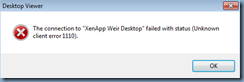
The connection to “XenApp Weir Desktop” failed with status (Unknown client error 1110).

image

Solution

While there could be several reasons why this error would be thrown, one of the possible causes is if the Citrix session reliability port 2598 is blocked from NetScaler to application server.  Ensure that the NetScaler can access the XenApp server via TCP port 2598.