Pages

Showing posts with label Skype for Business Server 2019. Show all posts

Monday, November 2, 2020

PowerShell script for clearing the msRTCSIP-DeploymentLocator attribute when it is populated with "SRV:"

As mentioned in my previous posts:

Enabling user for Teams Enterprise Voice fails with: "Management object not found for identity"
http://terenceluk.blogspot.com/2020/10/enabling-user-for-teams-enterprise.html

… a user who has previously been enabled for an on-premise Skype for Business Server may still have the msRTCSIP-DeploymentLocator attribute populated with the value SRV: even after they have been removed from the on-premise SfB Server.

image

Having this value in their user account would prevent them from being enabled for Enterprise Voice in Microsoft Teams and the quick resolution for this would be to remove the attribute, for and AD Connect sync, then try enabling them again.

imageimageimage

This solution may be viable for a few accounts but not practical when the amount goes up to the 100s or 1000s so I decided to create a few PowerShell cmdlets to automate the process.

Find SfB Enabled with msRTCSIP-DeploymentLocator Configured Accounts

Get-ADuser -Properties msRTCSIP-DeploymentLocator,msRTCSIP-PrimaryHomeServer,msRTCSIP-UserEnabled -Filter {msRTCSIP-DeploymentLocator -like "*" -and msRTCSIP-UserEnabled -eq $true } | Select UserPrincipalName,msRTCSIP-DeploymentLocator,msRTCSIP-PrimaryHomeServer,msRTCSIP-UserEnabled

Find SfB Enabled with msRTCSIP-DeploymentLocator Configured as SRV: Accounts

Get-ADuser -Properties msRTCSIP-DeploymentLocator,msRTCSIP-PrimaryHomeServer,msRTCSIP-UserEnabled -Filter {msRTCSIP-DeploymentLocator -eq "SRV:" -and msRTCSIP-UserEnabled -eq $true } | Select UserPrincipalName,msRTCSIP-DeploymentLocator,msRTCSIP-PrimaryHomeServer,msRTCSIP-UserEnabled

Find SfB Disabled with msRTCSIP-DeploymentLocator Configured as SRV: AND empty msRTCSIP-PrimaryHomeServer Accounts Export as CSV

Get-ADuser -Properties msRTCSIP-DeploymentLocator,msRTCSIP-PrimaryHomeServer,msRTCSIP-UserEnabled -Filter {msRTCSIP-DeploymentLocator -eq "SRV:" -and msRTCSIP-UserEnabled -notlike '*' -and msRTCSIP-PrimaryHomeServer -notlike '*'} | Select UserPrincipalName,msRTCSIP-DeploymentLocator,msRTCSIP-PrimaryHomeServer,msRTCSIP-UserEnabled | Export-CSV C:\temp\SRVaccounts.csv

Find SfB Disabled with msRTCSIP-DeploymentLocator Configured as SRV: AND empty msRTCSIP-PrimaryHomeServer Accounts and Clear value

**The following cmdlet modifies accounts and I would recommend to export them to a list and review prior to making the changes**

Get-ADuser -Properties msRTCSIP-DeploymentLocator,msRTCSIP-PrimaryHomeServer,msRTCSIP-UserEnabled -Filter {msRTCSIP-DeploymentLocator -eq "SRV:" -and msRTCSIP-UserEnabled -notlike '*' -and msRTCSIP-PrimaryHomeServer -notlike '*'} | Set-ADUser -Clear msRTCSIP-DeploymentLocator

The following are the output of some of the cmdlets above.

image

Thursday, April 25, 2019

Deploying Skype for Business Server 2019 Archiving and Monitoring Services

Deploying Skype for Business Server 2019 archiving and monitoring services are fairly much the same as the previous version but I thought it would be a good idea to write this updated post to demonstrate the process.  Before I begin, note that the official planning documentation Monitoring can be found here:

Deploy archiving for Skype for Business Server
https://docs.microsoft.com/en-us/skypeforbusiness/deploy/deploy-archiving/deploy-archiving

Deploy monitoring in Skype for Business Server
https://docs.microsoft.com/en-us/skypeforbusiness/deploy/deploy-monitoring/deploy-monitoring

Step #1 – Define Archiving and Monitoring services on Front End Server / Pool Properties

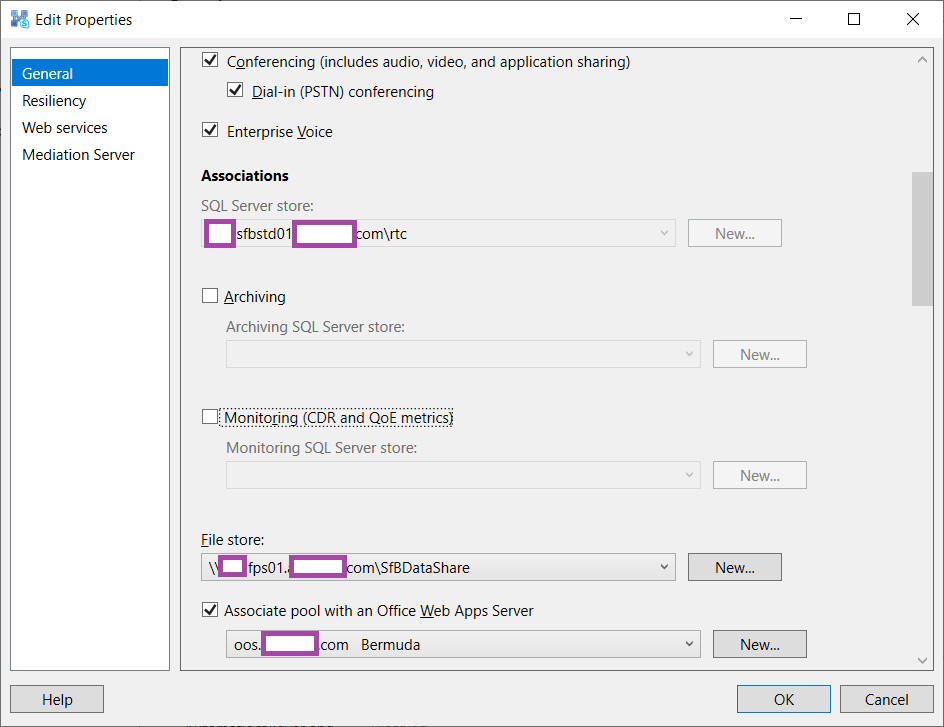
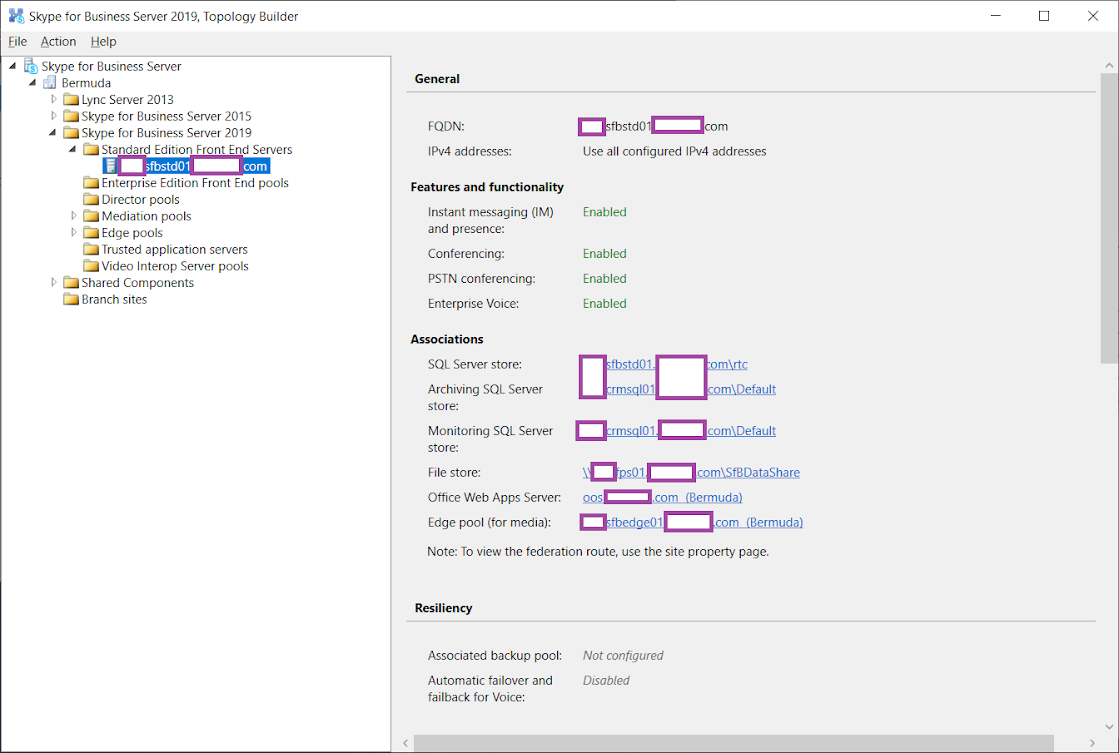
Begin by editing the properties of the front-end pool, navigate to the General properties and scroll down to the Associations section:

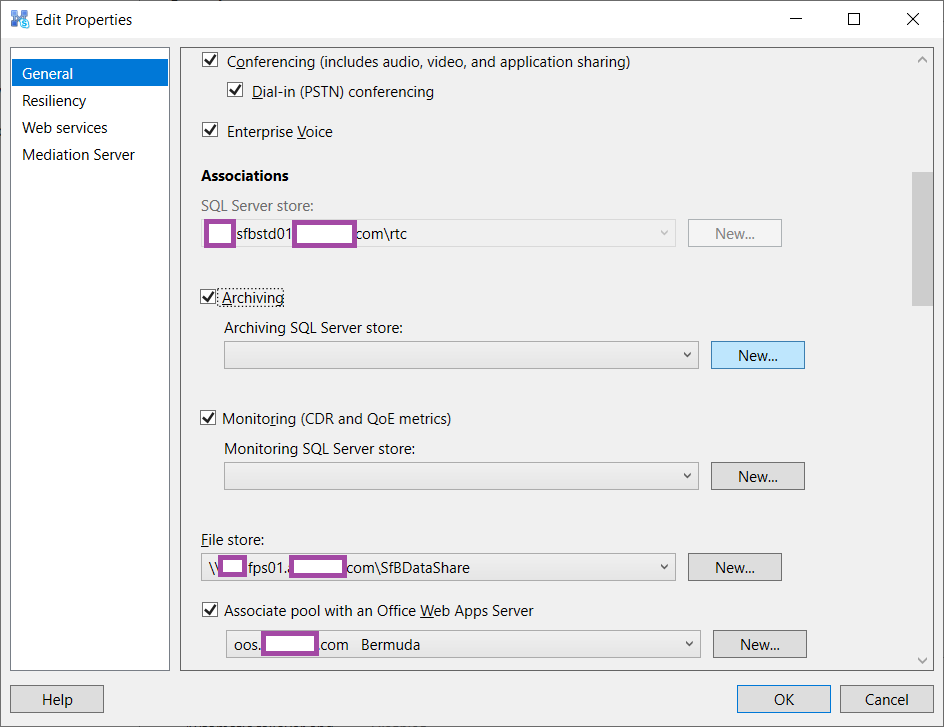
Enable the Archiving and Monitoring (CDR and QoE metrics) options:

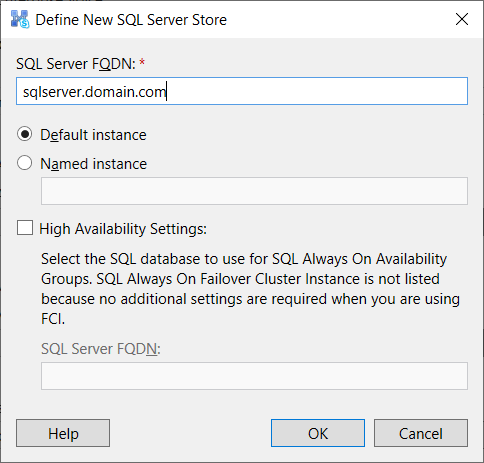
Enter the FQDN of the SQL server that will be hosting the two databases when presented with the Define New SQL Server Store menu:

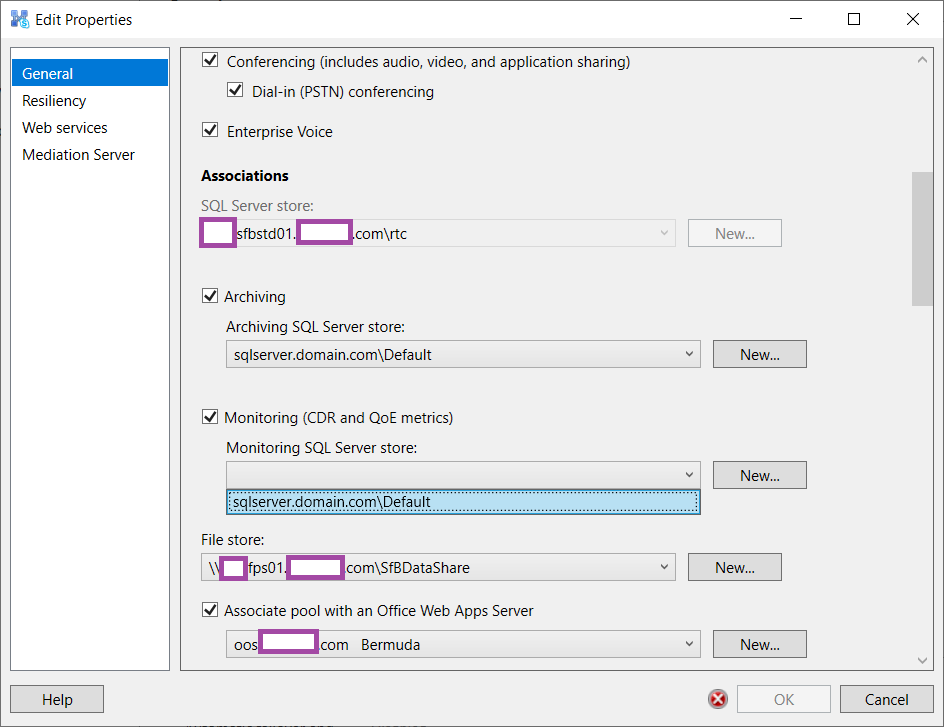
Select the same or create a new SQL instance for the monitoring service then click OK:

The archiving SQL Server store and Monitoring SQL Server store should now have the new SQL server instance defined:

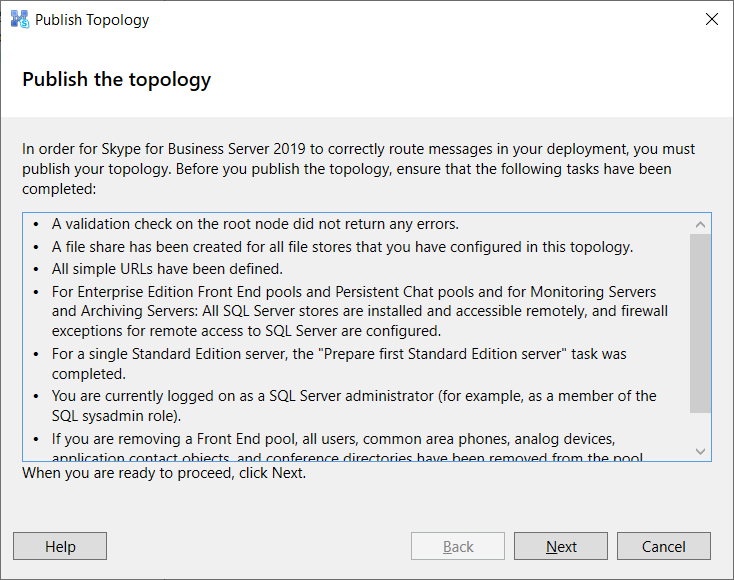
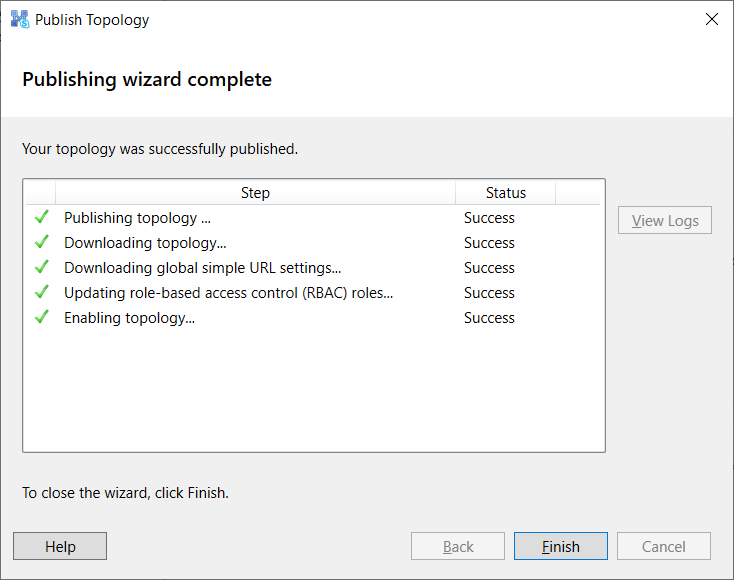
Publish the topology:

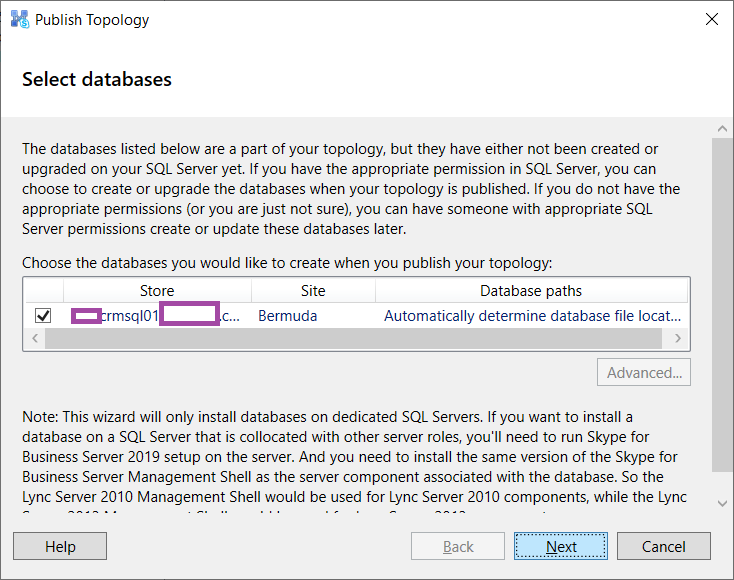
The Publish Topology wizard will present you with the option to either automatically let the wizard determine where to store the database or manually changing the path by going into the advanced options:

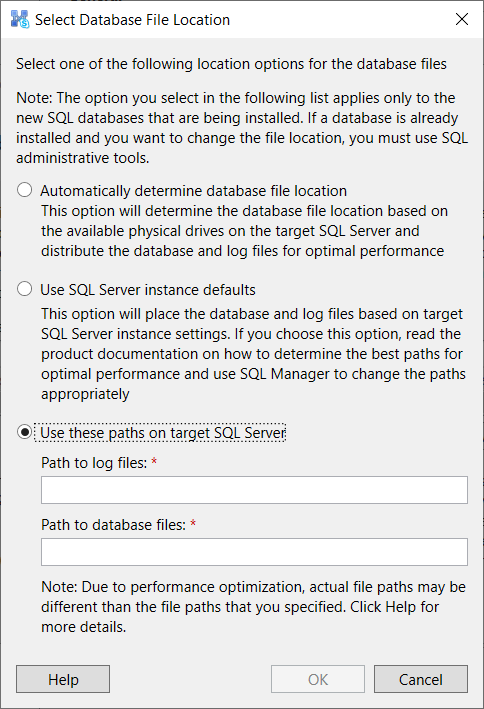
Selecting advanced will present the following menu:

What I don’t like about this is that the database doesn’t get stored in the paths defined but rather in sub folders such as D:\Database\ArchivingStore\(default)\DbPath.  You can, obviously, change this afterwards or at least have them on the correct drives.

Step #2 (Optional) – Move SQL database and log files to appropriate location

If you are not satisfied with the path in which the database and the log files are stored, you can use the following SQL queries to change the path after taking the database offline:

ALTER DATABASE LcsCDR  

    MODIFY FILE ( NAME = LcsCDR_data,  

                  FILENAME = 'D:\Database\LcsCDR.mdf'); 

GO

ALTER DATABASE LcsCDR  

    MODIFY FILE ( NAME = LcsCDR_log,  

                  FILENAME = 'D:\Log\LcsCDR.ldf'); 

GO

ALTER DATABASE LcsLog  

    MODIFY FILE ( NAME = LcsLog_data,  

                  FILENAME = 'D:\Database\LcsLog.mdf'); 

GO

ALTER DATABASE LcsLog 

    MODIFY FILE ( NAME = LcsLog_log,  

                  FILENAME = 'D:\Log\LcsLog.ldf'); 

ALTER DATABASE QoEMetrics  

    MODIFY FILE ( NAME = QoEMetrics_data,  

                  FILENAME = 'D:\Database\QoEMetrics.mdf'); 

GO

ALTER DATABASE QoEMetrics 

    MODIFY FILE ( NAME = QoEMetrics_log,  

                  FILENAME = 'D:\Log\QoEMetrics.ldf'); 

GO

Step #3 – Deploy Monitoring Reports on SSRS

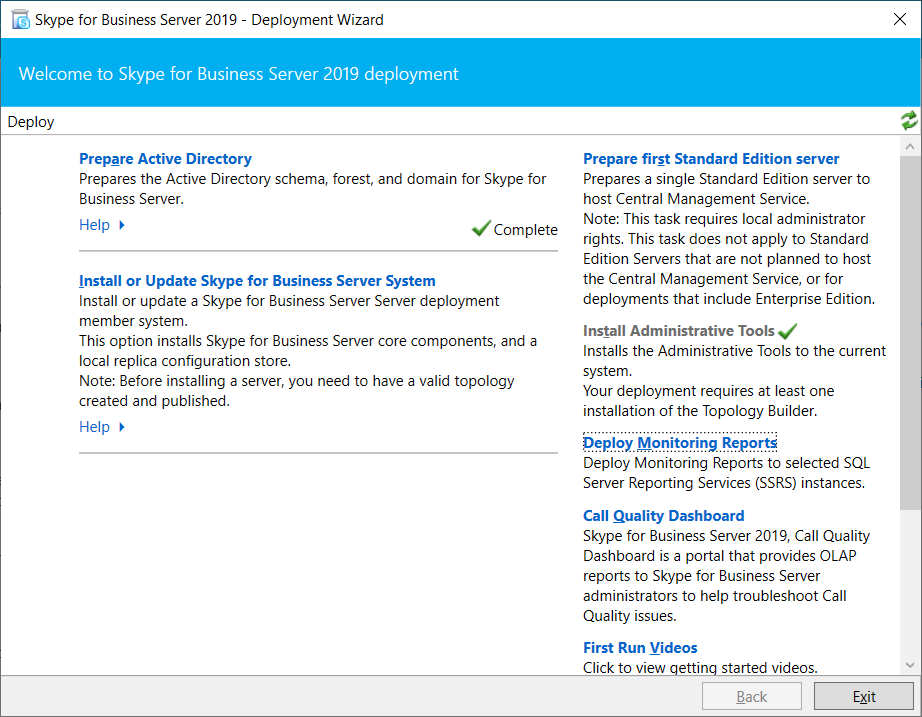
With the databases created, proceed by launching the Deployment Wizard and click on Deploy Monitoring Report:

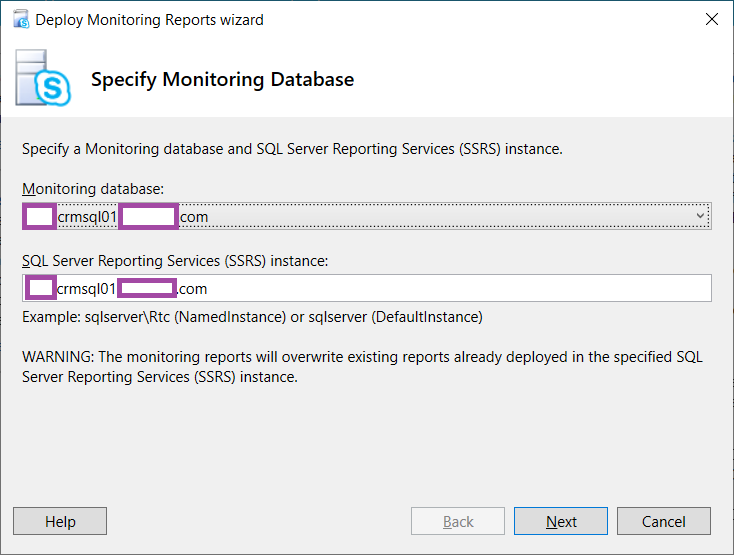
Select the appropriate SQL instance and define the SQL Server Reporting Services (SSRS) instance:

**Note that as the wizard indicates, this will overwrite existing reports so be cautious of any SSRS reports that may already exist on the server.

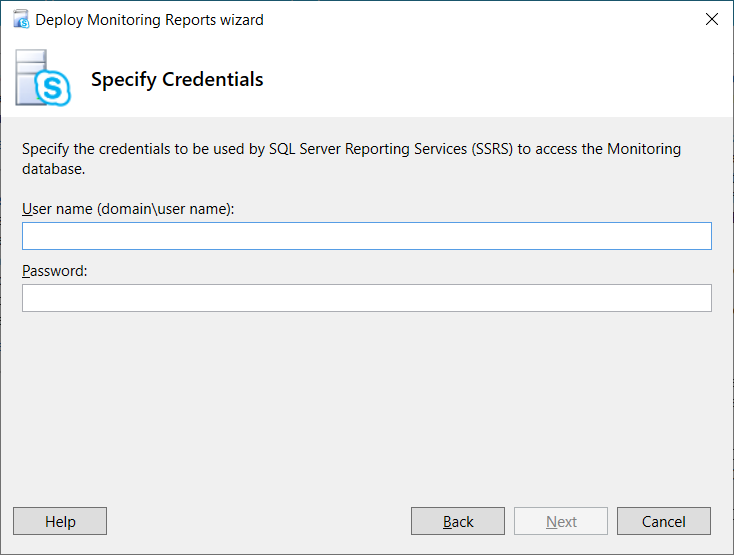
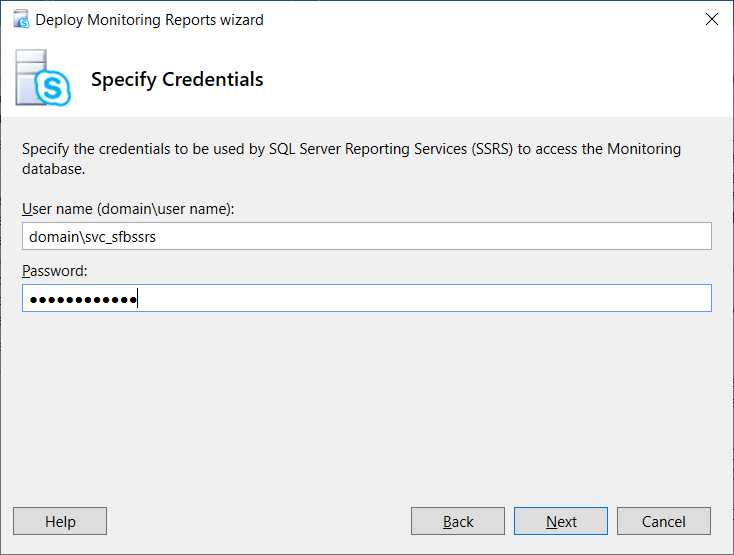
Enter an account that will be used to access the Monitoring database:

I’ve been asked many times in the past about what credentials should be entered and the short answer is to use a service account because this account will be granted required logon and database permissions to the database in order for it to access the database.  The documentation about this can be found here:

Install Monitoring Reports in Skype for Business Server
https://docs.microsoft.com/en-us/skypeforbusiness/deploy/deploy-monitoring/install-monitoring-reports

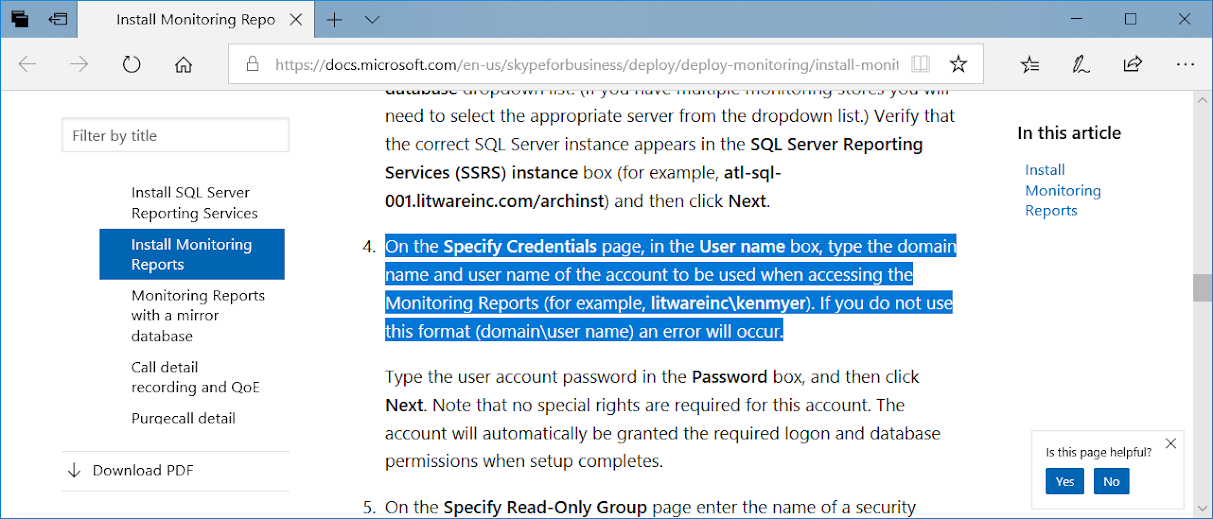
On the Specify Credentials page, in the User name box, type the domain name and user name of the account to be used when accessing the Monitoring Reports (for example, litwareinc\kenmyer). If you do not use this format (domain\user name) an error will occur.

Type the user account password in the Password box, and then click Next. Note that no special rights are required for this account. The account will automatically be granted the required logon and database permissions when setup completes.

I usually prefer to create a service account for this:

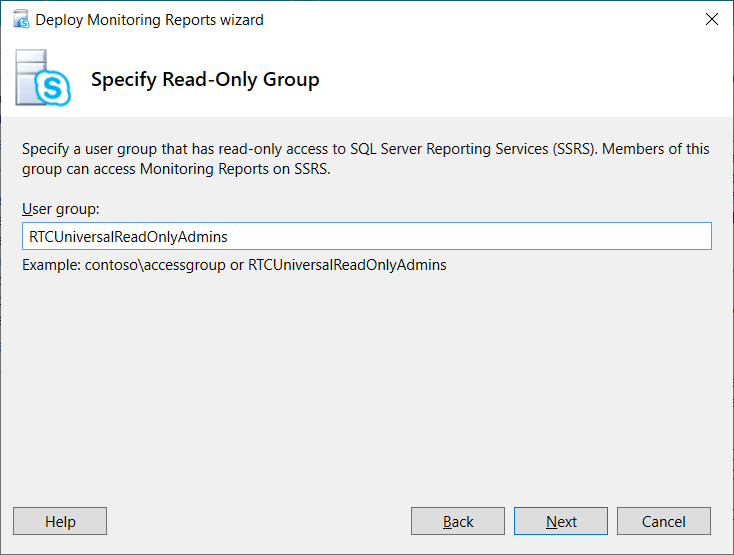
Define a group that will have read-only access to SQL Server Reporting Services (SSRS):

**Note that the default is RTCUniversalReadOnlyAdmins

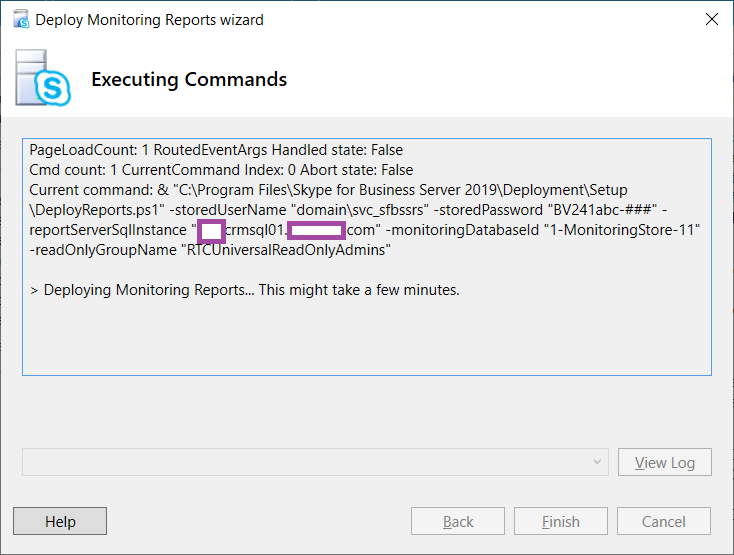
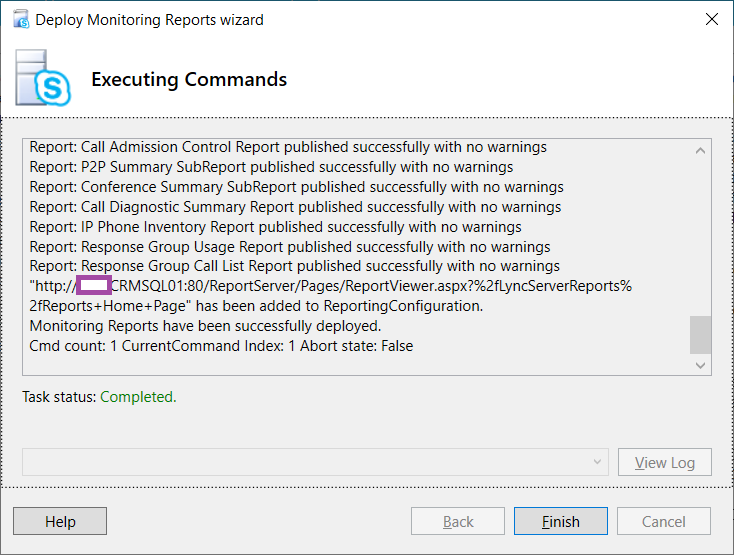
The wizard will complete the deployment with the information provided:

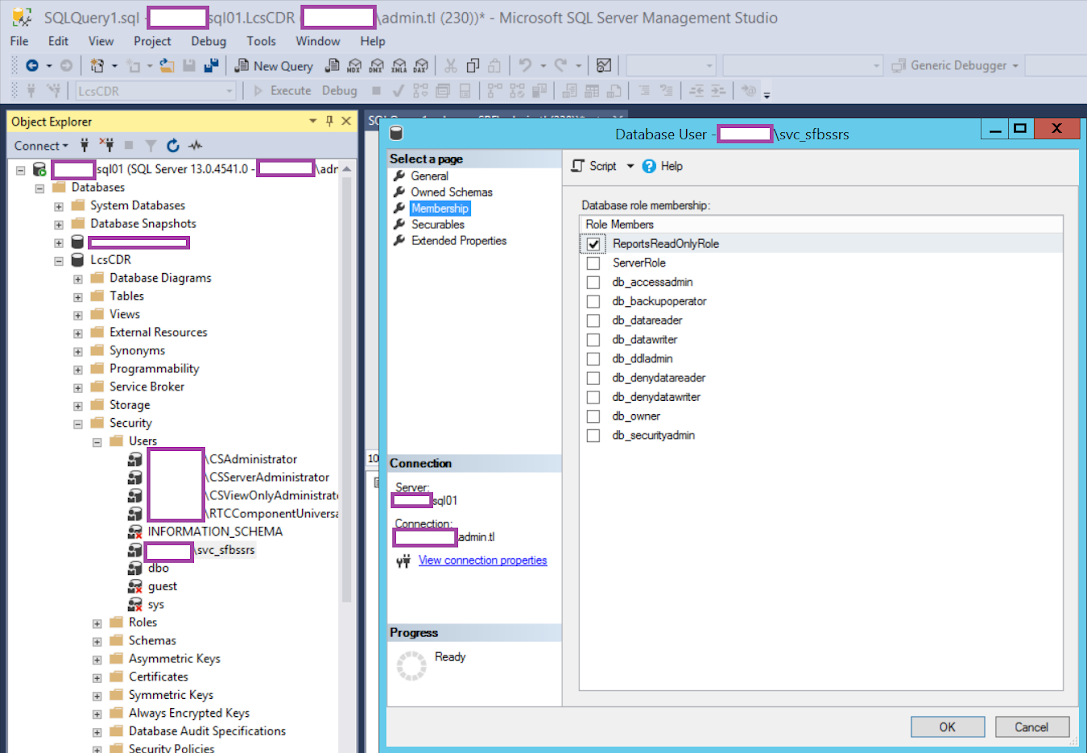
Once completed, you should see the service account granted ReportsReadOnlyRole to the databases:

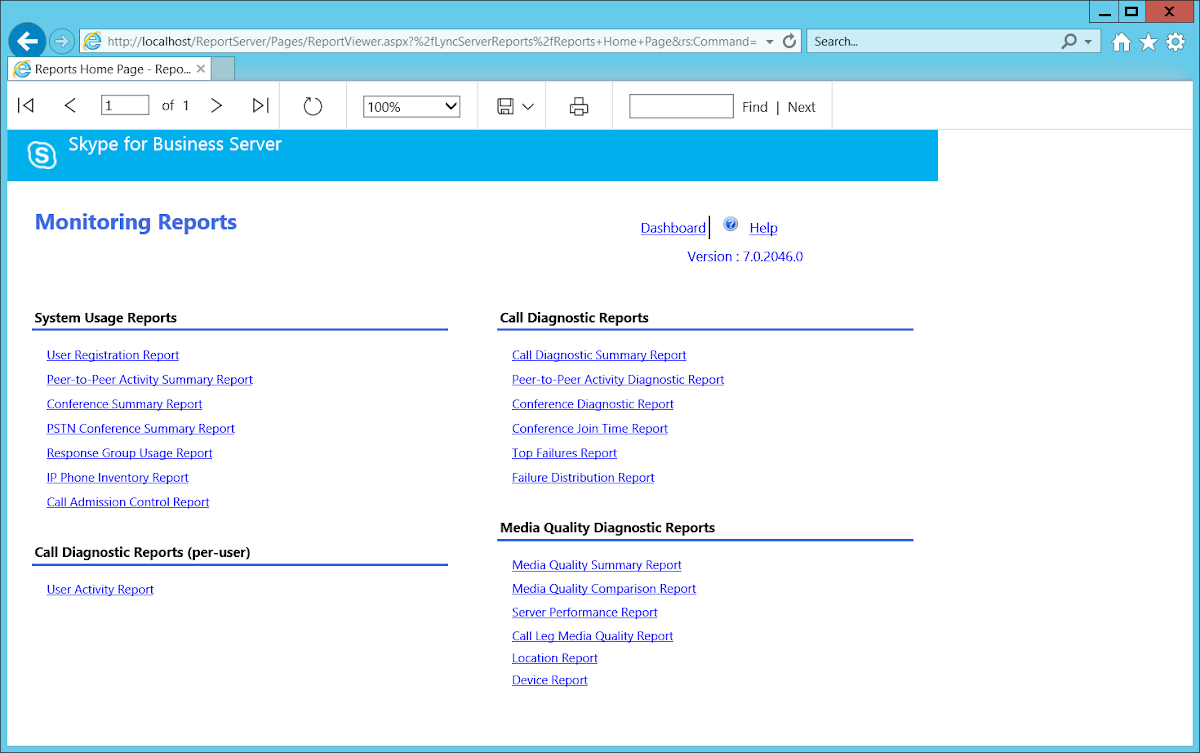
Step #4 – Test Monitoring services reports

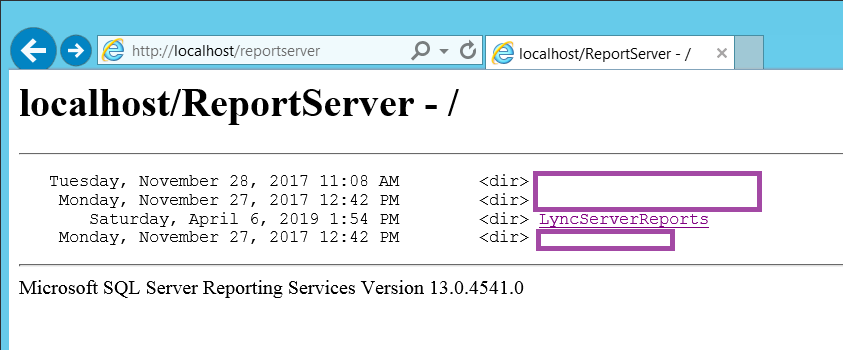
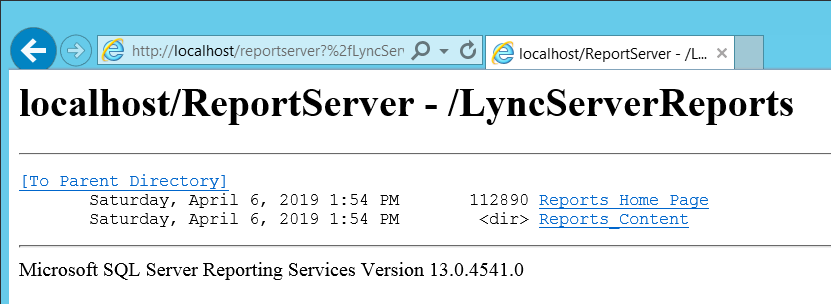
The reports can now be accessed via the following URL:

http://<SSRS_Server>/reportserver

Step #6 – Configure Monitoring and Archiving Reports

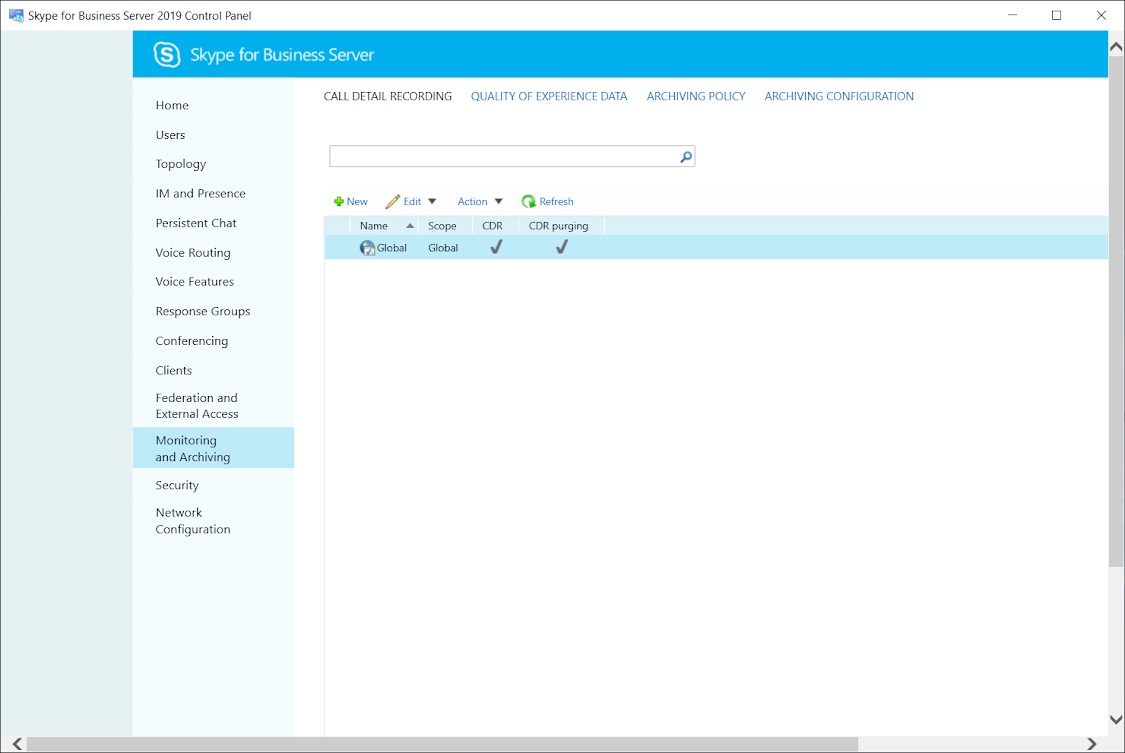
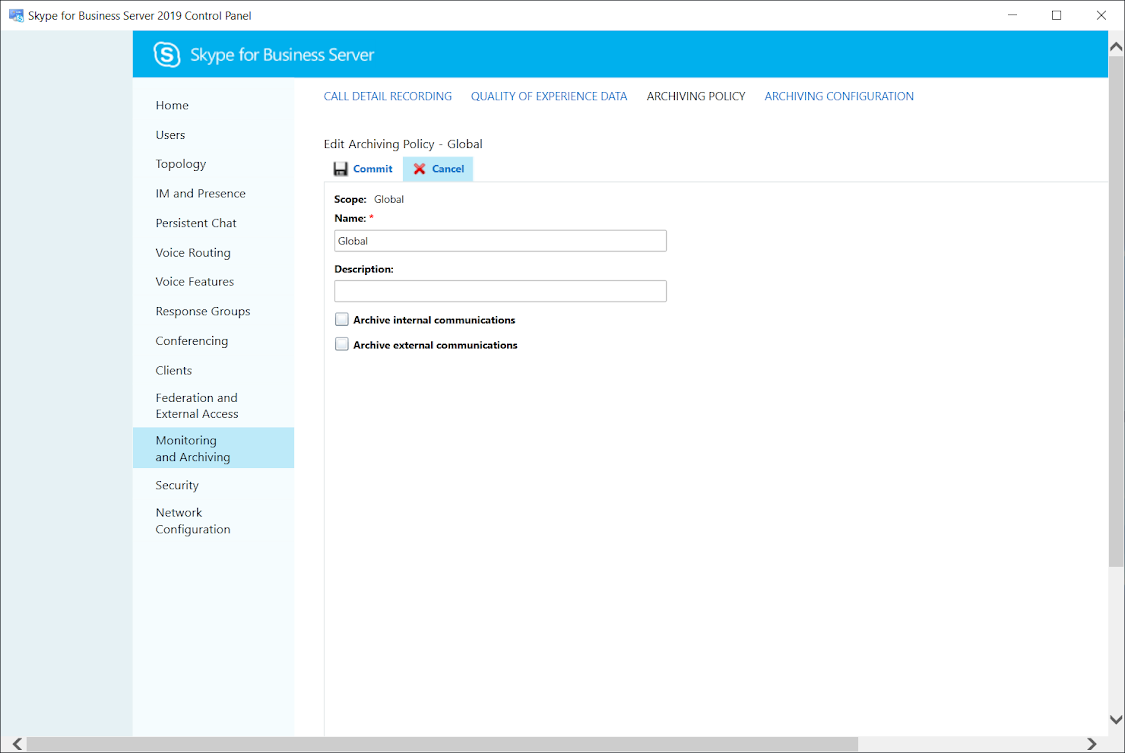
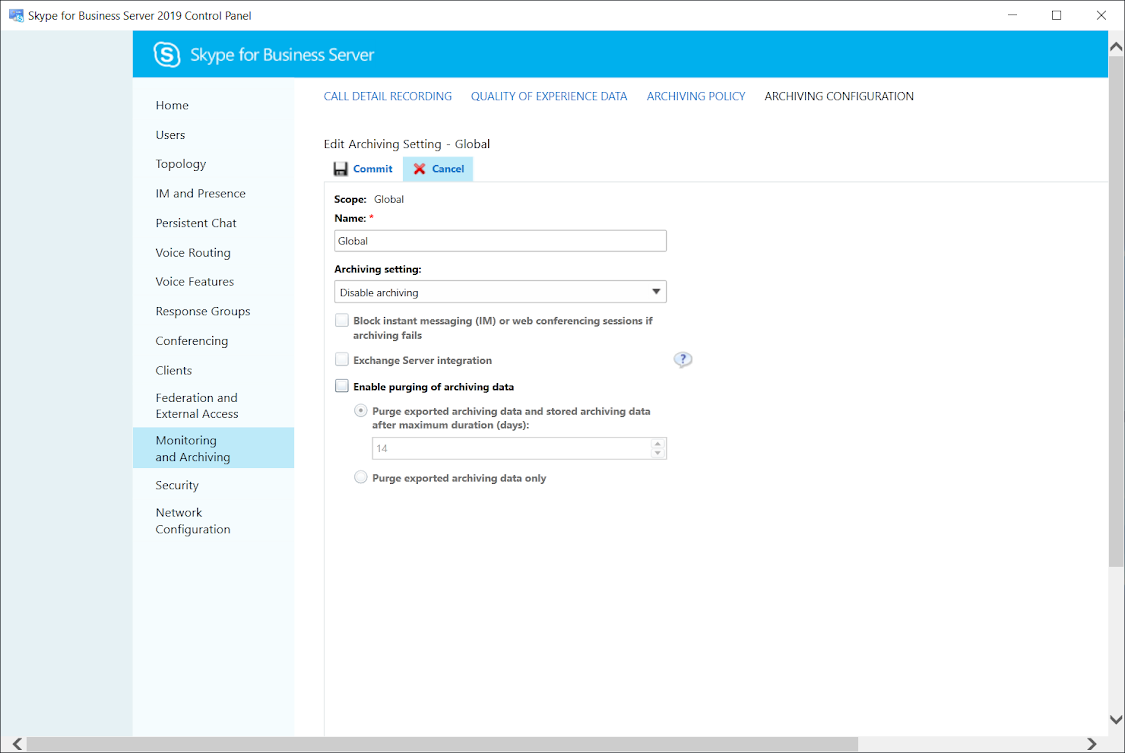
It is generally not advisable to just leave the configuration for the monitoring or archiving reports as the default (you should at least review the default settings to ensure it meets the requirements of the organization) so proceed to launch the Skype for Business Server 2019 Control Panel and navigate to Monitoring and Archiving:

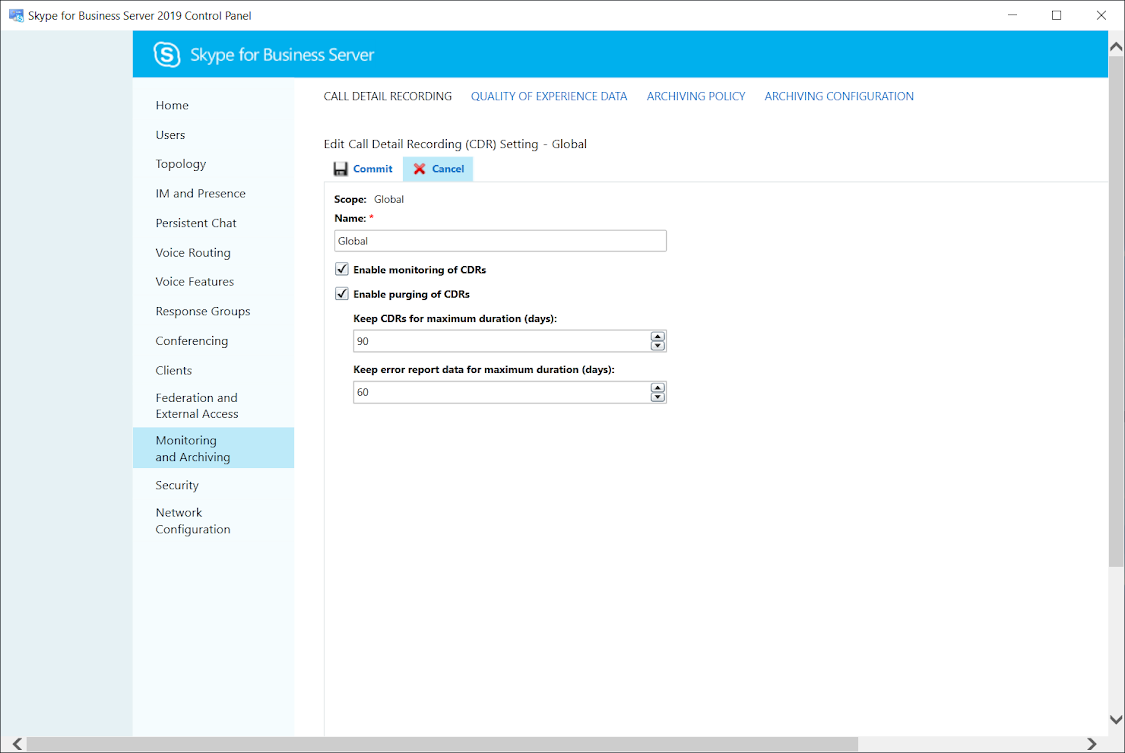
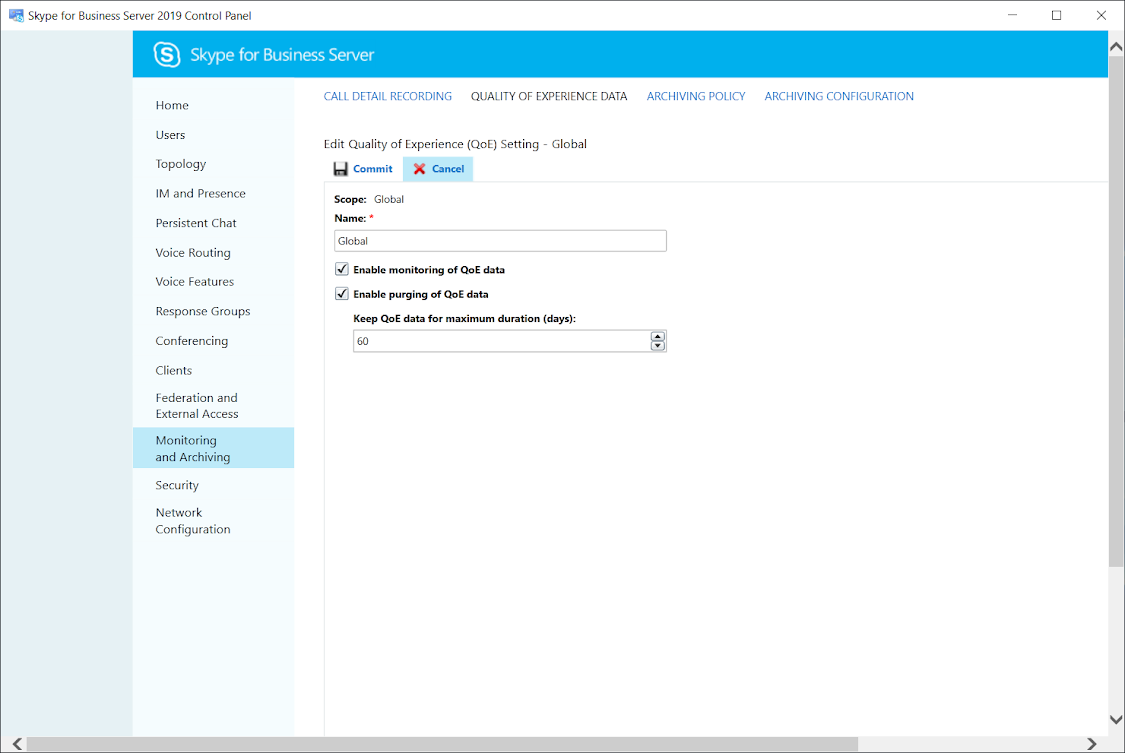
Go through the menus and edit the global properties or create a new one for the organization:

Monday, April 8, 2019

Deploying Office Online Server 2019 on Windows Server 2016 for Skype for Business Server 2019

As some of you may know, the Office Online Server is the updated replacement for Office Web Apps Server to enable PowerPoint presentation sharing and I’ve recently had the opportunity to deploy Skype for Business Server 2019 and thought I’d write a quick post demonstrating the deployment process.

The following is the guide I used for the deployment:

Deploy Office Online Server
https://docs.microsoft.com/en-us/officeonlineserver/deploy-office-online-server

One of the common questions I’ve been asked in the past for the Office Web Apps server was where do you actually download it because it was once publicly available but Microsoft changed that and now requires it to be obtain from portals such as the Microsoft Volume Licensing Service Center under, where most people probably would never look, the Office Professional Plus product.

Prerequisites

With the Office Online Server installation package downloaded, begin with installing the server roles and features with the following PowerShell cmdlet:

Add-WindowsFeature Web-Server,Web-Mgmt-Tools,Web-Mgmt-Console,Web-WebServer,Web-Common-Http,Web-Default-Doc,Web-Static-Content,Web-Performance,Web-Stat-Compression,Web-Dyn-Compression,Web-Security,Web-Filtering,Web-Windows-Auth,Web-App-Dev,Web-Net-Ext45,Web-Asp-Net45,Web-ISAPI-Ext,Web-ISAPI-Filter,Web-Includes,NET-Framework-Features,NET-Framework-45-Features,NET-Framework-Core,NET-Framework-45-Core,NET-HTTP-Activation,NET-Non-HTTP-Activ,NET-WCF-HTTP-Activation45,Windows-Identity-Foundation,Server-Media-Foundation

Download the following packages and install it onto the Windows Server 2016 server:

.NET Framework 4.5.2
https://go.microsoft.com/fwlink/p/?LinkId=510096

Windows Server 2016 already has this package so attempting to install it as the deployment guide suggests will indicate it is already installed.

Visual C++ Redistributable Packages for Visual Studio 2013
https://www.microsoft.com/download/details.aspx?id=40784

Visual C++ Redistributable for Visual Studio 2015
https://go.microsoft.com/fwlink/p/?LinkId=620071

This package also appears to already exist on a Windows Server 2016 server so the installation will fail.

Microsoft.IdentityModel.Extention.dll
https://go.microsoft.com/fwlink/p/?LinkId=620072

Installing Office Online Server

Launch the Office Online Server installation by executing setup.exe:

Install the application:

Import Certificate for Office Online Server

Proceed by importing the certificate that will be used for the Office Online Server and make a note of the friendly name as you will need to reference that later:

Create Office Online Server (Office Web Apps) Farm

The command for creating the Office Online Server farm is the same as the one previously used for Office Web Apps.  Execute the following cmdlet while customizing the appropriate parameters:

New-OfficeWebAppsFarm -InternalUrl "https://oos.domain.com" -ExternalUrl "https://oos.domain.com" -CertificateName "OOS Certificate Friendly Name"

Note that I prefer to use the same URL for both external and internal URLs.

You should be able to navigate to the following URL and receive a similar output once the cmdlet has successfully completed:

https://oos.domain.com/hosting/discovery

Creating and Assigning Office Web Apps Server in Skype for Business Server 2019

Launch the Skype for Business Server 2019 Topology builder, navigate to Shared Components > Office Web Apps Server then right click and select New Office Web Apps Server…:

Enter the URL into the Office Web Apps Server FQDN and the field for Office Web Apps Server discovery URL will automatically be filled:

You should see the new Office Web Apps Servers object created:

Assign the new Office Web Apps Server object to the Skype for Business server:

Proceed to publish the topology:

You should see the following event logged on the Skype for Business server’s Lync Server logs after a few minutes:

Log Name: Lync Server

Source: LS Data MCU

Event ID: 41032

Level: Information

Web Conferencing Server Office Web Apps Server (WAC) discovery has succeeded

Office Web Apps Server internal presenter page: _https://oos.contoso.com/m/Presenter.aspx?a=0&e=true&
Office Web Apps Server internal attendee page: _https://oos.contoso.com/m/ParticipantFrame.aspx?a=0&e=true&
Office Web Apps Server external presenter page: _https://oos.contoso.com/m/Presenter.aspx?a=0&e=true&
Office Web Apps Server external attendee page: _https://oos.contoso.com/m/ParticipantFrame.aspx?a=0&e=true&