Pages

Showing posts with label Skype for Business Online. Show all posts

Tuesday, June 8, 2021

Skype for Business Online (SkypeOnlineConnector) PowerShell connections are blocked and Set-CsUser no longer works

Problem

You’ve noticed that the following cmdlets fail with the error message indicating Skype for Business Online (SkypeOnlineConnector) PowerShell connections are blocked:

Import-Module SkypeOnlineConnector

$sfbSession = New-CsOnlineSession

New-PSSession : [admin0b.online.lync.com] Processing data from remote server admin0b.online.lync.com failed with the

following error message: Skype for Business Online PowerShell connections are blocked. Please replace the Skype for

Business Online PowerShell connector module with the Teams PowerShell Module. Please visit https://aka.ms/sfbocon2tpm

for supported options. For more information, see the about_Remote_Troubleshooting Help topic.

At C:\Program Files\Common Files\Skype for Business

Online\Modules\SkypeOnlineConnector\SkypeOnlineConnectorStartup.psm1:254 char:16

+ ... $session = New-PSSession -Name $psSessionName -ConnectionUri $Connec ...

+ ~~~~~~~~~~~~~~~~~~~~~~~~~~~~~~~~~~~~~~~~~~~~~~~~~~~~~~~~~

+ CategoryInfo : OpenError: (System.Manageme....RemoteRunspace:RemoteRunspace) [New-PSSession], PSRemotin

gTransportException

+ FullyQualifiedErrorId : IncorrectProtocolVersion,PSSessionOpenFailed

PS C:\WINDOWS\system32> Import-PSSession $sfbSession

Import-PSSession : Cannot validate argument on parameter 'Session'. The argument is null. Provide a valid value for

the argument, and then try running the command again.

At line:1 char:18

+ Import-PSSession $sfbSession

+ ~~~~~~~~~~~

+ CategoryInfo : InvalidData: (:) [Import-PSSession], ParameterBindingValidationException

+ FullyQualifiedErrorId : ParameterArgumentValidationError,Microsoft.PowerShell.Commands.ImportPSSessionCommand

image

As per the following Microsoft documentation:

Migrating from Skype for Business Online Connector to the Teams PowerShell module
https://aka.ms/sfbocon2tpm

Skype for Business Online (SkypeOnlineConnector) PowerShell connections will be rejected / blocked starting May 17, 2021 and to use Teams PowerShell Module for administration. However, attempting to use Connect-MicrosoftTeams and then executing the Set-CsUser cmdlet to enable a user for Enterprise Voice fails indicating it is not recognized:

image

Solution

One of the reasons why the Set-CsUser or any Cs- cmdlets will not work even if the MicrosofTeams module is used is if an old version is used. In order for the legacy Cs- cmdlets to be available, Teams PowerShell Module 2.0 or later needs to be installed and imported. The example above has an older module imported:

Get-Module

image

To update the module to the latest version, execute the following:

Uninstall-Module -Name MicrosoftTeams

Install-Module -Name MicrosoftTeams -RequiredVersion 2.0.0 -AllowClobber

Import-Module -Name MicrosoftTeams

image

The legacy Cs- cmdlets should now work:

Import-Module MicrosoftTeams

Connect-MicrosoftTeams

$usernameUPN = "tluk@contoso.com"

$extension = "tel:+7899"

Set-CsUser -Identity $usernameUPN -EnterpriseVoiceEnabled $true -HostedVoiceMail $true -OnPremLineURI $extension

Get-CsOnlineUser -Identity $usernameUPN | FL *uri

Grant-CsOnlineVoiceRoutingPolicy -Identity $usernameUPN -PolicyName "Toronto"

Grant-CsTenantDialPlan -PolicyName Toronto -Identity (Get-CsOnlineUser $usernameUPN).SipAddress

image

Wednesday, March 7, 2018

On-prem Skype for Business Server 2015 federation with Skype for Business Online logs the event: "Unable to resolve DNS SRV record";domain="fabrikam.com";dns-srv-result="NegativeResult";dns-source="WireQuery";source="sip.contoso.com"

Problem

You’ve configured your Skype for Business Server 2015 SIP FEDERATED PROVIDERS to federate with Skype for Business Online domains:

image

… but notice that one of the domains you are trying to reach is listing the presence information of the contact as Presence unknown:

image

Attempting to manually configure their domain in the SIP FEDERATED DOMAINS with the Edge Server configured as sipdir.online.lync.com:

image

… allows you to view their presence and trade messages but they are unable to view yours:

image

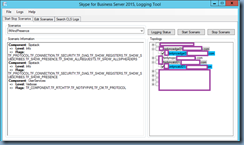
Using the Skype for Business Server 2015 Logging Tool to capture the IMAndPresence scenario:

image

Shows the following SIP/2.0 404 Not Found log entries:

TL_INFO(TF_PROTOCOL) [bmlyncedge01\bmlyncedge01]0608.10A4::03/02/2018-20:08:58.210.00002EA8 (SIPStack,SIPAdminLog::ProtocolRecord::Flush:ProtocolRecord.cpp(261)) [1193230895] Trace-Correlation-Id: 1193230895

Instance-Id: 9BD4F

Direction: outgoing;source="local";destination="internal edge"

Peer: bmlyncstd01.contoso.com:65371

Message-Type: response

Start-Line: SIP/2.0 404 Not Found

From: "Terence Luk"<sip:tluk@contoso.com>;tag=b57c0d9a53;epid=de538b165f

To: <sip:kseidl@fabrikam.com>;tag=61AAA34DF2202DB35CF394AA3FF1E420

Call-ID: ed355df33e6e40e8afe98664b3abe01b

CSeq: 1 SUBSCRIBE

Via: SIP/2.0/TLS 10.21.1.106:65371;branch=z9hG4bKBD5B17D0.7277A46B0013221F;branched=FALSE;ms-received-port=65371;ms-received-cid=9BD600

Via: SIP/2.0/TLS 10.23.0.28:58599;ms-received-port=58599;ms-received-cid=817000

Content-Length: 0

ms-diagnostics: 1008;reason="Unable to resolve DNS SRV record";domain="fabrikam.com";dns-srv-result="NegativeResult";dns-source="WireQuery";source="sip.contoso.com"

ms-edge-proxy-message-trust: ms-source-type=EdgeProxyGenerated;ms-ep-fqdn=bmlyncedge01.contoso.com;ms-source-verified-user=verified

$$end_record

image

Solution

One of the common causes of symptoms described above is if the domain hosted in Skype for Business Online does not have the appropriate SRV setup to allow the on-prem SfB to discover the company’s SfB. To ensure that the appropriate SRV is configured, simply attempt to look up the record with the following commands:

nslookup

set q=srv

_sipfederationtls.tcp.<domainFQDN>

A domain properly configured with the required DNS record should look like the output circled in green while a domain with the missing record should look like the output circled in red:

image

Creating the missing record will correct the issue.

Extra Troubleshooting Step

I went through numerous troubleshooting steps prior to looking at the obvious issue as outlined above because the problematic company had insisted that they did not have any issues with other partners so my assumption was that the domain I was working with wasn’t configured properly. The following may not have been the solution for this problem but I feel is worth checking as well.

One of the other possible causes to the issue above is if your domain is also configured for Office 365 services and you had inadvertently configured the domain to provide Skype for Business Online services. If this was the case then you would either have to configure interoperability between your on-premises deployment and Skype for Business Online as outlined in the following TechNet article:

Configure federation with Skype for Business Online

https://technet.microsoft.com/en-us/library/jj205126.aspx

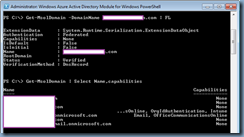
If there is no intention on having Skype for Business Online accounts in Office 365 then ensure that the service is turned off. To check, simply launch the Azure Active Directory Module for Windows PowerShell and connect to the domain’s Office 365 account:

image

Use commands such as:

Get-MsolDomain -DomainName <domain>.com | FL

… or:

Get-MSolDomain | Select Name,Capabilities

… to determine whether Skype for Business Online is enabled for the domain:

image