Problem
Environment:
- 2 x Citrix Web Interface at version 5.4.2.59
- 2 x Citrix XenDesktop 5.6 DDCs at version 5.6 with Hotfix 7
- VDA Agent on VDIs at version 5.6.300
- Pass-through authentication is configured for website
- Client used to connect to Web Interface portal is joined to the domain
Symptoms:
- User is able to successfully log into the pass-through authentication page from the fat / thick client via URL directing to Web Interface website (no CAG)
- Clicking on the XenDesktop Dedicated Desktop icon briefly shows the Citrix Receiver launch with the progress bar at about ¼ then disappears
- The Desktop Viewer window appears to launch displaying a black screen (in some cases he may see an out of place username and password prompt displayed by the Windows 7 VDI)
- Within seconds, the black screen disappears and he is back to his fat / thick client’s desktop with the web page
- Continuing to click on the dedicated desktop or pooled desktop icons exhibit the same behavior
- Testing with a single or dual monitor setup exhibit the same symptoms
- Using his same credentials on the t610 in the same VLAN which is also configured for pass-through authentication does not exhibit the same behavior
Troubleshooting:
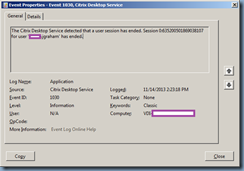
While reviewing the event logs on the virtual desktop that the user failed to log into, the following event ID 1620 warning followed by the event ID 1030 informational events were logged during the unsuccessful login attempts:

The details to those events are:
Event ID Warning: 1260
Log Name: Application
Source: Citrix ICA Service
Event ID: 1260
Level: Warning
ICA connection is cancelled because auto-logon is enforced and auto-logon failed. For more information, see http://support.citrix.com/proddocs/topic/online-plugin-121-windows/ica-sson-enable.html.

Event ID Warning: 1030
Log Name: Application
Source: Citrix Desktop Service
Event ID: 1030
Level: Information
The Citrix Desktop Service detected that a user session has ended. Session 0:635200501869038107 for user 'domain\jsmith' has ended.
Clicking on the link provided in the warning (http://support.citrix.com/proddocs/topic/online-plugin-121-windows/ica-sson-enable.html) isn’t much help as it brings you to a:
404 page Not Found: The Requested Page Cannot Be Displayed
… that Citrix probably took off:

Troubleshooting Steps Tried:
Searching for the string provided 5 or 6 results with various suggestions such as:
1. Turning on Kerberos in the Citrix GPO ADM for the fat / thin clients <-- Did not work

![clip_image002[4]](https://blogger.googleusercontent.com/img/b/R29vZ2xl/AVvXsEj2iG-yyCn5thA9Op0RWr0FB2jXwTW4BfY9CX4cacf1Exsx3bTsmxNr1tkSYGqVQ5d3pwcBtMHSBhJoDyqDeUahl1X_w6Cla2PZYVUbwRgvcWIgG2AZQGHsw6KZDsCT-G0oDqGxsOiuaIgc/?imgmax=800 "clip_image002[4]")
2. Modify the Web Interface pass-through authentication page’s domain settings to use FQDN instead of NetBIOS <-- Did not work

3. Edit either the local policy or via GPO for the VDI’s: Computer Configuration -> Policies -> Windows Settings -> Security Settings -> Local Policies -> User Rights Assignment <-- I can’t see why we would need to change this as the issue is intermittent
4. Use the Get-BrokerSite cmdlet on a DDC to ensure that TrustRequestSentToTheXmlServicePort is set to True:

Solution
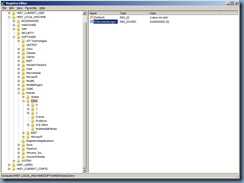
While I have yet to determine the root cause, the workaround solution I put in for this problem to buy me some more troubleshooting time was to add the following following registry key onto the VDI:
HKLM\SOFTWARE\Policies\Citrix
DWORD: EnforceAutoLogon
Value: 0
As per the following forum post, a Citrix engineer wrote the following:
http://forums.citrix.com/thread.jspa?threadID=284282
First off, in XD5, the default behavior when pass-through credentials aren't properly provided has changed. In XD4, you would get prompted to authenticate at the VDA Winlogon screen if SSON failed. In XD5, by default anyways, the VDA will drop the connection if credentials aren't properly received. To workaround this behavior, create a new DWORD value called 'EnforceAutoLogon' in HKLM\Software\Policies\Citrix, and set it to 0. This will change the VDA behavior to dump you back out to the Winlogon screen instead of just closing the connection.
So basically what’s happening here is that pass-through authentication isn’t working on the fat / thick client downstairs and the default behavior for XenDesktop 5 is to drop connections if the credentials aren’t passed over. With the registry shown above set on the VDI, XenDesktop will not drop the connection but rather display the following:

Note that if you can’t update the catalog of a pool for whatever reason or perhaps unable to log onto dedicated VDIs because users are logged on, you can use a GPO assigned to the computer object to add this registry key in as such:


Hive: HKEY_LOCAL_MACHINE
Key Path: SOFTWARE\Policies\Citrix
Value name: EnforceAutoLogon
Value type: REG_DWORD
Value data: 0
--------------------------------------------------------------------------------------------------------------------------------------------------------------------
Not exactly the best solution but users who wonder why they need to retype their credentials is much better than users who are unable to connect.


![clip_image002[5]](https://blogger.googleusercontent.com/img/b/R29vZ2xl/AVvXsEgq3gdXQTOU_l7DmGIoP6feExbwyl_tUo2n7qRFiQRS2rvuQAQ5et-H6IGGNm-qeE3BnhaoGbCSxNq-ORxvck6rxTx4lKByul7Nf7cGmLGnPzsgdcaAqSNnOUkm6U_y7ZO4q8jUBrjGgkyo/s1600-h/clip_image002%25255B5%25255D%25255B3%25255D.jpg "clip_image002[5]")
![clip_image002[7]](https://blogger.googleusercontent.com/img/b/R29vZ2xl/AVvXsEi83qu3WmWSrNQtV2Ru8ESezurrcn0SDEAXFEXawqyYw1Te5wjcpB_RPicEWF05bjFoI6ArjgmrXPe7e7sSEPeLBNjAS2raNFEXPetU4f4pGRHOtA3hZXUAhXAj2Dfm6pQpGEipK1AoMPV3/s1600-h/clip_image002%25255B7%25255D%25255B3%25255D.jpg "clip_image002[7]")
![clip_image002[9]](https://blogger.googleusercontent.com/img/b/R29vZ2xl/AVvXsEhWhreRBFjl5rJGR_EPv9A670nIsqL7Ed9DWzPzyRBzaOAMfdeU7PURHBWJn60bq1QHkIZ0mefn9eWixF2CSJhr4cKko7OezK-ZhJ1cdb9H2uGQSQ3Mu_5wqJ4sIlGVRJT4hAexf3VuNLfs/s1600-h/clip_image002%25255B9%25255D%25255B3%25255D.jpg "clip_image002[9]")
![clip_image002[11]](https://blogger.googleusercontent.com/img/b/R29vZ2xl/AVvXsEiL_vNGg3cxq29hyphenhyphenNOpoKEdlrfO3pJt2jW_z3hLO2ZnCeM7kgU0xe01-FIkWoG5ptlR75AuBtJQhkPXY501DpOvoXXhxyNgiDLJeRSbhuwGrJKzOpuheHFV6YGK_Figm_pmrOaIwPYGx5zg/s1600-h/clip_image002%25255B11%25255D%25255B3%25255D.jpg "clip_image002[11]")
![clip_image002[13]](https://blogger.googleusercontent.com/img/b/R29vZ2xl/AVvXsEjCUOTgxOTzAnZgluPv3usVfPQsjWY7Se0_kqUqh12s0fXImUpRcJ_zsdQ5zd3OrbZZRD8LhcsW3xDfMo9g8Visfx9G0mGsW4D8vt1ts0mTOpx5b1cojjYNM5V1_MqoesDq9bsR6_aJGyqx/s1600-h/clip_image002%25255B13%25255D%25255B3%25255D.jpg "clip_image002[13]")
![clip_image002[15]](https://blogger.googleusercontent.com/img/b/R29vZ2xl/AVvXsEjXf2rXLIuMpTQirrD2bz5JSGbWfHcAqRMnnldAr08UXbYDjr2Y073TmDzVpqySadNzhlaxoEEXlUG8STo13YswZacOrcnPL-tLwXrJMLNtr2jbPqLRbjVXNLtbHOw_BB9EoHsbjgGRLZix/s1600-h/clip_image002%25255B15%25255D%25255B3%25255D.jpg "clip_image002[15]")
![clip_image002[17]](https://blogger.googleusercontent.com/img/b/R29vZ2xl/AVvXsEj28S0W_vgWmHl6FH3DxxSv4knvg1hrAwL1LqbtzOXvEHxcktYSMHmQY87XgvaNkgnVU0YWWnuXGSPZsxLwZhP_lGaDzh1AVy-3qIPEz5DXPAzYBchdsFSq6xLzgySHr5uH-P0G7ULzmJ5D/s1600-h/clip_image002%25255B17%25255D%25255B3%25255D.jpg "clip_image002[17]")
![clip_image002[19]](https://blogger.googleusercontent.com/img/b/R29vZ2xl/AVvXsEg-KyiNCPbnwOPzxPMV6_vHVDDzSKA3OB2RTNpZC1wVzfKPM0t1kfAAUfsBocRYp-CL7mSDp0b8FDJuSmDwDpJs2XYXrzBqbdzy12Bu8Z6QPcXBuLD0AdNVxNdxLxZxzcN7miPfYVSzOnaF/s1600-h/clip_image002%25255B19%25255D%25255B3%25255D.jpg "clip_image002[19]")
![clip_image002[21]](https://blogger.googleusercontent.com/img/b/R29vZ2xl/AVvXsEg__yGZOVcEyoJgiYO2yaj1uoV-bMRp6hxRhOtbMVR6bd0JQ5oTfMLc1xm41qzprvdOfOTjPnmDNGzJCtxjkYxD56l6-UaGr-qcoPdby5pqGy3kT55KOc3Ck6dL3b85XMZjyHwIe7VNwYEB/s1600-h/clip_image002%25255B21%25255D%25255B3%25255D.jpg "clip_image002[21]")


