Pages

Tuesday, October 16, 2018

Deploying vSphere Data Protection 6.1.9 on VMware vSphere 6.5

It has been a while since I’ve deployed a VDP appliance and since I had the opportunity to do so this week, I took the time to screenshot the process so I can write what would likely be the last post for this application since VMware will no longer be releasing new versions in the future.  For those interested, here is the latest compatibility matrix for vCenter Server and VDP:

https://www.vmware.com/resources/compatibility/sim/interop_matrix.php#interop&2=&68=

image

The deployment hasn’t changed much throughout the versions so this post serves more to demonstrate what the deployment looks like rather than how.

Deploying the OVA

One of the features I’ve enjoyed using since vSphere 6.0 is Content Libraries but I’d like to note that you can only deploy OVF packages and not OVA files from Content Libraries as outlined in this VMware Docs:

Templates in Content Libraries
https://docs.vmware.com/en/VMware-vSphere/6.7/com.vmware.vsphere.vm_admin.doc/GUID-F7BF0E6B-7C4F-4E46-8BBF-76229AEA7220.html

Templates are master copies of virtual machines that you can use to deploy virtual machines that are customized and ready for use. Templates promote consistency throughout your vSphere environment. Content libraries support only OVF templates. As a result, VM and Vapp templates are converted to OVF files when you upload the to a content library. You can use the templates to deploy virtual machines and vApps in the vSphere inventory.

image

With the above in mind, the best way to start the appliance deployment is simply use the Deploy OVF Template… option from within the vSphere Client or vSphere Web Client to select the download OVA file:

image

Select the Local file radio button and click on Choose Files to select the downloaded OVA VDP appliance:

image

vSphereDataProtection-6.1.9.ova

image

Proceed by selecting the folder location and configuring a meaningful name for the appliance:

image

Select the appropriate cluster for the appliance:

image

Review the details:

image

Accept the EULA as we always do:

image

Select the datastore that will store the appliance:

image

Configure the port group (VLAN) for the appliance:

image

Configure the network properties for the appliance:

image

Review the configuration and commence the deployment:

image

image

Configuring the appliance

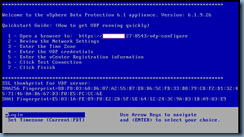
Power on the VDP appliance once the OVA deployment has completed and wait until the operating system has completed resulting with the following screen displayed:

image

Navigate to the appliance via https://<IP Address>/vdp-configure and login with:

root / changeme

image

The following configuration will be presented:

image

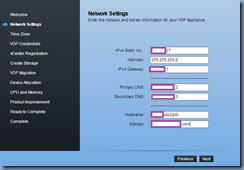
Configure the IP settings as well as create an A (forward) and PTR (reverse) record for the appliance in your DNS:

image

Forgetting to create the DNS records will throw the following error:

IP/DNS could not be resolved. Check the IP, DNS values for forward and reverse lookup validation.

image

Configure the appropriate time zone:

image

Configure a password for the appliance that will change the default changeme password:

image

Configure the connect to the vCenter that this VDP appliance will connect to:

image

Click on the Test Connection button before attempting to hit the Next button as it is a requirement:

image

This part of the wizard is where you define the type of storage the VDP appliance will use.  The first option is to create new storage by adding VMDK disks to the VDP appliance to store backups, the second option is to attached existing disks from another VDP appliance and the third option is to migrate VDP storage data from another VDP release.  For the purpose of this example, we’ll be creating new storage that is 0.5TB in size because the intention is to attached this VDP deployment to a Data Domain.

image

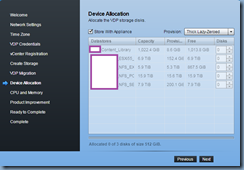
Leave the Device Allocation settings as the default unless you want to separate the disks from the actual appliance:

image

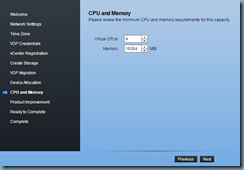
Configure the CPU and Memory according to the recommended settings for the size of your backups as noted here:

https://docs.vmware.com/en/VMware-vSphere/6.5/vmware-data-protection-administration-guide-61.pdf

image

imageimage

Decide whether you want to join the feedback program (not sure whether this is relevant since this would be the last release:

image

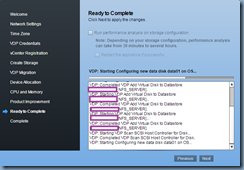
Complete the deployment and decide whether to run the performance analysis on the storage configuration.  I will not be selecting this because we’ll be attaching this to a data domain:

imageimage

imageimage

The deployment will display the login screen during the configuration but don’t bother trying to log in as you won’t be able to:

image

Instead, proceed to the console of the appliance and wait until it restarts and boots back into the OS:

image

Log back into the appliance and you should see the appliance successfully deployed:

image

image

Note the size of the disks that are configured for a 0.5TB deployment:

boot – 200GB

data01 – 256GB

data02 – 256GB

data03 – 256GB

image

For comparison purposes, these are the size of the disks for a 1TB deployment:

boot – 200GB

data01 – 512GB

data02 – 512GB

data03 – 512GB

image

One of the things I eventually realized at the end of this deployment was that the Data Domain in this environment had a DDOS (Data Domain Operating System) that was at a version that no longer supported the VDP appliance since VMware was no longer going to release this product so when I attempted to connect to the DD, I will receive the following error:

image

Failed to add the Data Domain.

Reasons: Failed to connect to Data Domain system. The hostname, user name and/or password may be invalid.

image

Here is a are two snippets from the EMC site:

On April 5th, 2017, VMware announced the End of Availability (EOA) of the VMware vSphere Data Protection (VDP) product. At this time the latest release of VDP uses DDboost library 3.1.0.1 which is compatible up to DDOS 5.7.X. Due to the End of Availability announcement there are no plans to introduce additional DDboost libraries to allow support of later DDOS releases.  
For additional information on VDP/Data Domain compatibility please see the DDBoost for VMware compatibility Matrix found here:

DDBoost Compatibility Matrix

For additional information on the end of service life for VMware Data Protection please see the following documentation from VMware:

End of Availability (EOA) of VMware vSphere Data Protection (2149614)

----------------------------------------------------------------------------------------------------------------------------------------------------

Cause:

The latest version of the vDP contains the gsan 7.2.80.133 release. This version contains the 3.1.0.1-481386 ddboost libraries. This is not supported with the DDOS 6.1.x or greater releases.

Resolution:

1. Deploy an AVE and consider migrating the data from the vDP to AVE
2. If the Data Domain doesn't have any data, starting over and installing a lower version of the DDOS is another option.
Reference:
KB 503953
Compatibility App

Tuesday, October 9, 2018

Attempting to log onto vCenter 6.5 via vSphere Web Client displays the error message: "503 Service Unavailable (Failed to connect to endpoing: [class Vmacore::Http::NamedPipeServiceSpec:0x00000263204438b0] _serverNamespace = / action = Allow _pipeName =\\.\pipe\vmware-vpxd-webserver-pipe)”

Problem

You attempt to connect to the login page of a vCenter 6.5 server via the vSphere Web Client but receive the following error message from the browser:

503 Service Unavailable (Failed to connect to endpoing: [class Vmacore::Http::NamedPipeServiceSpec:0x00000263204438b0] _serverNamespace = / action = Allow _pipeName =\\.\pipe\vmware-vpxd-webserver-pipe)

image

Solution

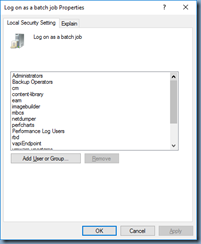
While there are a possible causes for this error, one of the reasons why the message is presented is if the Postgres database is unable to start thus causing the vCenter login portal to not load.  For this example, the reason why the Postgres database engine would not start is because the Windows Server hosting the vCenter services and Postgres database had the security permissions for the Log on as a batch job overwritten by a group policy in the domain.  This is what was displayed when I checked the vCenter Windows Server Log on as a batch job policy accounts:

image

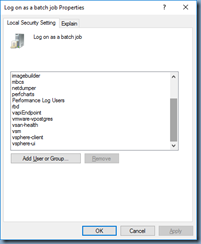
Adding the following local server accounts back in corrected the issue:

  • cm
  • content-library
  • eam
  • imagebuilder
  • mbcs
  • netdumper
  • perfcharts
  • rbd
  • vapiEndpoint
  • vmware-vpostgres
  • vsan-health
  • vsm
  • vsphere-client
  • vsphere-ui

imageimage

The list of the accounts above were obtained in the following KB:

Error "Logon failure: the user has not been granted the requested logon type at this computer" (2148054)
https://kb.vmware.com/s/article/2148054

Troubleshooting

This issue took quite a bit of time traversing through various logs to determine the root cause and I did not want to include all the information in the solution section in case the reader needed the remediation quickly so I will put them here.

The first logs I reviewed were the vCenter logs on the Windows server located here:

C:\ProgramData\VMware\vCenterServer\logs\vmware-vpx

image

I opened up the latest vpxd log and managed to find a line indicating there was an error authenticating the administrator@vsphere.local account:

2018-10-06T05:44:52.744+01:00 error vpxd[04128] [Originator@6876 sub=User opID=5aa4e999] Failed to authenticate user <administrator@vsphere.local>

image

Doing a bit of searching for this error directed me to this KB article:

Logging in to the vCenter Server Appliance fails with the error: Failed to authenticate user (2147174)
https://kb.vmware.com/s/article/2147174

… but I quickly determined that it did not apply to this issue.

Continuing to review the logs revealed the following lines that appear to suggest there may be a problem with the Postgres SQL database:

2018-10-06T05:44:46.752+01:00 error vpxd[09488] [Originator@6876 sub=Default opID=HB-host-15@26976-e46a4d] [VdbStatement] SQL execution failed: DELETE FROM VPX_IP_ADDRESS WHERE ENTITY_ID = ?

2018-10-06T05:44:46.752+01:00 error vpxd[09488] [Originator@6876 sub=Default opID=HB-host-15@26976-e46a4d] [VdbStatement] Execution elapsed time: 4113 ms

2018-10-06T05:44:46.752+01:00 error vpxd[09488] [Originator@6876 sub=Default opID=HB-host-15@26976-e46a4d] [VdbStatement] Statement diagnostic data from driver is 57P01:0:34:Could not receive the response, communication down ??;

--> Could not send Query(connection dead)

2018-10-06T05:44:46.752+01:00 error vpxd[09488] [Originator@6876 sub=Default opID=HB-host-15@26976-e46a4d] [VdbStatement] Bind parameters:

2018-10-06T05:44:46.752+01:00 error vpxd[09488] [Originator@6876 sub=Default opID=HB-host-15@26976-e46a4d] [VdbStatement] [0]datatype: 1, size: 4, arraySize: 0

2018-10-06T05:44:46.752+01:00 error vpxd[09488] [Originator@6876 sub=Default opID=HB-host-15@26976-e46a4d] [VdbStatement] value = 115

2018-10-06T05:44:47.152+01:00 warning vpxd[06528] [Originator@6876 sub=VpxProfiler opID=ProcessTaskNotifications-56e509fe] ProcessTaskNotifications [TotalTime] took 5070750068 ms

2018-10-06T05:44:47.153+01:00 warning vpxd[09280] [Originator@6876 sub=VpxProfiler opID=ProcessEventNotifications-6058ed8] ProcessEventNotifications [TotalTime] took 5070750084 ms

2018-10-06T05:44:47.228+01:00 warning vpxd[09432] [Originator@6876 sub=VpxProfiler opID=ProcessScheduledTaskFiring-1c06dac8] ProcessScheduledTaskFiring [TotalTime] took 5070750086 ms

2018-10-06T05:44:49.538+01:00 info vpxd[09552] [Originator@6876 sub=SupportMgr] Wrote uptime information

2018-10-06T05:44:49.603+01:00 error vpxd[09552] [Originator@6876 sub=Default] [VdbStatement] Execute result code: -1

2018-10-06T05:44:49.603+01:00 error vpxd[09552] [Originator@6876 sub=Default] [VdbStatement] SQL execution failed: SELECT count(1) as TOTAL FROM VPX_DATACENTER

2018-10-06T05:44:49.603+01:00 error vpxd[09552] [Originator@6876 sub=Default] [VdbStatement] Execution elapsed time: 30 ms

2018-10-06T05:44:49.603+01:00 error vpxd[09552] [Originator@6876 sub=Default] [VdbStatement] Statement diagnostic data from driver is 08S01:0:34:Could not receive the response, communication down ??;

image

From here, I went ahead to launch the ODBC Data Source Administrator (64-bit) to check the System DSN that connected to the PostgreSQL database, ran the test connection and immediately noticed that it was not accessible:

image

A bit more searching lead me to the following KB:

Connecting to the embedded vPostgres Database in a Windows installed vCenter Server 6.0 (2108848)
https://kb.vmware.com/s/article/2108848

Using the instructions provided in the KB, I navigated to the following directory to review the vcdb.properties file with the PostgreSQL database information:

C:\ProgramData\VMware\vCenterServer\cfg\vmware-vpx

image

Then launched the command prompt, navigated to the following directory:

C:\Program Files\VMware\vCenter Server\vPostgres\bin\

Then attempted to connect to the database with the following command:

psql -U username vc VCDB

… but quickly got the same error as the ODBC system DSN connection attempt:

image

From here, I navigated to the vCenter’s bin folder:

C:\Program Files\VMware\vCenter Server\bin

… then used the following command to list the status of the vCenter services:

service-control --status

image

The output above is not what is to be expected from a healthy vCenter and seeing the vPostgres service Stopped confirms the unavailability of the database that vCenter would require to start up properly.

-------------------------------------------------------------------------------------------------------------------------------------------------------

Note that this is what the status on a healthy VCSA service status should look like:

Command> service-control --status

Running:

applmgmt lwsmd pschealth vmafdd vmcad vmdird vmdnsd vmonapi vmware-cis-license vmware-cm vmware-content-library vmware-eam vmware-perfcharts vmware-psc-client vmware-rhttpproxy vmware-sca vmware-sps vmware-statsmonitor vmware-sts-idmd vmwa re-stsd vmware-updatemgr vmware-vapi-endpoint vmware-vmon vmware-vpostgres vmwar e-vpxd vmware-vpxd-svcs vmware-vsan-health vmware-vsm vsphere-client vsphere-ui

Stopped:

vmcam vmware-imagebuilder vmware-mbcs vmware-netdumper vmware-rbd-watchdog vmwa re-vcha

Command>

image

-------------------------------------------------------------------------------------------------------------------------------------------------------

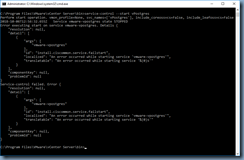
Attempting to manually start the vPostgres service with the following command shows that it immediately fails:

service-control --start vPostgres

C:\Program Files\VMware\vCenter Server\bin>service-control --start vPostgres

Perform start operation. vmon_profile=None, svc_names=['vPostgres'], include_coreossvcs=False, include_leafossvcs=False

2018-10-06T12:56:32.655Z Service vmware-vpostgres state STOPPED

Error executing start on service vmware-vpostgres. Details {

"resolution": null,

"detail": [

{

"args": [

"vmware-vpostgres"

],

"id": "install.ciscommon.service.failstart",

"localized": "An error occurred while starting service 'vmware-vpostgres'",

"translatable": "An error occurred while starting service '%(0)s'"

}

],

"componentKey": null,

"problemId": null

}

Service-control failed. Error {

"resolution": null,

"detail": [

{

"args": [

"vmware-vpostgres"

],

"id": "install.ciscommon.service.failstart",

"localized": "An error occurred while starting service 'vmware-vpostgres'",

"translatable": "An error occurred while starting service '%(0)s'"

}

],

"componentKey": null,

"problemId": null

}

C:\Program Files\VMware\vCenter Server\bin>
image

I was able to find this following KB after searching for failed PostgreSQL database but it did not apply to this situation:

Starting vPostgres fails after vCenter Server Appliance failure (2106584)
https://kb.vmware.com/s/article/2106584

Trying to initiate the command to start all of the services will stall and eventually fail when attempting to start services dependent on the database:

service-control --start –all

image

Attempting to stop all services successfully completes:

service-control --stop --all

image

Starting all the services again would have the process stuck on vmware-psc-client:

image

Eventually timing out with this output message:

Service-control failed. Error Failed to start vmon services.vmon-cli RC=1, stderr=Failed to start eam, vapi-endpoint, vsphere-client, vpxd-svcs, vsphere-ui, vmware-vpostgres services. Error: Operation timed out

image

From here, I navigated to the PostgreSQL logs directory:

C:\ProgramData\VMware\vCenterServer\logs\vpostgres

image

… opened the latest log file and found the following output:

2018-10-06 05:40:19.419 BST 5b6adb7d.1344 0 LOG: Writing instance status...

2018-10-06 05:40:19.420 BST 5b6adb7d.1344 0 LOG: Wrote instance status successfully.

2018-10-06 05:40:19.420 BST 5b6adb7d.1344 0 LOG: Updated instance status successfully.

2018-10-06 05:41:19.422 BST 5b6adb7d.1344 0 LOG: Updating instance status...

2018-10-06 05:41:19.422 BST 5b6adb7d.1344 0 LOG: Writing instance status...

2018-10-06 05:41:19.424 BST 5b6adb7d.1344 0 LOG: Wrote instance status successfully.

2018-10-06 05:41:19.424 BST 5b6adb7d.1344 0 LOG: Updated instance status successfully.

2018-10-06 05:41:32.146 BST 5bb80915.577c 0 VCDB vc LOG: duration: 20170.000 ms bind _PLAN000001331116CC90: SELECT EVENT_ID, CHAIN_ID, EVENT_TYPE, EXTENDED_CLASS, CREATE_TIME, USERNAME, CATEGORY, VM_ID, VM_NAME, HOST_ID, HOST_NAME, COMPUTERESOURCE_ID, COMPUTERESOURCE_TYPE, COMPUTERESOURCE_NAME, DATACENTER_ID, DATACENTER_NAME, DATASTORE_ID, DATASTORE_NAME, NETWORK_ID, NETWORK_NAME, NETWORK_TYPE, DVS_ID, DVS_NAME, STORAGEPOD_ID, STORAGEPOD_NAME, CHANGE_TAG_ID FROM VPXV_EVENT_ALL WHERE COMPUTERESOURCE_ID=$1 AND CREATE_TIME>=$2 AND (EVENT_TYPE IN ($3,$4,$5,$6)) ORDER BY EVENT_ID DESC LIMIT 100;

2018-10-06 05:41:32.146 BST 5bb80915.577c 0 VCDB vc DETAIL: parameters: $1 = '7', $2 = '2018-10-06 00:41:11.969+01', $3 = 'vim.event.DrsVmMigratedEvent', $4 = 'vim.event.DrsExitedStandbyModeEvent', $5 = 'vim.event.DrsVmPoweredOnEvent', $6 = 'vim.event.DrsEnteredStandbyModeEvent'

2018-10-06 05:41:41.189 BST 5bb80915.577c 0 VCDB vc LOG: duration: 9031.000 ms bind _PLAN000001331116B490: SELECT EVENT_ID, ARG_ID, ARG_TYPE, ARG_DATA, OBJ_TYPE, OBJ_NAME, VM_ID, HOST_ID, COMPUTERESOURCE_ID, DATASTORE_ID, NETWORK_ID, NETWORK_TYPE, DVS_ID, DATACENTER_ID, RESOURCEPOOL_ID, FOLDER_ID, ALARM_ID, SCHEDULEDTASK_ID FROM VPXV_EVENT_ARG WHERE (EVENT_ID IN ($1,$2,$3,$4,$5))

2018-10-06 05:41:41.189 BST 5bb80915.577c 0 VCDB vc DETAIL: parameters: $1 = '677130', $2 = '677036', $3 = '676762', $4 = '676753', $5 = '675555'

2018-10-06 05:42:19.426 BST 5b6adb7d.1344 0 LOG: Updating instance status...

2018-10-06 05:42:19.430 BST 5b6adb7d.1344 0 LOG: Writing instance status...

2018-10-06 05:42:19.431 BST 5b6adb7d.1344 0 LOG: Wrote instance status successfully.

2018-10-06 05:42:19.431 BST 5b6adb7d.1344 0 LOG: Updated instance status successfully.

2018-10-06 05:43:19.433 BST 5b6adb7d.1344 0 LOG: Updating instance status...

2018-10-06 05:43:19.433 BST 5b6adb7d.1344 0 LOG: Writing instance status...

2018-10-06 05:43:19.434 BST 5b6adb7d.1344 0 LOG: Wrote instance status successfully.

2018-10-06 05:43:19.434 BST 5b6adb7d.1344 0 LOG: Updated instance status successfully.

2018-10-06 05:44:19.436 BST 5b6adb7d.1344 0 LOG: Updating instance status...

2018-10-06 05:44:19.436 BST 5b6adb7d.1344 0 LOG: Writing instance status...

2018-10-06 05:44:19.437 BST 5b6adb7d.1344 0 LOG: Wrote instance status successfully.

2018-10-06 05:44:19.437 BST 5b6adb7d.1344 0 LOG: Updated instance status successfully.

2018-10-06 05:44:29.038 BST 5b6adb7d.1344 0 LOG: Updating instance status...

2018-10-06 05:44:29.184 BST 5b6adb7d.1c30 0 LOG: received fast shutdown request

2018-10-06 05:44:29.465 BST 5b6adb7d.1344 0 ERROR: canceling statement due to user request

2018-10-06 05:44:30.372 BST 5b6adb7d.1c30 0 LOG: aborting any active transactions

2018-10-06 05:44:33.229 BST 5b6adb7d.1fd0 0 ERROR: canceling statement due to user request

2018-10-06 05:44:33.231 BST 5bb82535.68ec 0 VCDB vc FATAL: terminating connection due to administrator command

2018-10-06 05:44:35.589 BST 5bb82535.58dc 0 VCDB vc FATAL: terminating connection due to administrator command

2018-10-06 05:44:38.297 BST 5bb82535.5160 0 VCDB vc FATAL: terminating connection due to administrator command

2018-10-06 05:44:39.128 BST 5bb82530.6420 0 VCDB vc FATAL: terminating connection due to administrator command

2018-10-06 05:44:41.974 BST 5bb80915.577c 0 VCDB vc FATAL: terminating connection due to administrator command

2018-10-06 05:44:44.535 BST 5bacb856.5f24 0 VCDB vc FATAL: terminating connection due to administrator command

2018-10-06 05:44:47.545 BST 5bacb855.62a4 0 VCDB vc FATAL: terminating connection due to administrator command

2018-10-06 05:44:50.366 BST 5b8f9b4c.5c74 0 VCDB vc FATAL: terminating connection due to administrator command

image

After a bit more troubleshooting from here was when I decided to check the Log on as a batch job configuration to ensure the following local server accounts were present and was able to confirm that they were not:

  • cm
  • content-library
  • eam
  • imagebuilder
  • mbcs
  • netdumper
  • perfcharts
  • rbd
  • vapiEndpoint
  • vmware-vpostgres
  • vsan-health
  • vsm
  • vsphere-client
  • vsphere-ui

image

Proceeding to add the appropriate accounts back corrected the issue:

image

imageimage

The following is what a healthy Windows vSphere Server status should look like:

C:\Program Files\VMware\vCenter Server\bin>service-control --status

Running:

VMWareAfdService VMWareCertificateService VMWareDirectoryService VMwareComponentManager VMwareDNSService VMwareIdentityMgmtService VMwareSTS VServiceManager rhttpproxy vPostgres vapiEndpoint vimPBSM vmon vmonapi vmsyslogcollector vmware-cis-config vmware-license vmware-perfcharts vmware-psc-client vmwareServiceControlAgent vpxd vpxd-svcs vsan-health vsphere-ui vspherewebclientsvc

Stopped:

EsxAgentManager VMWareCAMService content-library mbcs vmware-autodeploy-waiter vmware-imagebuilder vmware-network-coredump

C:\Program Files\VMware\vCenter Server\bin>

image

Note that having the PostgreSQL database up will still throw an error when you attempt to test the connection:

FATAL: password authentication failed for user “vc”

image

Thursday, October 4, 2018

Attempting to boot a VMware vSphere virtual machine fails with the error status: 0xc0000017

Problem

You attempt to start a VMware vSphere virtual machine but notice that the Windows operating system fails to boot:

Windows Boot Manager

Windows failed to start. A recent hardware or software change might be the cause. To fix the problem:

Insert your Windows installation disc and restart your computer.

Choose your language settings, and then click “Next.”

Click “Repair your computer.”

If you do not have this disc, contract your system administrator or computer manufacturer for assistance.

Info: There isn’t enough memory available to create a ramdisk device.

Status: 0xc0000017

image

Solution

I’ve received numerous calls in the past 2 years about this error and found that this is usually caused by an incorrect memory configuration in the virtual machine settings where the value is too low for the Windows operating system (Windows Server 2016 in this case) to start. The settings window presented to an administrator in vSphere 6.5 tends to use MB for the Memory value and therefore causes situations where an administrator would inadvertently put in a value assuming it was GB. Below is an example of a VM inadvertently configured with 64MB of memory instead of the intended 64GB:

image

Wednesday, September 26, 2018

Uninstall script for Sophos Endpoint Security and Control 10.7 and 10.8

I was recently involved in assisting a customer with removing Sophos Endpoint Security and Control from their desktops and laptops because it was being replaced with Cylance Protect.  Anti-Virus products aren’t something that I typically deal with so I had to do a bit of searching on the internet to come up with script that would check for the services and then subsequently remove them.  What I noticed during the process was that the Sophos KB article:

How to uninstall Sophos Endpoint Security and Control from the command line or with a batch file
https://community.sophos.com/kb/en-us/109668

… wasn’t very helpful because I wasn’t able to find all of the components in the registry to extract the uninstall GUID to pair with the msiexec.exe /x command.  Another item I noticed was that there are a lot of sample scripts and batch files available but they only worked for specific versions.

So after spending a good half day on this, I thought it would be a good idea to share what finally worked for me in case anyone out there looking for this.  As the title of this post indicates, this works for version 10.7 and 10.8.

Sophos Install Script – Copy and paste below into a .cmd file

REM Check for the Sophos service

@Echo off

REM --- Check for an existing installation of Sophos Agent

IF NOT EXIST "C:\Program Files (x86)\Sophos\Remote Management System\ManagementAgentNT.exe" (

REM --- Check for an existing installation of Sophos Anti-Virus

IF NOT EXIST "C:\Program Files (x86)\Sophos\Sophos Anti-Virus\SavService.exe" (

REM --- Check for an existing installation of Sophos Anti-Virus status reporter

IF NOT EXIST "C:\Program Files (x86)\Sophos\Sophos Anti-Virus\SAVAdminService.exe" (

REM --- Check for an existing installation of Sophos AutoUpdate on 32-bit (the 'Sophos AutoUpdate Service' process)

IF NOT EXIST "C:\Program Files\Sophos\AutoUpdate\ALsvc.exe" (

REM --- Check for an existing installation of Sophos AutoUpdate on 64-bit (the 'Sophos AutoUpdate Service' process)

IF NOT EXIST "C:\Program Files (x86)\Sophos\AutoUpdate\ALSVC.exe" (

REM --- Check for an existing installation of Sophos Message Router

IF NOT EXIST "C:\Program Files (x86)\Sophos\Remote Management System\RouterNT.exe" (

REM --- Check for an existing installation of Sophos Network Threat Protection

IF NOT EXIST "C:\Program Files\Sophos\Sophos Network Threat Protection\bin\SntpService.exe" (

REM --- Check for an existing installation of Sophos System Protection Service

IF NOT EXIST "C:\Program Files (x86)\Sophos\Sophos System Protection\ssp.exe" (

REM --- Check for an existing installation of Sophos Web Control Service

IF NOT EXIST "C:\Program Files (x86)\Sophos\Sophos Anti-Virus\Web Control\swc_service.exe" (

REM --- Check for an existing installation of Sophos Web Intelligence Service 64-bit

IF NOT EXIST "C:\ProgramData\Sophos\Web Intelligence\swi_update_64.exe" (

REM --- Check for an existing installation of Sophos Web Intelligence Service 32-bit

IF NOT EXIST "C:\Program Files (x86)\Sophos\Sophos Anti-Virus\Web Intelligence\swi_service.exe" (

REM --- Check for an existing installation of Sophos Anti-Virus on Vista+ (the SAV adapter config file)

IF NOT EXIST "C:\ProgramData\Sophos\Remote Management System\3\Agent\AdapterStorage\SAV\SAVAdapterConfig" (

goto _End

))))))))))))

REM --- Disabling Sophos Services

sc config "Sophos Agent" start= disabled

sc config "SAVService" start= disabled

sc config "SAVAdminService" start= disabled

sc config "Sophos AutoUpdate Service" start= disabled

sc config "Sophos Message Router" start= disabled

sc config "SntpService" start= disabled

sc config "sophossps" start= disabled

sc config "Sophos Web Control Service" start= disabled

sc config "swi_service" start= disabled

sc config "swi_update_64" start= disabled

REM --- Stopping Sophos Services

net stop "Sophos AutoUpdate Service"

net stop "Sophos Agent"

net stop "SAVService"

net stop "SAVAdminService"

net stop "Sophos Message Router"

net stop "Sophos Web Control Service"

net stop "swi_service"

net stop "SntpService"

net stop "sophossps"

net stop "swi_filter"

REM --- Taskkill all services just in case services such as AutoUpdate is running and will not stop

taskkill /im ManagementAgentNT.exe /f

taskkill /im SavService.exe /f

taskkill /im SAVAdminService.exe /f

taskkill /im ALsvc.exe /f

taskkill /im RouterNT.exe /f

taskkill /im SntpService.exe /f

taskkill /im ssp.exe /f

taskkill /im swc_service.exe /f

taskkill /im swi_update_64.exe /f

REM --- Disable Tamper Protection

reg add "HKEY_LOCAL_MACHINE\SYSTEM\CurrentControlSet\Services\Sophos Endpoint Defense\TamperProtection\Config" /v SAVEnabled /t REG_DWORD /d 0 /f

reg add "HKEY_LOCAL_MACHINE\SOFTWARE\WOW6432Node\Sophos\SAVService\TamperProtection" /v Enabled /t REG_DWORD /d 0 /f

REM --- Begin uninstall Sophos Components

REM --- Sophos Network Threat Protection

start /wait MsiExec.exe /X{66967E5F-43E8-4402-87A4-04685EE5C2CB} /qn REBOOT=SUPPRESS /L*v %windir%\Temp\Uninstall_SOPH-NTPLog.txt

REM --- Sophos System Protection

start /wait MsiExec.exe /X{1093B57D-A613-47F3-90CF-0FD5C5DCFFE6} /qn REBOOT=SUPPRESS /L*v %windir%\Temp\Uninstall_SOPH-SPLog.txt

REM --- Sophos Anti-Virus

start /wait MsiExec.exe /X{23E4E25E-E963-4C62-A18A-49C73AA3F963} /qn REBOOT=SUPPRESS /L*v %windir%\Temp\Uninstall_SOPH-AVLog.txt

REM --- Sophos Anti-Virus 10.7

start /wait MsiExec.exe /X{65323B2D-83D4-470D-A209-D769DB30BBDB} /qn REBOOT=SUPPRESS /L*v %windir%\Temp\Uninstall_SOPH-SAVlog.txt

REM --- Sophos Anti-Virus 10.8

start /wait MsiExec.exe /X{6654537D-935E-41C0-A18A-C55C2BF77B7E} /qn REBOOT=SUPPRESS /L*v %windir%\Temp\Uninstall_SOPH-SAVlog.txt

REM --- Sophos Remote Management System

start /wait MsiExec.exe /X{FED1005D-CBC8-45D5-A288-FFC7BB304121} /qn REBOOT=SUPPRESS /L*v %windir%\Temp\Uninstall_SOPH-RMSLog.txt

REM --- Sophos AutoUpdate

taskkill /im ALsvc.exe /f

start /wait MsiExec.exe /X{AFBCA1B9-496C-4AE6-98AE-3EA1CFF65C54} /qn REBOOT=SUPPRESS /L*v %windir%\Temp\Uninstall_SOPH-AULog.txt

REM --- Sophos Endpoint Defense

"C:\Program Files\Sophos\Endpoint Defense\uninstall.exe"

REM --- End of the script

:_End

-----------------------------------------------------------------------------------------------------------------------------------------------

Here are also a few useful items that I had to document during the process of developing the command above

List of Services and Executable Locations

Service Name

Display Name

Path to executable

Sophos Agent

Sophos Agent

"C:\Program Files (x86)\Sophos\Remote Management System\ManagementAgentNT.exe" -service -name Agent -ORBListenEndpoints iiop://127.0.0.1

SAVService

Sophos Anti-Virus

"C:\Program Files (x86)\Sophos\Sophos Anti-Virus\SavService.exe"

SAVAdminService

Sophos Anti-Virus status reporter

"C:\Program Files (x86)\Sophos\Sophos Anti-Virus\SAVAdminService.exe"

Sophos AutoUpdate Service

Sophos AutoUpdate Service

"C:\Program Files (x86)\Sophos\AutoUpdate\ALsvc.exe"

Sophos Message Router

Sophos Message Router

"C:\Program Files (x86)\Sophos\Remote Management System\RouterNT.exe" -service -name Router -ORBListenEndpoints iiop://:8193/ssl_port=8194

SntpService

Sophos Network Threat Protection

"C:\Program Files\Sophos\Sophos Network Threat Protection\bin\SntpService.exe"

sophossps

Sophos System Protection Service

"C:\Program Files (x86)\Sophos\Sophos System Protection\ssp.exe"

Sophos Web Control Service

Sophos Web Control Service

"C:\Program Files (x86)\Sophos\Sophos Anti-Virus\Web Control\swc_service.exe"

swi_service

Sophos Web Intelligence Service

"C:\Program Files (x86)\Sophos\Sophos Anti-Virus\Web Intelligence\swi_service.exe"

swi_update_64

Sophos Web Intelligence Update

"C:\ProgramData\Sophos\Web Intelligence\swi_update_64.exe"

Obtaining the GUIDs of Applications

You can obtain the GUID applications using the PowerShell cmdlet:

wmic product get > C:\InstalledPrograms.txt

Locate the GUID of the application that needs to be removed and modify the script to include correct GUID.

Thursday, September 13, 2018

Attempting to request a certificate for Skype for Business Server 2015 from an internal Microsoft Enterprise CA throws the error: "A required certificate is not within its validity period when verifying against the current system clock or the timestamp in the signed file. 0x800b0101 (-2146762495 CERT_E_EXPIRED)”

Problem

You’re attempting to renew the Skype for Business Server 2015 front-end server with an internal Microsoft Enterprise Certificate Authority but receive the following error:

> Request CertificateRequest-CSCertificate -New -Type Default,WebServicesInternal -CA "DC1.corp.contoso.bm\Contoso CA" -Country "BM" -State "Hamilton" -City "Hamilton" -FriendlyName "Skype for Business Server 2015 Default certificate 9/12/2018" -KeySize 2048 -PrivateKeyExportable $False -Organization "Contoso" -OU "IT" -AllSipDomain -Verbose -Report "C:\Users\administrator\AppData\Local\Temp\Request-CSCertificate-[2018_09_12][13_59_43].html"Creating new log file "C:\Users\ccs.contosoCORP\AppData\Local\Temp\Request-CSCertificate-[2018_09_12][13_59_43].xml".Create a certificate request based on Skype for Business Server configuration for this computer.Creating new log file "C:\Users\ccs.contosoCORP\AppData\Local\Temp\Request-CSCertificate-[2018_09_12][13_59_43].html". WARNING: Request-CSCertificate failed. WARNING: Detailed results can be found at "C:\Users\ccs.contosoCORP\AppData\Local\Temp\Request-CSCertificate-[2018_09_12][13_59_43].html".Command execution failed: Error Parsing Request A required certificate is not within its validity period when verifying against the current system clock or the timestamp in the signed file. 0x800b0101 (-2146762495 CERT_E_EXPIRED)

image

Solution

One of the reasons why this error would be thrown if you are using an internal Microsoft Enterprise CA is if the issuing Root CA’s certificate has expired. If you are able to confirm that this is the cause then simply log onto the Root CA’s Certificate Authority administration console and renew the certificate then request a new certificate:

image

Tuesday, August 21, 2018

Attempting to upgrade a HP VC FlexFabric-20/40 F8 Module firmware for a HP C7000 chassis fails with "Package Signature: Invalid"

Problem

You’re attempting to upgrade a HP VC FlexFabric-20/40 F8 Module from firmware version 4.45 2015 to 4.62 Feb 2018 (https://support.hpe.com/hpsc/swd/public/detail?sp4ts.oid=6894628&swItemId=MTX_7fae1562133f483abb29f204b7&swEnvOid=4184#):

image

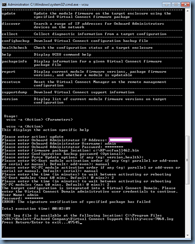
You download the HP Virtual Connect Support Utility and use the update command to upgrade the firmware but the process fails with:

Error: The signature verification of specified package has failed

image

Using the packageinfo command on the vcfwall462.bin file returns the same Package Signature: Invalid output:

image

Downloading the older 4.50 firmware (https://support.hpe.com/hpsc/swd/public/detail?sp4ts.oid=6894628&swItemId=MTX_1f352fb404f5410d9b2ca1b56d&swEnvOid=4184#) and using the packageinfo command display a Package Signature: Valid output:

image

The Active Onboard Administrator firmware version of the chassis is at version 4.70 May 18, 2017:

image

Solution

One of the reasons why the upgrade would exhibit such a behavior is if you are using an older version of the HP Virtual Connect Support Utility. In the case of this example, the older version 1.11.1 was used and updating the utility to version 1.13.0 (https://support.hpe.com/hpsc/swd/public/detail?swItemId=MTX_7df0afcd8cef4984a78f4a888c#tab-history) corrects the issue:

image

image