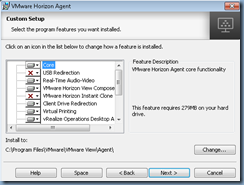
Those who are familiar with the VMware Horizon View agent install may have noticed that there does not appear to be an easy way to add features to an existing agent:
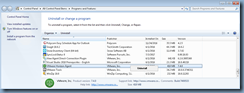
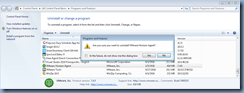
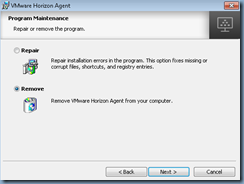
… because attempting to use the Programs and Features or re-running the installation file only presents the option of removing the agent:
This may not be an issue if you only had to update a master image but certainly not practical you had to repeat the process multiple times for a full-clone deployment. I’ve come across this in the past multiple times and thought it would be worth while to write this blog post to demonstrate the process for anyone who may be looking for this information.
Determining Installed Horizon View Agent Components
To begin, the way to determine what components are installed currently can be found in the agent install logs located in the folder:
C:\ProgramData\VMware\logs
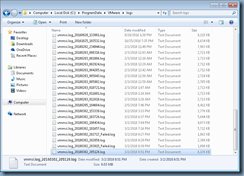
The log named vmmsi.log_<date>.log with the latest timestamp is the file with this information. Opening the logs and navigating down to the section beginning with:
Action start 21:20:57: InstallValidate.
MSI (s) (8C:C4) [21:20:57:927]: Feature: URLRedirection; Installed: Absent; Request: Null; Action: Null
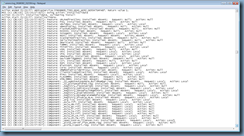
… is where you will find all the features of the agent listed and whether they were installed.
Feature: this is the feature of the agent
Installed: this is the installation status of the feature during the install
The values are Absent and Local
Request: this is whether a request to install it was made
The values are Null, Local and Reinstall
Action: this is the action taken for the feature
The values are Null, Local and Reinstall
Adding Horizon View Agent Components (non agent upgrade)
The only way to add Horizon View agent components to an existing installation is to use the command line and features matrix as described in the following documentation:
Silent Installation Properties for Horizon Agent
https://docs.vmware.com/en/VMware-Horizon-7/7.4/horizon-virtual-desktops/GUID-3096DA8B-034B-435B-877E-5D2B18672A95.html
The command would look as such:
VMware-viewagent-y.y.y-xxxxxx.exe /s /v"/qn VDM_VC_MANAGED_AGENT=1 ADDLOCAL=<featureToAdd>
To demonstrate the process, let’s begin by performing a fresh install of the View agent with only the Core, USB Redirection and Real-Time Audio-Video components:
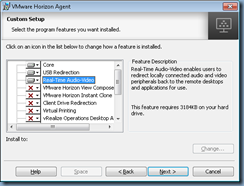
Note the agent install log indicating the RTAV (Real-Time Audio-Video) component is installed (along with USB and other core components):
MSI (s) (D0:B0) [19:11:50:601]: Feature: RTAV; Installed: Absent; Request: Local; Action: Local
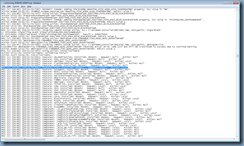
To add a component such as the Client Drive Redirection simply run the silent install command with the following switch:
VMware-viewagent-x86_64-7.0.2-4368292.exe /s /v"/qn VDM_VC_MANAGED_AGENT=1 ADDLOCAL=ClientDriveRedirection
**Note that if you’re only specifying one feature with the ADDLOCAL switch then you do not see a quote at the end but if you specify more than one then you will:

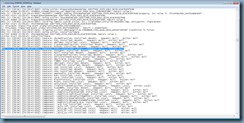
Browsing the agent install log once the process has completed will show the following output for the feature indicating it was absent but now installed:
MSI (s) (28:D4) [20:28:45:916]: Feature: ClientDriveRedirection; Installed: Absent; Request: Local; Action: Local
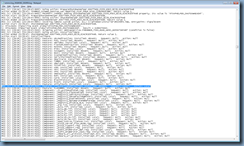
Note that the RTAV component being already installed has a different output than when it was being installed:
MSI (s) (28:D4) [20:28:45:916]: Feature: RTAV; Installed: Local; Request: Null; Action: Null
Upgrading Horizon View Agent and Adding Components
One of the common mistakes I’ve seen administrators in the past make is that they are upgrading the Horizon View Agent and inadvertently using the silent install with the additional component they want to add to the agent. This will actually install the newer agent with the single or multiple components specified in the ADDLOCAL switch because an upgrade of the agent actually removes the previous agent and reinstalls the new one thus not take the previous installed components into consideration. If you are upgrading the agent silently then you’ll need to ensure ADDLOCAL=ALL for all components or ADDLOCAL=<features>, to ensure the features that are required would be installed.
Extra Information
The following are for those who may want to reference what a default installation of the Horizon View Agent 7.4.0 components look like:
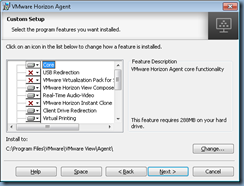
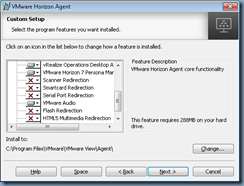
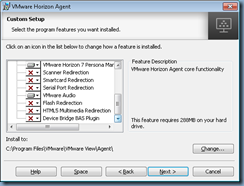
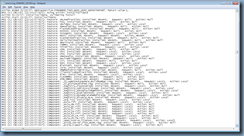
The log out put would be as such:
Action start 21:20:57: InstallValidate.
MSI (s) (8C:C4) [21:20:57:927]: Feature: URLRedirection; Installed: Absent; Request: Null; Action: Null
MSI (s) (8C:C4) [21:20:57:927]: Feature: PSG; Installed: Absent; Request: Null; Action: Null
MSI (s) (8C:C4) [21:20:57:927]: Feature: VmVideo; Installed: Absent; Request: Local; Action: Local
MSI (s) (8C:C4) [21:20:57:927]: Feature: VmwVdisplay; Installed: Absent; Request: Null; Action: Null
MSI (s) (8C:C4) [21:20:57:927]: Feature: FlashURLRedirection; Installed: Absent; Request: Null; Action: Null
MSI (s) (8C:C4) [21:20:57:927]: Feature: RDSH3D; Installed: Absent; Request: Null; Action: Null
MSI (s) (8C:C4) [21:20:57:927]: Feature: SVIAgent; Installed: Absent; Request: Local; Action: Local
MSI (s) (8C:C4) [21:20:57:927]: Feature: NGVC; Installed: Absent; Request: Absent; Action: Absent
MSI (s) (8C:C4) [21:20:57:927]: Feature: ScannerRedirection; Installed: Absent; Request: Null; Action: Null
MSI (s) (8C:C4) [21:20:57:927]: Feature: SerialPortRedirection; Installed: Absent; Request: Null; Action: Null
MSI (s) (8C:C4) [21:20:57:927]: Feature: SmartCard; Installed: Absent; Request: Null; Action: Null
MSI (s) (8C:C4) [21:20:57:927]: Feature: TSMMR; Installed: Absent; Request: Local; Action: Local
MSI (s) (8C:C4) [21:20:57:927]: Feature: ThinPrint; Installed: Absent; Request: Local; Action: Local
MSI (s) (8C:C4) [21:20:57:927]: Feature: USB; Installed: Absent; Request: Null; Action: Null
MSI (s) (8C:C4) [21:20:57:927]: Feature: V4V; Installed: Absent; Request: Local; Action: Local
MSI (s) (8C:C4) [21:20:57:927]: Feature: VPA; Installed: Absent; Request: Local; Action: Local
MSI (s) (8C:C4) [21:20:57:927]: Feature: VmwVaudio; Installed: Absent; Request: Local; Action: Local
MSI (s) (8C:C4) [21:20:57:927]: Feature: DeviceBridgeBAS; Installed: Absent; Request: Null; Action: Null
MSI (s) (8C:C4) [21:20:57:927]: Feature: CIT; Installed: Absent; Request: Null; Action: Null
MSI (s) (8C:C4) [21:20:57:927]: Feature: RDP; Installed: Absent; Request: Local; Action: Local
MSI (s) (8C:C4) [21:20:57:927]: Feature: BlastUDP; Installed: Absent; Request: Local; Action: Local
MSI (s) (8C:C4) [21:20:57:927]: Feature: Core; Installed: Absent; Request: Local; Action: Local
MSI (s) (8C:C4) [21:20:57:927]: Feature: VMWMediaProviderProxy; Installed: Absent; Request: Null; Action: Null
MSI (s) (8C:C4) [21:20:57:927]: Feature: ClientDriveRedirection; Installed: Absent; Request: Local; Action: Local
MSI (s) (8C:C4) [21:20:57:927]: Feature: RTAV; Installed: Absent; Request: Local; Action: Local
MSI (s) (8C:C4) [21:20:57:927]: Feature: FLASHMMR; Installed: Absent; Request: Null; Action: Null
MSI (s) (8C:C4) [21:20:57:927]: Feature: HTML5MMR; Installed: Absent; Request: Null; Action: Null
MSI (s) (8C:C4) [21:20:57:927]: Component: _32_agentAutoUpdate_BuildNumber.reg; Installed: Absent; Request: Local; Action: Local
MSI (s) (8C:C4) [21:20:57:927]: Component: _32_pcoipAudioFwd.reg; Installed: Absent; Request: Null; Action: Null
MSI (s) (8C:C4) [21:20:57:927]: Component: _Registry_FipsEnabled; Installed: Absent; Request: Local; Action: Null
MSI (s) (8C:C4) [21:20:57:927]: Component: _Registry_IpProtocolUsage; Installed: Absent; Request: Local; Action: Local
MSI (s) (8C:C4) [21:20:57:927]: Component: _Registry_SetDefaultMgmtPort; Installed: Absent; Request: Local; Action: Local
MSI (s) (8C:C4) [21:20:57:927]: Component: _Registry_EnableRDSH3D; Installed: Absent; Request: Local; Action: Null
MSI (s) (8C:C4) [21:20:57:927]: Component: _Registry_bEnumerateHWBeforeSW; Installed: Absent; Request: Local; Action: Null
MSI (s) (8C:C4) [21:20:57:927]: Component: _Registry_disable_NLA; Installed: Absent; Request: Local; Action: Local
MSI (s) (8C:C4) [21:20:57:927]: Component: _arp.ico; Installed: Absent; Request: Local; Action: Local
MSI (s) (8C:C4) [21:20:57:927]: Component: _eula.rtf; Installed: Absent; Request: Local; Action: Local
MSI (s) (8C:C4) [21:20:57:927]: Component: _eula_de.rtf; Installed: Absent; Request: Local; Action: Null
MSI (s) (8C:C4) [21:20:57:927]: Component: _eula_es.rtf; Installed: Absent; Request: Local; Action: Null
MSI (s) (8C:C4) [21:20:57:927]: Component: _eula_fr.rtf; Installed: Absent; Request: Local; Action: Null
MSI (s) (8C:C4) [21:20:57:927]: Component: _eula_ja.rtf; Installed: Absent; Request: Local; Action: Null
MSI (s) (8C:C4) [21:20:57:927]: Component: _eula_ko.rtf; Installed: Absent; Request: Local; Action: Null
MSI (s) (8C:C4) [21:20:57:927]: Component: _eula_zh_CN.rtf; Installed: Absent; Request: Local; Action: Null
MSI (s) (8C:C4) [21:20:57:927]: Component: _eula_zh_TW.rtf; Installed: Absent; Request: Local; Action: Null
MSI (s) (8C:C4) [21:20:57:927]: Component: _open_source_licenses.txt; Installed: Absent; Request: Local; Action: Local
MSI (s) (8C:C4) [21:20:57:927]: Component: _pcoip_server_fips_mode.reg; Installed: Absent; Request: Local; Action: Null
MSI (s) (8C:C4) [21:20:57:927]: Component: _pcoip_tcpport.reg; Installed: Absent; Request: Local; Action: Null
MSI (s) (8C:C4) [21:20:57:927]: Component: _pcoip_udpport.reg; Installed: Absent; Request: Local; Action: Null
MSI (s) (8C:C4) [21:20:57:927]: Component: _audio_enumerator_def.reg; Installed: Absent; Request: Local; Action: Null
MSI (s) (8C:C4) [21:20:57:927]: Component: _nodeManagerSecuredQueues.reg; Installed: Absent; Request: Local; Action: Local
MSI (s) (8C:C4) [21:20:57:927]: Component: _ws_perfMon.dll_reg; Installed: Absent; Request: Local; Action: Local
MSI (s) (8C:C4) [21:20:57:927]: Component: _vmware_url_protocol_intercept.dll; Installed: Absent; Request: Null; Action: Null
MSI (s) (8C:C4) [21:20:57:927]: Component: _vmware_url_protocol_intercept.dll_64; Installed: Absent; Request: Null; Action: Null
MSI (s) (8C:C4) [21:20:57:927]: Component: _vmware_url_filtering_plugin.dll; Installed: Absent; Request: Null; Action: Null
MSI (s) (8C:C4) [21:20:57:927]: Component: _vmware_url_protocol_launch_helper.exe; Installed: Absent; Request: Null; Action: Null
MSI (s) (8C:C4) [21:20:57:927]: Component: _vmware_url_filtering_plugin.dll_64; Installed: Absent; Request: Null; Action: Null
MSI (s) (8C:C4) [21:20:57:927]: Component: _abctrl.dll; Installed: Absent; Request: Local; Action: Local
MSI (s) (8C:C4) [21:20:57:927]: Component: _bin_wsnm_scredir.dll; Installed: Absent; Request: Null; Action: Null
MSI (s) (8C:C4) [21:20:57:927]: Component: _32_pcoip_vmwsci32.dll; Installed: Absent; Request: Local; Action: Local
MSI (s) (8C:C4) [21:20:57:927]: Component: _smartcard_vmwsci64.dll; Installed: Absent; Request: Null; Action: Null
MSI (s) (8C:C4) [21:20:57:927]: Component: _pcoip_vmwsci64.dll; Installed: Absent; Request: Local; Action: Local
MSI (s) (8C:C4) [21:20:57:927]: Component: _vmkbd.sys; Installed: Absent; Request: Local; Action: Local
MSI (s) (8C:C4) [21:20:57:927]: Component: _32_VMwareResolutionSet.dll; Installed: Absent; Request: Local; Action: Local
MSI (s) (8C:C4) [21:20:57:927]: Component: _32_VMwareResolutionSet.exe; Installed: Absent; Request: Local; Action: Local
MSI (s) (8C:C4) [21:20:57:927]: Component: _32_audiodevtap.dll; Installed: Absent; Request: Local; Action: Local
MSI (s) (8C:C4) [21:20:57:927]: Component: _32_inputdevtap.dll; Installed: Absent; Request: Local; Action: Local
MSI (s) (8C:C4) [21:20:57:927]: Component: _32_pcoip_agent_win64.dll_reg; Installed: Absent; Request: Local; Action: Local
MSI (s) (8C:C4) [21:20:57:927]: Component: _32_libeay32.dll; Installed: Absent; Request: Local; Action: Local
MSI (s) (8C:C4) [21:20:57:927]: Component: _32_ssleay32.dll; Installed: Absent; Request: Local; Action: Local
MSI (s) (8C:C4) [21:20:57:927]: Component: _32_pcoip_glib_2.0.dll; Installed: Absent; Request: Local; Action: Local
MSI (s) (8C:C4) [21:20:57:927]: Component: _32_pcoip_pcre.dll; Installed: Absent; Request: Local; Action: Local
MSI (s) (8C:C4) [21:20:57:927]: Component: _32_pcoip_iconv.dll; Installed: Absent; Request: Local; Action: Local
MSI (s) (8C:C4) [21:20:57:927]: Component: _32_pcoip_intl.dll; Installed: Absent; Request: Local; Action: Local
MSI (s) (8C:C4) [21:20:57:928]: Component: _32_pcoip_libidn.dll; Installed: Absent; Request: Local; Action: Local
MSI (s) (8C:C4) [21:20:57:928]: Component: _32_pcoip_server_win32.exe; Installed: Absent; Request: Local; Action: Local
MSI (s) (8C:C4) [21:20:57:928]: Component: _32_pcoip_perf_installer.exe; Installed: Absent; Request: Local; Action: Local
MSI (s) (8C:C4) [21:20:57:928]: Component: _32_pcoip_vchan.dll; Installed: Absent; Request: Local; Action: Local
MSI (s) (8C:C4) [21:20:57:928]: Component: _32_pcoip_vmtools.dll; Installed: Absent; Request: Local; Action: Local
MSI (s) (8C:C4) [21:20:57:928]: Component: _32_pthreadVC2.dll; Installed: Absent; Request: Local; Action: Local
MSI (s) (8C:C4) [21:20:57:928]: Component: _32_svgadevtap.dll; Installed: Absent; Request: Local; Action: Local
MSI (s) (8C:C4) [21:20:57:928]: Component: _32_tera2800_accel.dll; Installed: Absent; Request: Local; Action: Local
MSI (s) (8C:C4) [21:20:57:928]: Component: _NvFBCEnable.exe; Installed: Absent; Request: Local; Action: Local
MSI (s) (8C:C4) [21:20:57:928]: Component: _ICuiSDK32.dll; Installed: Absent; Request: Local; Action: Local
MSI (s) (8C:C4) [21:20:57:928]: Component: _libmfxsw32.dll; Installed: Absent; Request: Local; Action: Local
MSI (s) (8C:C4) [21:20:57:928]: Component: _pcoip_agent_win64.dll; Installed: Absent; Request: Local; Action: Local
MSI (s) (8C:C4) [21:20:57:928]: Component: _pcoip_perf_provider64.dll; Installed: Absent; Request: Local; Action: Local
MSI (s) (8C:C4) [21:20:57:928]: Component: _pcoip_server_win32.reg; Installed: Absent; Request: Local; Action: Local
MSI (s) (8C:C4) [21:20:57:928]: Component: _psg.reg; Installed: Absent; Request: Null; Action: Null
MSI (s) (8C:C4) [21:20:57:928]: Component: _vmwicpdr.reg; Installed: Absent; Request: Local; Action: Local
MSI (s) (8C:C4) [21:20:57:928]: Component: _mfxplugin32_screen_capture.dll; Installed: Absent; Request: Local; Action: Local
MSI (s) (8C:C4) [21:20:57:928]: Component: _plugin.cfg; Installed: Absent; Request: Local; Action: Local
MSI (s) (8C:C4) [21:20:57:928]: Component: _64_VMwareResolutionSet.dll; Installed: Absent; Request: Local; Action: Local
MSI (s) (8C:C4) [21:20:57:928]: Component: _64_VMwareResolutionSet.exe; Installed: Absent; Request: Local; Action: Local
MSI (s) (8C:C4) [21:20:57:928]: Component: _64_pcoip_glib_2.0.dll; Installed: Absent; Request: Local; Action: Local
MSI (s) (8C:C4) [21:20:57:928]: Component: _64_pcoip_pcre.dll; Installed: Absent; Request: Local; Action: Local
MSI (s) (8C:C4) [21:20:57:928]: Component: _64_pcoip_iconv.dll; Installed: Absent; Request: Local; Action: Local
MSI (s) (8C:C4) [21:20:57:928]: Component: _64_pcoip_intl.dll; Installed: Absent; Request: Local; Action: Local
MSI (s) (8C:C4) [21:20:57:928]: Component: _64_pcoip_vmtools.dll; Installed: Absent; Request: Local; Action: Local
MSI (s) (8C:C4) [21:20:57:928]: Component: _pcoip_vchan64.dll; Installed: Absent; Request: Local; Action: Local
MSI (s) (8C:C4) [21:20:57:928]: Component: _vdp_rdpvcbridge.dll; Installed: Absent; Request: Local; Action: Local
MSI (s) (8C:C4) [21:20:57:928]: Component: _vmwsci.dll; Installed: Absent; Request: Local; Action: Null
MSI (s) (8C:C4) [21:20:57:928]: Component: _wsnotify.dll; Installed: Absent; Request: Local; Action: Local
Now if you were to add the VMware Virtualization Pack for Skype for Business feature:
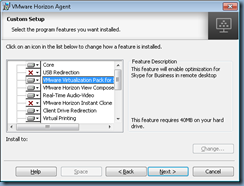
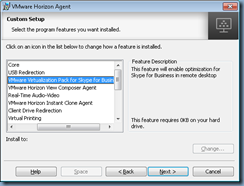
… by executing:
VMware-viewagent-x86_64-7.4.0-7400533.exe /s /v"/qn VDM_VC_MANAGED_AGENT=1 ADDLOCAL=VMWMediaProviderProxy
**Note make sure the Skype for Business client is is closed or it won’t install!
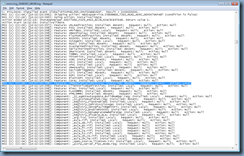
… then you’ll see the following output in the logs:
MSI (s) (CC:04) [14:02:09:034]: PROPERTY CHANGE: Adding PRODUCTLANGUAGE property. Its value is '1033'.
MSI (s) (CC:04) [14:02:09:034]: PROPERTY CHANGE: Adding VDM_VC_MANAGED_AGENT property. Its value is '1'.
MSI (s) (CC:04) [14:02:09:035]: PROPERTY CHANGE: Adding ADDLOCAL property. Its value is 'VMWMediaProviderProxy'.
MSI (s) (CC:04) [14:02:09:035]: PROPERTY CHANGE: Adding CURRENTDIRECTORY property. Its value is 'C:\Users\a-tluk\AppData\Local\Temp\{0159A3BB-1690-4203-9383-4900B9E34B0B}~setup'.
MSI (s) (CC:04) [14:02:09:035]: PROPERTY CHANGE: Adding CLIENTUILEVEL property. Its value is '3'.
MSI (s) (CC:04) [14:02:09:035]: PROPERTY CHANGE: Adding CLIENTPROCESSID property. Its value is '6732'.
MSI (s) (CC:04) [14:02:09:035]: Machine policy value 'DisableAutomaticApplicationShutdown' is 0
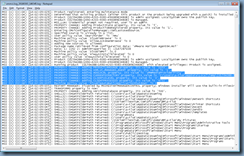
MSI (s) (68:EC) [13:38:11:820]: Feature: VMWMediaProviderProxy; Installed: Absent; Request: Local; Action: Local










![clip_image002[5]](https://blogger.googleusercontent.com/img/b/R29vZ2xl/AVvXsEjHPoYoRV7Pn3dobR6-6e6gnAH6rFK2todTyc-66rbEzNvBT6zJYsuNLVF9DErRa7sjeVO0o7X-XTv7V56GK66MfTKNUUGS0NNuCuCHT2SL_vx32QqC9-otM5-jcQUXlaNLhTHJ_iuh2tzB/?imgmax=800 "clip_image002[5]")
![clip_image002[7]](https://blogger.googleusercontent.com/img/b/R29vZ2xl/AVvXsEgFZVLawkH6JWtSNC2JNG9vu5_HSzyZurbFs-ktXkcszg5rfOmZtroi27VjcMPEWCPL1ov4GuPveM2eA2A1A1J9yc9V5qe2wToDwj8WE2uMdoZSKoVRINsBYtOr8LvNcRVsJXY1JS0mqWDN/?imgmax=800 "clip_image002[7]")
![clip_image002[9]](https://blogger.googleusercontent.com/img/b/R29vZ2xl/AVvXsEg6tIHDKOnhM0Bg0Y2x1cCMrZGlsArjNFHxW4c6w0OJECJHiRuVTR5h7arstA6iqOGGOIzr8M26m9qxaDq6tM5KDYPin5HoRBC-k6RTSiAdaUxAX4OYREh8zi_RB-qGKDt47BqFwnlG5avc/?imgmax=800 "clip_image002[9]")
![clip_image002[11]](https://blogger.googleusercontent.com/img/b/R29vZ2xl/AVvXsEj-iVVXtnj76zxSecWvZhBKXyJLBxF0OT4spHjexeCh7O9tdZdDOWYC6fd78wJ-4Jm-iI6k3dNEey1S4-Rkb2axAKkwo6RyikYum8TFExAVkAp360O8lsRz2QwRrUIu7xWvtc0W_MNiADj_/?imgmax=800 "clip_image002[11]")

![clip_image002[13]](https://blogger.googleusercontent.com/img/b/R29vZ2xl/AVvXsEjIvf2E4El_d-apNKkQJS08QnQ2snCq_yN0bd2yvhdnBG8Y-1T3pmNe11xSa3MhuAj3P_9uQWAEkdPGRH6kFpk_bdHqsccYMNgtmup2T_-Oo6RoMjn8g2yvIUAA20TWuoxvlX0wEhEIAW6A/?imgmax=800 "clip_image002[13]")
![clip_image002[15]](https://blogger.googleusercontent.com/img/b/R29vZ2xl/AVvXsEgYKUD15ZacHVQcl557WaJT0FR1mwOkILnLKU4fgt96mUu_qpfH6LXmsEKFzRaZZQTUNg2Te8Ry23VsQNeGnMkHRdMGugHGYT0J3SiqFwIj78BEYBnVUsJAqeqyssbkxQQY-VpalZXkhgpg/?imgmax=800 "clip_image002[15]")
![clip_image002[17]](https://blogger.googleusercontent.com/img/b/R29vZ2xl/AVvXsEg8O1wyMqXslq7R-1Srmhqjp60p7bnt8LTLt5PhVD8vGF0wMQNQmTiNzHRu6tJIBiODhHZix5QNSEvJbR-tfN238BxGvkpWpU1RblpP2MNyXj_M7fkDgHVKOXdn7lfhseA5EaAcDEr-gpKq/?imgmax=800 "clip_image002[17]")