Pages

Showing posts with label StoreFront. Show all posts

Monday, February 22, 2021

Attempting to log into a Citrix ADC / NetScaler published Citrix Gateway displays the prompt: "Cannot Complete Your Request"

Problem

You’ve completed configuring two Citrix StoreFront configured as a Load Balancing Virtual Server that is published by a Citrix ADC / NetScaler Gateway but noticed that the successfully logging on would continuously display the prompt:

Cannot complete your request.

image

image

Attempting to directly access the Load Balancing Virtual Server representing the StoreFront servers exhibits the same issue.

The following article’s recommendations does not appear to correct the issue:

Common Resolutions to “Cannot Complete Your Request” Error when connecting directly to StoreFront Server
https://support.citrix.com/article/CTX207162

Solution

The Cannot Complete Your Request prompt can be caused by many reasons but one of the more common reason I’ve come across is if the Load Balancing Virtual Server representing the StoreFront servers does not have Persistence configured:

image

To correct the issue, add the Persistence setting to the Load Balancing Virtual Server representing the StoreFront servers and configure

Select Persistence Type: SOURCEIP

Time-out (mins): the desired duration

Leave the rest as defaults.

image

Applying the settings should correct the issue:

image

Monday, November 2, 2020

Successfully logging onto Citrix StoreFront displays the message: "There are no apps or desktops available to you at this time."

Problem

Users have complained that they no longer see published apps and desktops after successfully logging onto Citrix as they only see the message:

There are no apps or desktops available to you at this time.

image

Reviewing the Citrix Delivery Services event logs on the Citrix StoreFront server displays the following errors:

None of the Citrix XML Services configured for farm Controller are in the list of active services, so none were contacted.

Log Name: Citrix Delivery Services
Source: Citrix Store Service
Event ID: 4012
Level: Error

image

Failed to launch the resource 'Controller.GP' as it was not found.

Log Name: Citrix Delivery Services
Source: Citrix Store Service
Event ID: 28
Level: Warning

image

None of the Citrix XML Services configured for farm Controller are in the list of active services, so none were contacted.

Log Name: Citrix Delivery Services
Source: Citrix Store Service
Event ID: 4012
Level: Error

image

Solution

The most important entry in the event logs written for this issue could easily be missed because the entry that provides the cause of the issue is actually labeled as Information. Continuing to move to earlier logs will reveal the following entry indicating that the SSL certificate on the Delivery Controller has expired:

The Citrix XML Service at address svr-ctxdc-02.ccs.int:443 has failed the background health check and has been temporarily removed from the list of active services. Failure details: An SSL connection could not be established: The server sent an expired security certificate. The certificate *.ccs.int, *.ccs.int is valid from 10/29/2018 9:37:20 AM until 10/28/2020 9:37:20 AM.. This message was reported from the Citrix XML Service at address https://svr-ctxdc-02.ccs.int/scripts/wpnbr.dll[UnknownRequest].

image

You would not be able to see this entry if you are reviewing the logs in the Administrative Events, which does not display Information entries.

image

To correct the issue, simply issue a new SSL certificate to replace the expired certificate on the Delivery Controller (or controllers if there are more than one), then update the bindings in IIS Manager:

imageimage

Successfully updating the SSL certificate will re-establish communication between the StoreFront server and the Delivery Controller(s).

Monday, December 12, 2016

Disabling the favorites tab displayed in Citrix StoreFront 3.7.0.39

A few of my colleagues and clients have referenced one of my previous blog post:

Disabling tabs displayed in Citrix StoreFront 3.x
http://terenceluk.blogspot.com/2015/12/disabling-tabs-displayed-in-citrix.html

… and indicated that they would like to hide the Favorites tab:

image

… but they are unable to find the Disable User Subscriptions option on the right of the Citrix StoreFront administration console:

image

What I’ve noticed is that the newer StoreFront builds such as 3.7.0.39:

image

… no longer displays this option and has nested in Configure Store Settings:

image

then under User Subscriptions:

image

Monday, December 5, 2016

Attempting to upgrade Citrix StoreFront 2.6.0.5031 (Xenpp 7.6) to 3.7.0.39 (XenApp 7.11) fails with: “An error occurred during installation. Please ensure all the required prerequisites have been installed an run the installer again.”

Problem

You’re attempting to upgrade your XenApp 7.6 environment to 7.11 but noticed that the upgrade for Citrix StoreFront 2.6.0.5031:

image

… to 3.7.0.39 fails with:

StoreFront did not install

An error occurred during the installation.

StoreFront failed.

Citrix StoreFront 3.7.0.39 failed.

An error occurred during installation. Please ensure all the required prerequisites have been installed an run the installer again.

image

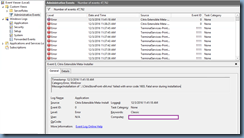
Reviewing the Application log events show the following error logged:

Log Name: Application

Source: Citrix Extensible Meta-Install

Event ID: 0

Level: Error

Message:

Timestamp: 12/3/2016 11:41:18 AM

Category:Error, WinError

Message:Installation of '..\CitrixStoreFront-x64.msi' failed with error code 1603. Fatal error during installation
image

Reviewing the installation log CitrixMsi-CitrixStoreFront-x64-2016-12-03-11-41-06.log file does not provide a reason why the installation failed other than indicating that it did:

Property(S): OutOfNoRbDiskSpace = 0

Property(S): PrimaryVolumeSpaceAvailable = 0

Property(S): PrimaryVolumeSpaceRequired = 0

Property(S): PrimaryVolumeSpaceRemaining = 0

Property(S): INSTALLLEVEL = 1

MSI (s) (98:E8) [11:41:18:642]: Note: 1: 1708

MSI (s) (98:E8) [11:41:18:642]: Product: Citrix StoreFront -- Installation failed.

MSI (s) (98:E8) [11:41:18:643]: Windows Installer installed the product. Product Name: Citrix StoreFront. Product Version: 3.7.0.39. Product Language: 1033. Manufacturer: Citrix Systems, Inc.. Installation success or error status: 1603.

MSI (s) (98:E8) [11:41:18:650]: Deferring clean up of packages/files, if any exist

MSI (s) (98:E8) [11:41:18:650]: MainEngineThread is returning 1603

MSI (s) (98:F0) [11:41:18:653]: RESTART MANAGER: Session closed.

MSI (s) (98:F0) [11:41:18:655]: RESTART MANAGER: Session closed.

MSI (s) (98:F0) [11:41:18:655]: No System Restore sequence number for this installation.

=== Logging stopped: 12/3/2016 11:41:18 ===

MSI (s) (98:F0) [11:41:18:662]: User policy value 'DisableRollback' is 0

MSI (s) (98:F0) [11:41:18:662]: Machine policy value 'DisableRollback' is 0

MSI (s) (98:F0) [11:41:18:662]: Incrementing counter to disable shutdown. Counter after increment: 0

MSI (s) (98:F0) [11:41:18:662]: Note: 1: 1402 2: HKEY_LOCAL_MACHINE\Software\Microsoft\Windows\CurrentVersion\Installer\Rollback\Scripts 3: 2

MSI (s) (98:F0) [11:41:18:663]: Note: 1: 1402 2: HKEY_LOCAL_MACHINE\Software\Microsoft\Windows\CurrentVersion\Installer\Rollback\Scripts 3: 2

MSI (s) (98:F0) [11:41:18:663]: Decrementing counter to disable shutdown. If counter >= 0, shutdown will be denied. Counter after decrement: -1

MSI (s) (98:F0) [11:41:18:663]: Destroying RemoteAPI object.

MSI (s) (98:10) [11:41:18:663]: Custom Action Manager thread ending.

MSI (c) (A8:D8) [11:41:18:665]: Decrementing counter to disable shutdown. If counter >= 0, shutdown will be denied. Counter after decrement: -1

MSI (c) (A8:D8) [11:41:18:666]: MainEngineThread is returning 1603

=== Verbose logging stopped: 12/3/2016 11:41:18 ===

image

Solution

While there could be various reasons as to why this error would be thrown during the upgrade of StoreFront to 3.7, one of the reasons that could cause this is if you have applied customizations to the UI of the legacy 2.6 StoreFront.  The environment above environment had the following customization applied so that allow the applications were displayed and placed into appropriate folders:

https://www.citrix.com/blogs/2014/06/23/receiver-for-web-folder-view/

The links to the ReceiverForWebFolderView.zip package in the above blog post no longer work so if you come across an environment with these customizations applied and not sure how it is configured, the following are the files bundled in the package:
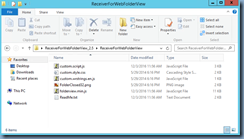
image

The ReadMe.txt file contains the following instructions:

This folder contains customization files for Citrix Receiver for Web 2.5 to provide a folder view for a mandatory store:

custom.script.js

custom.style.css

custom.wrstrings.en.js

FolderClosed32.png

folderview.min.js

If you have not customized your Receiver for Web site, simply copy all the files to the contrib folder of your site.

If you have modified any of custom.script.js, custom.style.css and custom.wrstrings.en.js, you have to manually merge the files in the folder with your modified files and copy the remaining files.

In addition, if you need to support other languages, you have to translate the string "Main" and insert the translated string into custom.wrstrings.<lang-code>.js.

Disclaimer

==========

THESE FILES ARE PROVIDED "AS IS" WITHOUT WARRANTIES OF ANY KIND, EXPRESS OR IMPLIED. CITRIX SYSTEMS, INC. ("CITRIX"), SHALL NOT BE LIABLE FOR TECHNICAL OR EDITORIAL ERRORS OR OMISSIONS CONTAINED HEREIN, NOR FOR DIRECT, INCIDENTAL, CONSEQUENTIAL OR ANY OTHER DAMAGES RESULTING FROM THE FURNISHING, PERFORMANCE, OR USE OF THESE FILES, EVEN IF CITRIX HAS BEEN ADVISED OF THE POSSIBILITY OF SUCH DAMAGES IN ADVANCE.

image

The following files located in C:\inetpub\wwwroot\Citrix\<yourCitrixSite>Web\contrib  are the ones that were replaced:

  • custom.script.js
  • custom.style.css
  • custom.wrstrings.en.js
  • FolderClosed32.png
  • folderview.min.js

The easiest way to get the original UI back is simply navigate to the \contrib folder of a Citrix StoreFront site that wasn’t customized and copy the files back over.  If there are no additional StoreFront sites to use then create a new temporary one and copy the files over and ensure that are not additional files or folders left:

image

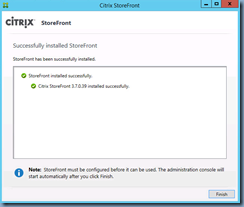
Once the files are over, restart the StoreFront server (an iisreset does not appear to be enough), rerun the upgrade and process should now complete:
image

Friday, December 18, 2015

Hiding Citrix XenDesktop 7.x applications from PNAgent published Apps and Desktops

Problem

You’ve successfully configured a zero client to connect to your XenDesktop 7.x infrastructure via the URL:

https://yourStoreFrontFQDN.com/Citrix/StoreName/PNAgent/config.xml


… but would like to hide all of the published applications because the zero client will only be used for desktop access.


Solution

One of the ways to hide Applications or Desktops is to use the PowerShell cmdlet Set-DSResourceFilterType on the StoreFront server.

Begin by setting the execution policy to remote signed then importing the necessary Citrix PowerShell modules with the following cmdlets:

Set-ExecutionPolicy RemoteSigned
$dsInstallProp = Get-ItemProperty -Path HKLM:\SOFTWARE\Citrix\DeliveryServicesManagement -Name InstallDir
$dsInstallDir = $dsInstallProp.InstallDir
& $dsInstallDir\..\Scripts\ImportModules.ps1


Next, determine the Site ID of the IIS site hosting the StoreFront website:


With the Site ID determined, execute the following cmdlet to list what is being displayed for the store:

Get-DSResourceFilterType -SiteId 1 -VirtualPath "/Citrix/"

For example:

Get-DSResourceFilterType -SiteId 1 -VirtualPath "/Citrix/Desktop"


Notice the output above shows that Applications, Desktops and Documents are displayed meaning nothing is filtered out.

Next, execute the following cmdlet to filter out Applications and Documents thereby leaving only Desktops displayed:

Set-DSResourceFilterType -SiteId 1 -VirtualPath "/Citrix/Desktop" -IncludeTypes @("Desktops")


Executing the:

Get-DSResourceFilterType -SiteId 1 -VirtualPath "/Citrix/Desktop"

… will now show that only Desktops are included.


Logging into the zero client will now hide the applications that were displayed in the earlier screenshot:


Thursday, December 17, 2015

Attempting to connect to Citrix XenDesktop 7 from an HP t410 Smart Zero Client throws the error: “This client could not connect to a Citrix server at the address ‘https://yourStoreFrontFQDN.com/Citrix/StoreNameWeb”

Problem

You’ve configured a new HP t410 Smart Zero Client to connect to your Citrix XenDesktop 7.x StoreFront site but receive the following error message when you attempt to log in:

No Citrix Server


This client could not connect to a Citrix server at the address ‘https://yourStoreFrontFQDN.com/Citrix/StoreNameWeb


Solution

The reason why this error is thrown is because you have configured the connection’s Server URL with the Receiver for Web URL.  To correct the issue, simply change the URL to:

https://yourStoreFrontFQDN.com/Citrix/StoreName/PNAgent/config.xml


You should be able to log in after the URL is changed:


Wednesday, December 16, 2015

Attempting to connect to a Citrix XenDesktop 7 store secured with internal CA throws the error: “CA certificate required to connect to this server is not installed or found…”

Problem

You’re in the process of configuring a new HP t410 Smart Zero Client with a XenDesktop 7.x infrastructure.  You proceed to configure the zero client to connect to StoreFront 3.0.1 but quickly notice the following error message:

Certificate error

CA certificate required to connect to this server is not installed or found. Please use Certificate Manager to add the CA certificate or contact your system administrator.


Solution

The reason why this error is thrown is because the certificate presented by the StoreFront to secure the traffic between itself and the zero client is issued by an internal Microsoft CA which the zero client does not trust.  To correct this issue, simply export the root certificate as Base-64 encoded X.509 (.CER) format:


Then navigate into the Certificate Manager of the zero client and import it into the Local Root Certification Authorities:


You should now be able to log into the site without receiving the certificate error message.

Wednesday, December 9, 2015

Disabling tabs displayed in Citrix StoreFront 3.x

I’ve recently been asked a few times by clients and colleagues about the ability to hide the new X1 StoreFront interface’s Favorites, Apps and Desktop tabs and as I don’t have a blog post demonstrating it, I thought I’d write this quick post so I could direct these questions to it.

Hiding the Favorites Tab

To hide the Favorites tab as shown in the screenshot below:

image

… simply launch the Citrix StoreFront console, navigate to Stores, select the store you would like to hide the tab and the click on the Disable User Subscriptions option on the right:

image

You will be briefly presented with the following prompt:

image

Click on Yes to complete the configuration.

Hiding the Apps or Desktops Tab

To hide the Apps or Desktops tab as shown in the screenshot below:

image

… simply navigate to the C:\inetpub\wwwroot\Citrix\<StoreName>Web directory, open the web.config file with Notepad:

image

Then search for either showAppsView or showDesktopsView which will bring you to the following section:

<userInterface autoLaunchDesktop="true" multiClickTimeout="3"

enableAppsFolderView="true">

<workspaceControl enabled="true" autoReconnectAtLogon="true"

logoffAction="disconnect" showReconnectButton="false" showDisconnectButton="false" />

<receiverConfiguration enabled="true" downloadURL="ServiceRecord/GetDocument/receiverconfig.cr" />

<uiViews showDesktopsView="true" showAppsView="true" defaultView="auto" />

<appShortcuts enabled="false" allowSessionReconnect="false" />

</userInterface>

Modify the true option for the respective tabs by changing them to false if you would like to hide them.

The following is an example of a StoreFront store with the Favorites and Apps tab hidden:

image

Friday, November 13, 2015

Citrix XenDesktop 7.6 published through a NetScaler throws the error: "This webpage has a redirect loop" error after upgrading from NS11.0 55.20.nc to NS11.0 63.16.nc

Problem

You have a working Citrix XenDesktop 7.6 with StoreFront 3.0 published through a NetScaler VPX appliance NS11.0 55.20.nc that has been stable for quite some time and have decided to upgrade the NetScaler to the latest NS11.0 63.16.nc.  You proceed to go through the upgrade of the appliance:

image

image

image

The appliance appears to be operational as navigating to the portal URL displays the authentication page presented by the NetScaler:

image

However, you notice that you are not able to successfully log into the portal after entering the credentials because the Internet Explorer browser simply presents a white screen:

image

You attempt to use Chrome to test instead:

image

Then notice that instead of a white page, the browser terminates the attempt and displays the message:

This webpage has a redirect loop

ERR_TOO_MANY_REDIRECTS

image

Expanding the Details option displays the following:

This webpage has a redirect loop

ERR_TOO_MANY_REDIRECTS

Reload

Hide details

The webpage at https://access.domain.com/ has resulted in too many redirects. Clearing your cookies for this site or allowing third-party cookies may fix the problem. If not, it is possibly a server configuration issue and not a problem with your computer.

Learn more about this problem.

image

Solution

While there may be various causes as to why this error would be thrown, the cause for the environment I worked in was because the upgraded NetScaler did not appear to like the redirect configuration I had in IIS on the StoreFront server:

image

The Web Interface Address in the NetScaler Gateway Session Profile was configured without the full directory path:

https://storefront.domain.com

imageimage

What ended correcting the issue was to remove the redirect configured on the IIS properties of the StoreFront server:

image

… and using the full URL path for the StoreFront website:

https://storefrontdr.domain.com/Citrix/UKWeb

image

Note that I’ve also tried upgrading the StoreFront server to 3.0.1.55 but that did not correct the issue:

image