Pages

Showing posts with label Horizon View. Show all posts

Friday, April 26, 2019

Attempting to rebalance VMware Horizon View linked-clones desktop pool datastore fails with: "Refit operation rebalance failed"

Problem

You attempt to migrate a linked-clone pool’s storage from one datastore to another by using the rebalance feature as outlined in the following KB:

Migrating linked clone pools to a different or new datastore (1028754)
https://kb.vmware.com/s/article/1028754

… but notice that the operation attempts the migration on a few desktops but fails with the error: Refit operation rebalance failed in the Events log of the linked-clones desktop pool:

Clicking on the ellipsis icon for the error for more information does not reveal additional information:

Navigating outside of the Events log of the linked-clones desktop pool then into the Inventory view and clicking on the ellipsis icon for the desktop in error displays the following message:

Apr 5, 2019 8:34:03 PM ADT: View Composer Invalid Parent VM Fault: View Composer Invalid Parent VM Fault: Selected snapshot on parent VM is not found on VC server

Pairing state:

Configured by:

Attempted theft by:

Solution

This error is usually caused by situations where the master image for the linked-clones pool no longer have the snapshots that the desktops being moved are associated with.  The rebalance operation requires access to the snapshots in order to re-clone the replicas (snapshots) to the new datastore so if they no longer exist then this error would be thrown.  In the case of the environment, the pool of 200 desktops had a mix of 5 different snapshots where only 1 of them was still available on the master image.  To view the linked-clones desktops and the associated snapshot that are being used, navigate to Inventory > Machines (View Composer Details) and review the Image tab:

If the snapshots have already been deleted then the way to remediate the error is to recompose all the snapshots with an existing snapshot on the master image or create a new one and recompose with it.  The rebalance operation should complete successfully once all the linked-clone pools are using a snapshot that exists.

Tuesday, April 23, 2019

VMware Horizon View virtual desktop in “agent unreachable” status because OS is in repair boot mode

One of the common issues I’ve seen in many virtual desktop environments such as VMware Horizon View (or Citrix XenDesktop) is when a Windows 10 virtual desktop has crashed and gone into the repair mode upon reboot thus causing Horizon View to report the desktop as agent unreachable:

Reviewing the console of the virtual desktop in vCenter will confirm that it has booted into the recovery screen:

There isn’t really a benefit for having this feature on because it causes desktops to never boot into the operating system and therefore generating help desk calls.  The way to disable this feature is through the use of the command: bcdedit

Executing this command in the command prompt will display the configuration of the Windows Boot Loader and whether the recoveryenabled setting is set to Yes or No:

To disable the feature, simply execute the following command:

bcdedit /set recoveryenabled NO

Executing bcdedit after the configuration should show the recoveryenabled configuration set to No:

Those who still have Windows 7 virtual desktops in their environment can use the following command:

bcdedit /set {default} bootstatuspolicy ignoreshutdownfailures

Wednesday, April 10, 2019

Deleting stuck VMware Horizon View VMs with viewdbchk.cmd

Problem

You have a pool of desktops that are currently in a status / state where you are unable to use the VMware Horizon 7 administrator console to remove:

Deleting (missing)

Maintenance mode (missing)

Solution

Older version of View required the administrator to manually remove references of the VMs from the ADAM database hosted on the View Connection Servers, the entries in the composer SQL database, virtual machine on vCenter (if it exists), as well as the Active Director computer object but newer version such as 7 now provide a tool named viewdbchk.cmd that automates this process.

This command can be found at the following directory:

C:\Program Files\VMware\VMware View\Server\tools\bin

Simply executing this command will provide you with the switches available:

C:\Program Files\VMware\VMware View\Server\tools\bin>viewdbchk.cmd

No command specified

ViewDbChk --findDesktop --desktopName <desktop name> [--verbose]

Find a desktop pool by name.

ViewDbChk --enableDesktop --desktopName <desktop name> [--verbose]

Enable a desktop pool.

ViewDbChk --disableDesktop --desktopName <desktop name> [--verbose]

Disable a desktop pool.

ViewDbChk --findMachine --desktopName <desktop name> --machineName <machine name

> [--verbose]

Find a machine by name.

ViewDbChk --removeMachine --machineName <machine name> [--desktopName <desktop n

ame>] [--force] [--noErrorCheck] [--verbose]

Remove a machine from a desktop pool.

ViewDbChk --scanMachines [--desktopName <desktop name>] [--limit <maximum delete

s>] [--force] [--verbose]

Scan all machines for problems. The scan can optionally be limited to a speci

fic desktop pool.

ViewDbChk --help [--commandName] [--verbose]

Display help for all commands, or a specific command.

C:\Program Files\VMware\VMware View\Server\tools\bin>

Using automated scan option to detect problematic virtual machines

The recommended first step to take is to use the scanMachines switch to allow the tool to automatically detect any problematic machines in the pools. Note that the tool needs the pool to be disabled in order for it to scan it and it is best to disable provisioning as well to prevent new machines from being provisioned when one is deleted.

Here is a sample of the process with a limit of 200 machines specified:

viewdbchk.cmd --scanMachines --limit 200

C:\Program Files\VMware\VMware View\Server\tools\bin>viewdbchk.cmd --scanMachine

s --limit 200

Checking for machines with errors...

Connecting to vCenter "https://contukvc01.contoso.com:443/sdk". This m

ay take some time...

Connecting to vCenter "https://contdrvc01.contoso.com:443/sdk". This m

ay take some time...

Found 35 machine(s) with errors in 4 desktop pool(s)

Processing desktop pool "cont_disaster_recovery"

Desktop Pool Name: cont_Disaster_Recovery

Desktop Pool Type: STICKY_TYPE

VM Folder: /UK DR/vm/VM View/cont_Disaster_Recovery/

Desktop Pool Disabled: true

Desktop Pool Provisioning Enabled: false

Checking connectivity...

Machine "contDR-008" has errors

VM Name: contDR-008

Creation Date: 9/24/18 9:21:43 PM BST

MOID: vm-10521

VM Folder: /UK DR/vm/VM View/cont_Disaster_Recovery/contDR-008

VM State: MAINTENANCE

VM Missing In vCenter: true

Do you want to remove the desktop machine "contDR-008"? (yes/no):

As shown above, the tool will prompt you with the suspected problematic virtual desktop name and ask if you would like to remove it. It is important that you verify the virtual machine identified is indeed a machine you would like to delete as you cannot reverse the process.

Selecting yes to the machine will output the following:

Do you want to remove the desktop machine "contDR-008"? (yes/no):yes

Shutting down VM "/UK DR/vm/VM View/cont_Disaster_Recovery/contDR-008"...

** ERROR: EXCEPTION: VM not found: vm-10521 **

Removing VM "/UK DR/vm/VM View/cont_Disaster_Recovery/contDR-008" from inventory..

.

** ERROR: EXCEPTION: VM not found: vm-10521 **

Removing ThinApp entitlements for machine "/UK DR/vm/VM View/cont_Disaster_Recove

ry/contDR-008"...

Removing machine "/UK DR/vm/VM View/cont_Disaster_Recovery/contDR-008" from LDAP..

.

Running delete VM scripts for machine "/UK DR/vm/VM View/cont_Disaster_Recovery/T

MRDR-008"...

Machine "contDR-004" has errors

VM Name: contDR-004

Creation Date: 9/24/18 9:21:43 PM BST

MOID: vm-10520

VM Folder: /UK DR/vm/VM View/cont_Disaster_Recovery/contDR-004

VM State: MAINTENANCE

VM Missing In vCenter: true

Do you want to remove the desktop machine "contDR-004"? (yes/no):

The tool will proceed with scanning other machines once the earlier problematic machine has been deleted. Once all of the identified VMs are deleted, the tool will ask if you would like to re-enable provisioning if it is currently disabled:

With the pass of the first pool completed, it will move onto the next pool but if the pool is not disabled then it will ask if I can be disabled. This is obviously potentially service impacting so if the pool is in production and being used, select no.

Checking connectivity...

The desktop pool "Standard_Desktop" must be disabled before proceeding. Do

you want to disable the desktop pool? (yes/no):

Manually identifying problematic virtual machines and removing them

There will be times when the scanMachines switch would not be able to identify problematic machines. An example of this would be pools that are stuck in the Deleting state:

You can find these machines in the Machine view but unable to click into the pool itself:

The method to remove these machines would be to manually specify the machine name and the pool using the removeMachine switch. The following is an example of the cmdlet:

viewdbchk.cmd --removeMachine --machineName UKVD-050 --desktopName Building__VMs

The following is an example of the output:

C:\Program Files\VMware\VMware View\Server\tools\bin>viewdbchk.cmd --removeMachi

ne --machineName contUKVD-050 --desktopName Building__VMs

Looking for desktop pool "Building__VMs" in LDAP...

Desktop Pool Name: Building__VMs

Desktop Pool Type: STICKY_TYPE

VM Folder: /Hemel Hempstead/vm/contE UK Windows 10 VDI/London/Gold 2vCPU - 8GB

RAM/Building__VMs/

Desktop Pool Disabled: true

Desktop Pool Provisioning Enabled: false

Desktop Pool Provisioning Error: The task was canceled by a user.

Looking for machine "/Hemel Hempstead/vm/contE UK Windows 10 VDI/London/Gold 2vCP

U - 8GB RAM/Building__VMs/contUKVD-050" in vCenter...

Connecting to vCenter "https://contukvc01.contoso.com:443/sdk". This m

ay take some time...

** ERROR: NOT FOUND **

Checking connectivity...

Found machine "contUKVD-050"

VM Name: contUKVD-050

Creation Date: 3/6/19 6:48:14 AM GMT

MOID:

VM Folder: /Hemel Hempstead/vm/contE UK Windows 10 VDI/London/Gold 2vCPU - 8GB

RAM/Building__VMs/contUKVD-050

VM State: DELETING

VM Missing In vCenter: true

Do you want to remove the desktop machine "contUKVD-050"? (yes/no):Yes

LDAP record for machine "contUKVD-050" is incomplete.

Trying to remove machine by name...

Looking for machine "/Hemel Hempstead/vm/contE UK Windows 10 VDI/London/Gold 2vCP

U - 8GB RAM/Building__VMs/contUKVD-050" in vCenter...

** ERROR: NOT FOUND **

Removing ThinApp entitlements for machine "/Hemel Hempstead/vm/contE UK Windows 1

0 VDI/London/Gold 2vCPU - 8GB RAM/Building__VMs/contUKVD-050"...

Removing machine "/Hemel Hempstead/vm/contE UK Windows 10 VDI/London/Gold 2vCPU -

8GB RAM/Building__VMs/contUKVD-050" from LDAP...

Running delete VM scripts for machine "/Hemel Hempstead/vm/contE UK Windows 10 VD

I/London/Gold 2vCPU - 8GB RAM/Building__VMs/contUKVD-050"...

Provisioning has been disabled for the desktop pool "Building__VMs". Do you want

to enable it? (yes/no):

Repeat the same for all the other VMs and the pool will be successfully removed.

Monday, March 11, 2019

Configuring a custom shell launcher with VMware Horizon View Client on a Dell Wyse 7020 Windows 10 IoT device

I’ve recently had to assist a client with configuring their Dell Wyse 7020 Windows 10 IoT thin clients with a custom shell launcher mimicking a kiosk type of mode where only the VMware Horizon View Client is available to the user but the local admin account should still have the regular explorer shell.  These thin clients will not be joined to the Active Directory domain in the organization so users should not have to log into the thin client and the thin client OS should never lock.

The Dell Wyse 7020 (Z90QQ10) thin client I was working with is the following:

Prerequisites

You must ensure that the Shell Launcher feature is installed before beginning the configuration and although the OS on this thin client indicates it is Windows 10 Enterprise 2015 LTSB, there are some subtle differences with a full desktop and one of them is that the Shell Launcher is labeled as the following in the Windows Features:

Embedded Shell Launcher

This is different than where you would find the feature on a regular Windows 10 OS:

It is also possible to add the feature with the following command:

Dism /online /Enable-Feature /all /FeatureName:Client-EmbeddedShellLauncher

Configuring the customized shell with a PowerShell Script

Microsoft provides the following 2 articles with a PowerShell script to configure the custom shell:

Shell Launcher
https://docs.microsoft.com/en-us/windows-hardware/customize/enterprise/shell-launcher

Use Shell Launcher to create a Windows 10 kiosk
https://docs.microsoft.com/en-us/windows/configuration/kiosk-shelllauncher

However, those who may not be familiar with the behavior of customizing the shell on a Windows OS may be confused so here is a breakdown of the script and the changes required.

Original Script:

# Check if shell launcher license is enabled

function Check-ShellLauncherLicenseEnabled

{

[string]$source = @"

using System;

using System.Runtime.InteropServices;

static class CheckShellLauncherLicense

{

    const int S_OK = 0;

    public static bool IsShellLauncherLicenseEnabled()

    {

        int enabled = 0;

        if (NativeMethods.SLGetWindowsInformationDWORD("EmbeddedFeature-ShellLauncher-Enabled", out enabled) != S_OK) {

            enabled = 0;

        }

        return (enabled != 0);

    }

    static class NativeMethods

    {

        [DllImport("Slc.dll")]

        internal static extern int SLGetWindowsInformationDWORD([MarshalAs(UnmanagedType.LPWStr)]string valueName, out int value);

    }

}

"@

$type = Add-Type -TypeDefinition $source -PassThru

return $type[0]::IsShellLauncherLicenseEnabled()

}

[bool]$result = $false

$result = Check-ShellLauncherLicenseEnabled

"`nShell Launcher license enabled is set to " + $result

if (-not($result))

{

"`nThis device doesn&#39;t have required license to use Shell Launcher"

exit

}

$COMPUTER = "localhost"

$NAMESPACE = "root\standardcimv2\embedded"

# Create a handle to the class instance so we can call the static methods.

try {

$ShellLauncherClass = [wmiclass]"\\$COMPUTER\${NAMESPACE}:WESL_UserSetting"

    } catch [Exception] {

write-host $_.Exception.Message;

write-host "Make sure Shell Launcher feature is enabled"

exit

    }

# This well-known security identifier (SID) corresponds to the BUILTIN\Administrators group.

$Admins_SID = "S-1-5-32-544"

# Create a function to retrieve the SID for a user account on a machine.

function Get-UsernameSID($AccountName) {

$NTUserObject = New-Object System.Security.Principal.NTAccount($AccountName)

$NTUserSID = $NTUserObject.Translate([System.Security.Principal.SecurityIdentifier])

return $NTUserSID.Value

}

# Get the SID for a user account named "Cashier". Rename "Cashier" to an existing account on your system to test this script.

$Cashier_SID = Get-UsernameSID("Cashier")

# Define actions to take when the shell program exits.

$restart_shell = 0

$restart_device = 1

$shutdown_device = 2

# Examples. You can change these examples to use the program that you want to use as the shell.

# This example sets the command prompt as the default shell, and restarts the device if the command prompt is closed.

$ShellLauncherClass.SetDefaultShell("cmd.exe", $restart_device)

# Display the default shell to verify that it was added correctly.

$DefaultShellObject = $ShellLauncherClass.GetDefaultShell()

"`nDefault Shell is set to " + $DefaultShellObject.Shell + " and the default action is set to " + $DefaultShellObject.defaultaction

# Set Internet Explorer as the shell for "Cashier", and restart the machine if Internet Explorer is closed.

$ShellLauncherClass.SetCustomShell($Cashier_SID, "c:\program files\internet explorer\iexplore.exe www.microsoft.com", ($null), ($null), $restart_shell)

# Set Explorer as the shell for administrators.

$ShellLauncherClass.SetCustomShell($Admins_SID, "explorer.exe")

# View all the custom shells defined.

"`nCurrent settings for custom shells:"

Get-WmiObject -namespace $NAMESPACE -computer $COMPUTER -class WESL_UserSetting | Select Sid, Shell, DefaultAction

# Enable Shell Launcher

$ShellLauncherClass.SetEnabled($TRUE)

$IsShellLauncherEnabled = $ShellLauncherClass.IsEnabled()

"`nEnabled is set to " + $IsShellLauncherEnabled.Enabled

# Remove the new custom shells.

$ShellLauncherClass.RemoveCustomShell($Admins_SID)

$ShellLauncherClass.RemoveCustomShell($Cashier_SID)

# Disable Shell Launcher

$ShellLauncherClass.SetEnabled($FALSE)

$IsShellLauncherEnabled = $ShellLauncherClass.IsEnabled()

"`nEnabled is set to " + $IsShellLauncherEnabled.Enabled

Breakdown:

Check to see if the Shell Launcher is enabled:

# Check if shell launcher license is enabled

function Check-ShellLauncherLicenseEnabled

{

[string]$source = @"

using System;

using System.Runtime.InteropServices;

static class CheckShellLauncherLicense

{

    const int S_OK = 0;

    public static bool IsShellLauncherLicenseEnabled()

    {

        int enabled = 0;

        if (NativeMethods.SLGetWindowsInformationDWORD("EmbeddedFeature-ShellLauncher-Enabled", out enabled) != S_OK) {

            enabled = 0;

        }

        return (enabled != 0);

    }

    static class NativeMethods

    {

        [DllImport("Slc.dll")]

        internal static extern int SLGetWindowsInformationDWORD([MarshalAs(UnmanagedType.LPWStr)]string valueName, out int value);

    }

}

"@

$type = Add-Type -TypeDefinition $source -PassThru

return $type[0]::IsShellLauncherLicenseEnabled()

}

[bool]$result = $false

$result = Check-ShellLauncherLicenseEnabled

"`nShell Launcher license enabled is set to " + $result

if (-not($result))

{

"`nThis device doesn't have required license to use Shell Launcher"

exit

}

Create a handle to the class instance to call the static methods (pretty much what the comment says):

$COMPUTER = "localhost"

$NAMESPACE = "root\standardcimv2\embedded"

# Create a handle to the class instance so we can call the static methods.

try {

$ShellLauncherClass = [wmiclass]"\\$COMPUTER\${NAMESPACE}:WESL_UserSetting"

    } catch [Exception] {

write-host $_.Exception.Message;

write-host "Make sure Shell Launcher feature is enabled"

exit

    }

Assigning a variable with the SID of the Windows 10 local admin account:

# This well-known security identifier (SID) corresponds to the BUILTIN\Administrators group.

$Admins_SID = "S-1-5-32-544"

Create a function to retrieve the SID for a local account on the thin client then assigns a variable with the SID of the Windows 10 local user account:

# Create a function to retrieve the SID for a user account on a machine.

function Get-UsernameSID($AccountName) {

$NTUserObject = New-Object System.Security.Principal.NTAccount($AccountName)

$NTUserSID = $NTUserObject.Translate([System.Security.Principal.SecurityIdentifier])

return $NTUserSID.Value

}

# Get the SID for a user account named "User". Rename "User" to an existing account on your system to test this script.

$Cashier_SID = Get-UsernameSID("Cashier")

Defining actions to take when the shell program exits (pretty much what the comment says):

# Define actions to take when the shell program exits.

$restart_shell = 0

$restart_device = 1

$shutdown_device = 2

This section typically confuses most administrators because it indicates that the command prompt is being configured as the default shell and the reason for this is because when Shell Launcher is enabled, the default shell is set to cmd.exe.  It is possible to change this to the regular explorer.exe shell but for this example, we’ll modify the admin account’s shell instead:

# Examples. You can change these examples to use the program that you want to use as the shell.

# This example sets the command prompt as the default shell, and restarts the device if the command prompt is closed.

$ShellLauncherClass.SetDefaultShell("cmd.exe", $restart_device)

This section just provides an output indicating what the default shell was configured as:

# Display the default shell to verify that it was added correctly.

$DefaultShellObject = $ShellLauncherClass.GetDefaultShell()

"`nDefault Shell is set to " + $DefaultShellObject.Shell + " and the default action is set to " + $DefaultShellObject.defaultaction

This section is where you would modify the shell you intend on configuring for the locked down user account:

# Set Internet Explorer as the shell for "Cashier", and restart the machine if Internet Explorer is closed.

$ShellLauncherClass.SetCustomShell($Cashier_SID, "c:\program files\internet explorer\iexplore.exe www.microsoft.com", ($null), ($null), $restart_shell)

This section is where you would modify the shell you intend on configuring for the admin account:

# Set Explorer as the shell for administrators.

$ShellLauncherClass.SetCustomShell($Admins_SID, "explorer.exe")

This section retrieves the custom shells defined:

# View all the custom shells defined.

"`nCurrent settings for custom shells:"

Get-WmiObject -namespace $NAMESPACE -computer $COMPUTER -class WESL_UserSetting | Select Sid, Shell, DefaultAction

This section enables the shell launcher:

# Enable Shell Launcher

$ShellLauncherClass.SetEnabled($TRUE)

$IsShellLauncherEnabled = $ShellLauncherClass.IsEnabled()

"`nEnabled is set to " + $IsShellLauncherEnabled.Enabled

This section removes the custom shells and will need to be commented out:

# Remove the new custom shells.

$ShellLauncherClass.RemoveCustomShell($Admins_SID)

$ShellLauncherClass.RemoveCustomShell($Cashier_SID)

This section disables the shell launcher and will need to be commented out:

# Disable Shell Launcher

$ShellLauncherClass.SetEnabled($FALSE)

$IsShellLauncherEnabled = $ShellLauncherClass.IsEnabled()

"`nEnabled is set to " + $IsShellLauncherEnabled.Enabled

Customized for Dell Wyse 7020 thin client:

The following is the slightly modified version that will:

  1. Configure the VMware Horizon View client as shell launcher for the User account
  2. Configure the explorer.exe (regular shell) as the shell launcher for the Admin account
  3. The default shell will be configured with cmd.exe

Note that I’ve made changes to the Cashier_SID variable name to User_SID so it reflects the current context better.

# Check if shell launcher license is enabled

function Check-ShellLauncherLicenseEnabled

{

[string]$source = @"

using System;

using System.Runtime.InteropServices;

static class CheckShellLauncherLicense

{

    const int S_OK = 0;

    public static bool IsShellLauncherLicenseEnabled()

    {

        int enabled = 0;

        if (NativeMethods.SLGetWindowsInformationDWORD("EmbeddedFeature-ShellLauncher-Enabled", out enabled) != S_OK) {

            enabled = 0;

        }

        return (enabled != 0);

    }

    static class NativeMethods

    {

        [DllImport("Slc.dll")]

        internal static extern int SLGetWindowsInformationDWORD([MarshalAs(UnmanagedType.LPWStr)]string valueName, out int value);

    }

}

"@

$type = Add-Type -TypeDefinition $source -PassThru

return $type[0]::IsShellLauncherLicenseEnabled()

}

[bool]$result = $false

$result = Check-ShellLauncherLicenseEnabled

"`nShell Launcher license enabled is set to " + $result

if (-not($result))

{

"`nThis device doesn't have required license to use Shell Launcher"

exit

}

$COMPUTER = "localhost"

$NAMESPACE = "root\standardcimv2\embedded"

# Create a handle to the class instance so we can call the static methods.

try {

$ShellLauncherClass = [wmiclass]"\\$COMPUTER\${NAMESPACE}:WESL_UserSetting"

    } catch [Exception] {

write-host $_.Exception.Message;

write-host "Make sure Shell Launcher feature is enabled"

exit

    }

# This well-known security identifier (SID) corresponds to the BUILTIN\Administrators group.

$Admins_SID = "S-1-5-32-544"

# Create a function to retrieve the SID for a user account on a machine.

function Get-UsernameSID($AccountName) {

$NTUserObject = New-Object System.Security.Principal.NTAccount($AccountName)

$NTUserSID = $NTUserObject.Translate([System.Security.Principal.SecurityIdentifier])

return $NTUserSID.Value

}

# Get the SID for a user account named "User". Rename "User" to an existing account on your system to test this script.

$User_SID = Get-UsernameSID("User")

# Define actions to take when the shell program exits.

$restart_shell = 0

$restart_device = 1

$shutdown_device = 2

# Examples. You can change these examples to use the program that you want to use as the shell.

# This example sets the command prompt as the default shell, and restarts the device if the command prompt is closed.

$ShellLauncherClass.SetDefaultShell("cmd.exe", $restart_device)

# Display the default shell to verify that it was added correctly.

$DefaultShellObject = $ShellLauncherClass.GetDefaultShell()

"`nDefault Shell is set to " + $DefaultShellObject.Shell + " and the default action is set to " + $DefaultShellObject.defaultaction

# Set Internet Explorer as the shell for "User", and restart the machine if Internet Explorer is closed.

# $ShellLauncherClass.SetCustomShell($User_SID, "c:\program files\internet explorer\iexplore.exe www.microsoft.com", ($null), ($null), $restart_shell)

# Set VMware Horizon View Client as the shell for "User", and restart the machine if VMware Horizon View Client is closed.

$ShellLauncherClass.SetCustomShell($User_SID, "C:\Program Files (x86)\VMware\VMware Horizon View Client\vmware-view.exe", ($null), ($null), $restart_shell)

# Set Explorer as the shell for administrators.

$ShellLauncherClass.SetCustomShell($Admins_SID, "explorer.exe")

# View all the custom shells defined.

"`nCurrent settings for custom shells:"

Get-WmiObject -namespace $NAMESPACE -computer $COMPUTER -class WESL_UserSetting | Select Sid, Shell, DefaultAction

# Enable Shell Launcher

$ShellLauncherClass.SetEnabled($TRUE)

$IsShellLauncherEnabled = $ShellLauncherClass.IsEnabled()

"`nEnabled is set to " + $IsShellLauncherEnabled.Enabled

# Remove the new custom shells.

# $ShellLauncherClass.RemoveCustomShell($Admins_SID)

# $ShellLauncherClass.RemoveCustomShell($User_SID)

# Disable Shell Launcher

# $ShellLauncherClass.SetEnabled($FALSE)

# $IsShellLauncherEnabled = $ShellLauncherClass.IsEnabled()

# "`nEnabled is set to " + $IsShellLauncherEnabled.Enabled

It is important to comment out the lines for removing and disabling the shell launcher or executing the PowerShell script would not change anything.

The output should look similar to the following upon successfully executing it on the thin client:

Note that if you want the VMware Horizon View client to automatically connect to a server then you can append the -serverURL <connection_server> to the shell.

If you ever had to revert the user account’s shell back to the original explorer.exe then uncomment these lines and rerun the PowerShell script under the admin account.

The VMware Horizon View Shell launched under the user account will have a black background and I’ve done a bit of research as to whether it is possible to change it and the short answer is it may not be possible in Windows 10 but please feel free to comment below if you’ve found a solution for this to share with the community.

Additional items and the order in which I configured the thin client are as follows:

1. Disable write filter

2. Configure Power Options to High performance (powercfg -setactive 8c5e7fda-e8bf-4a96-9a85-a6e23a8c635c)

3. Configure Turn off the display value to after 15 mins (powercfg -x -monitor-timeout-ac 15)

4. Configure Put the computer to sleep value to Never (powercfg -x -standby-timeout-ac 0)

(preventing the thin client to go to sleep prevents the user from being prompted with the thin client OS login screen where they would need to enter the user password)

5. Uninstall unused applications on the thin client

6. Update TightVNC access password or remove the application completely

7. Edit registry to force Num Lock on:

[HKEY_USERS\.DEFAULT\Control Panel\Keyboard]

"InitialKeyboardIndicators"="2"

"KeyboardDelay"="1"

"KeyboardSpeed"="31"

8. Disable the shade of the VMware Horizon View client via the registry key: HKCU\Software\VMware, Inc.\VMware VDM\Client\EnableShade

9. Enable firewall

10. Disable remember credentials for Windows which would also cause the Horizon View client to not remember the previous login via the registry key: [HKEY_LOCAL_MACHINE\SOFTWARE\Microsoft\Windows\CurrentVersion\Policies\System] "dontdisplaylastusername"=dword:00000001

11. Change the local administrator and user password (the default DellCCCvdi for both accounts makes it vulnerability)

12. Update auto logon for user account

13. Enable write filter

14. Disable boot from USB in the BIOS

15. Change the BIOS password (the default Fireport should not be used)

If this thin client is going to be captured then run the Build_Master.cmd in the C:\Windows\Setup folder on the thin client.

Note that you should select the Enable local account credential changes under the Configure local account credentials heading so you can change the default password of the admin and user account after the preparation:

There will be settings that do not end up getting retained after the image preparation and they are:

  1. The name of the Windows OS does not change
  2. The Power Scheme configuration will be reverted back to defaults (monitor and computer would go to sleep)

More information about the Custom Sysprep tool can be found here: https://www.dell.com/support/manuals/us/en/04/wyse-7020/wie10_th_mr4/running-custom-sysprep-tool?guid=guid-5bd77921-f2e6-4c84-b55f-dbffddc1a89f&lang=en-us

Extra

I’ve been asked several times in the past about the tools I use for capturing from a bootable USB drive and creating ISO files from it then burn it back to a different USB drive so I’ll list the ones I’ve had success with in the past:

Free ISO Creator – For creating an ISO from a bootable USB Drive
http://www.freeisocreator.com/

Rufus – For burning a bootable IOS to a USB Drive
https://rufus.ie/

Please be cautious as to where you download these applications as some download sites contain files that may carry malicious bundled malware.

Monday, February 11, 2019

Using InstallSoftwareRemotely.ps1 to upgrade VMware Horizon View Agent

I’ve had a lot of colleagues in the past ask me what I would use for smaller clients who did not have a software deployment tool such as SCCM to install or upgrade applications and the solution I typically present is the InstallSoftwareRemotely.ps1 PowerScript found here:

Install software on multiple computers remotely with PowerShell
https://gallery.technet.microsoft.com/scriptcenter/Install-software-on-9278d883

I’ve always used this script to perform small deployments and this blog post serves as a demonstration of how to use it.

Prerequisites for InstallSoftwareRemotely.ps1

The items that you’ll need to prepare as prerequisites before executing the command are as follows:

  1. An administrator account on the target computers that you’ll be installing applications on (a domain admin would suffice)
  2. Download Psexec.exe from https://docs.microsoft.com/en-us/sysinternals/downloads/psexec and place the executable C:\Windows\System32 so the PS script could execute the command to enable PSRemoting
  3. Place the software installation file, in this case the VMware Horizon View agent, into a network share accessible by the target computer and the account you will be running the PS script and ensure that it is not blocked (see one of my previous blog posts for more information about why this is important http://terenceluk.blogspot.com/2018/05/attempting-to-use-invoke-command.html)
  4. Arguments (if reqiured) for the installation executable
  5. A CSV file containing the computers that the software will be installed on (see the TechNet article’s description of the ComputerList for more information about the accepted sources)
  6. Amount numeric value for the number of retries for the installation
  7. The application name to check and see if it exists before installing the application (more information provided below)
  8. The application version to check and see if it exists before installing the application (more information provided below)
  9. Determine whether the target computer is 32-bit or 64-bit

There are several other switches available for the InstallSoftwareRemotely.ps1 but the ones mentioned above or the ones I typically use.  Please refer to the TechNet article for more information about the other ones available.

-----------------------------------------------------------------------------------------------------------------------------

Determining the application name and application version to check before installing

One of the things you can do with the InstallSoftwareRemotely.ps1 PS script is to have it check to see if the software you’re attempting to install already exists on the target computer.  The information required can be found via the following registry path:

HKEY_LOCAL_MACHINE\SOFTWARE\Microsoft\Windows\CurrentVersion\Uninstall\{IdentifyingNumber}

DisplayName

DisplayVersion

Here is an example of where the VMware Horizon View Agent 6.2.1.3284564 can be found:
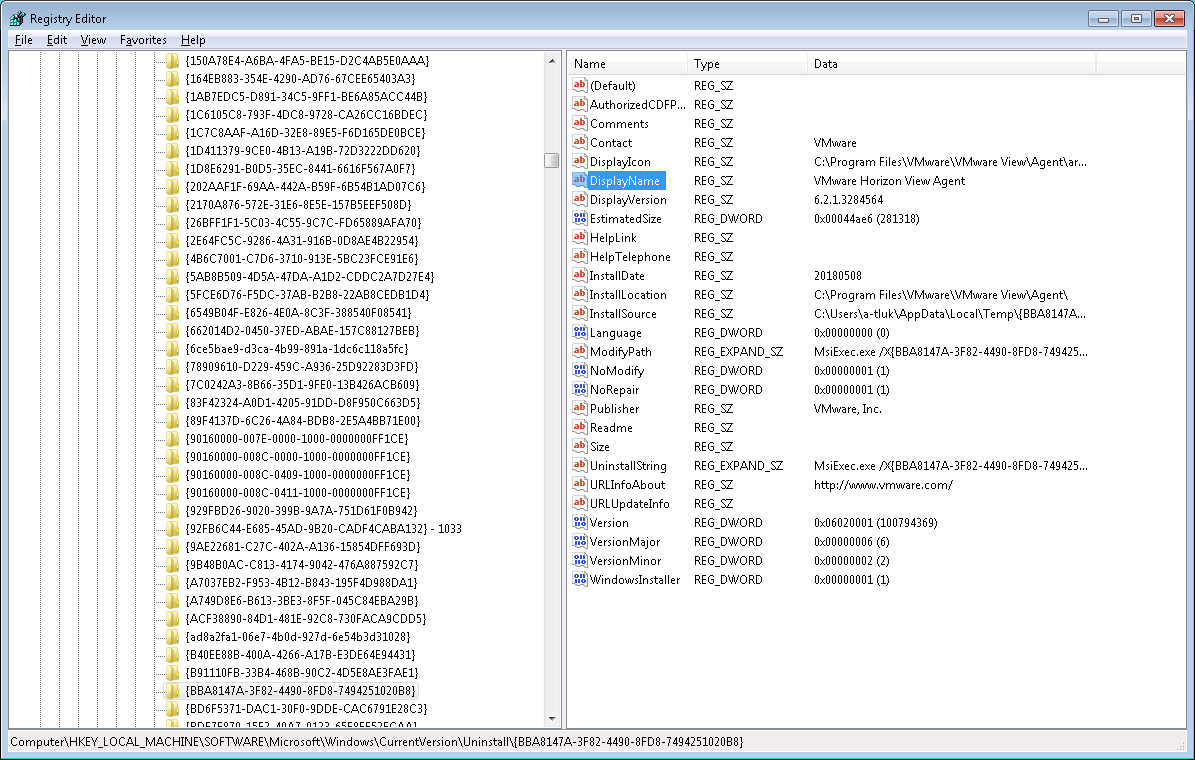
Note that you can also use PowerShell to required information as described here:

Use PowerShell to Find and Uninstall Software
https://blogs.technet.microsoft.com/heyscriptingguy/2011/12/14/use-powershell-to-find-and-uninstall-software/

----------------------------------------------------------------------------------------------------------------------------

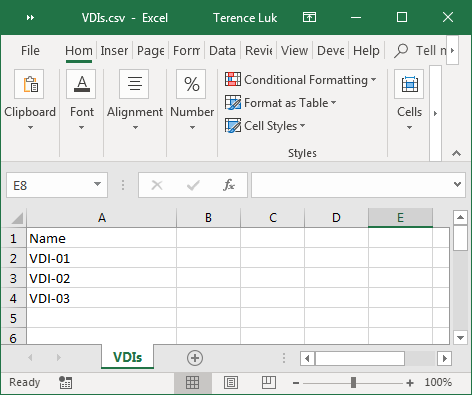
Using a CSV for the target computers

Below is a screenshot of the format for a CSV file if you choose to use it as a list of the target computers:
Modification to the PS Script (for VMware Horizon View Agent only)

The slight modification I made to the PS script includes a restart command that executes when the installation of the application is completed.  The reason why chose to suppress the reboot with the switch that the VMware Horizon View Agent accepts is because allow the agent installer to restart the target computer would interrupt the InstallSoftwareRemotely.ps1 script before it completes thus causing errors to be thrown.  This should be applied to any applications that automatically restart upon completing its install.

Simply insert the Restart-Computer -ComputerName $Computer as shown in the screenshot below to achieve this:

The PowerShell script and required parameters

The following is the final PS script and its required parameters for the VMware Horizon View Agent install:

.\InstallSoftwareRemotely.ps1 -AppPath '\\fp09\tech\Software\VMware\VMware Horizon View\VMware Horizon View 6.2.1\Agent\VMware-viewagent-x86_64-6.2.1-3284564.exe' -AppArgs '/S /V"/qn REBOOT=Reallysuppress' -CSV 'C:\Scripts\VDIs.csv' -Retries 2 -AppName 'VMware Horizon View Agent' -AppVersion '6.2.1.3284564' -WMIQuery 'select * from Win32_Processor where DeviceID="CPU0" and AddressWidth="64"' -EnablePSRemoting -Credential

Note that the:

WMIQuery 'select * from Win32_Processor where DeviceID="CPU0" and AddressWidth="64"'

… is to determine whether the target computer is a 32-bit or 64-bit Windows OS.  This is necessary because the agent we’re installing is for a 64-bit OS.

The resulting output of the script should look similar to the screenshot below:

Note that I am unable to determine what causes the error code 1641 during the VMware Horizon View Agent install even though it is a successful as this does not happen to other applications I’ve used this PS script with so be aware of the following:

  • 1641 is success
  • 1603 is failure

-----------------------------------------------------------------------------------------------------------------------------

InstallSoftwareRemotely.ps1 Script with modification

Below is a copy and paste of the actual script I used for this demonstration.  Be advised that the script would likely receive updates and changes in the future.

<#

.SYNOPSIS

Install software remotely in a group of computers and retry the installation in case of error.

.DESCRIPTION

This script install software remotely in a group of computers and retry the installation in case of error.

It uses PowerShell to perform the installation. Target computer must allow Windows PowerShell Remoting.

Script can try to enable Windows PowerShell Remoting using Microsoft Sysinternals Psexec with the paramenter -EnablePSRemoting.

If PSExec is not found on computer, script asks to the user for download it and extract in system folder.

.PARAMETER AppPath

Path to the application executable, It can be a network or local path because entire folder will be copied to remote computer before installing and deleted after installation.

Example: 'C:\Software\TeamViewer\TeamvieverHost.msi' (Folder TeamViewer will be copied to remote computer before run ejecutable)

.PARAMETER AppArgs

Application arguments to perform silent installation.

Example: '/S /R settings.reg'

.PARAMETER LocalPath

Local path of the remote computer where copy application directory.

Default: 'C:\temp'

.PARAMETER Retries

Number of times to retry failed installations.

Default: 5

.PARAMETER TimeBetweenRetries

Seconds to wait before retrying failed installations.

Default: 60

.PARAMETER ComputerList

List of computers in install software. You can only use one source of target computers: ComputerList, OU or CSV.

Example: Computer001,Computer002,Computer003 (Without quotation marks)

.PARAMETER OU

OU containing computers in which install software.

RSAT for AD module for PowerShell must be installed in order to query AD.

If you run script from a Domain Controller, AD module for PowerShell is already enabled.

You can only use one source of target computers: ComputerList, OU or CSV.

Example: 'OU=Test,OU=Computers,DC=CONTOSO,DC=COM'

.PARAMETER CSV

CSV file containing computers in which install software. You can only use one source of target computers: ComputerList, OU or CSV.

Example: 'C:\Scripts\Computers.csv'

CSV Format:

Name

Computer001

Computer002

Computer003

.PARAMETER LogPath

Path where save log file.

Default: My Documents

.PARAMETER Credential

Script will ask for an account to perform remote installation.

.PARAMETER EnablePSRemoting

Try to enable PSRemoting on failed computers using Psexec. Psexec has to be on system path.

If PSExec is not found. Script ask to download automatically PSTools and copy them to C:\Windows\System32.

.PARAMETER AppName

App name as shown in registry to check if app is installed on remote computer and not reinstall it.

You can check app name on a computer with it installed looking at:

'HKLM:\Software\Microsoft\Windows\CurrentVersion\Uninstall\'

'HKLM:\Software\Wow6432Node\Microsoft\Windows\CurrentVersion\Uninstall\'

Example: 'TightVNC'

Default: None

.PARAMETER AppVersion

App name as shown in registry to check if app is installed on remote computer and not reinstall it.

If not specified and AppName has a value, version will be ignored.

You can check app version on a computer with it installed looking at:

'HKLM:\Software\Microsoft\Windows\CurrentVersion\Uninstall\'

'HKLM:\Software\Wow6432Node\Microsoft\Windows\CurrentVersion\Uninstall\'

Example: '2.0.8.1'

Default: all

.PARAMETER WMIQuery

WMI Query to execute in remote computers. Software will be installed if query returns values.

Example: 'select * from Win32_Processor where DeviceID="CPU0" and AddressWidth="64"' (64 bit computers)

Example: 'select * from Win32_Processor where DeviceID="CPU0" and AddressWidth="32"' (32 bit computers)

Default: None

.EXAMPLE

TightVNC -> .\InstallSoftwareRemotely.ps1 -AppPath 'C:\Scripts\TightVNC\tightvnc-2.8.8-gpl-setup-64bit.msi' -AppArgs '/quiet /norestart ADDLOCAL="Server" SERVER_REGISTER_AS_SERVICE=1 SERVER_ADD_FIREWALL_EXCEPTION=1 SERVER_ALLOW_SAS=1 SET_USEVNCAUTHENTICATION=1 VALUE_OF_USEVNCAUTHENTICATION=1 SET_PASSWORD=1 VALUE_OF_PASSWORD=Password.01 SET_USECONTROLAUTHENTICATION=1 VALUE_OF_USECONTROLAUTHENTICATION=1 SET_CONTROLPASSWORD=1 VALUE_OF_CONTROLPASSWORD=3digits.01' -OU 'OU=Central,OU=Computers,DC=Contoso,DC=local' -Retries 2 -AppName 'TightVNC' -AppVersion '2.8.8.0' -EnablePSRemoting -WMIQuery 'select * from Win32_Processor where DeviceID="CPU0" and AddressWidth="64"'

.EXAMPLE

TightVNC Mirage Driver -> .\InstallSoftwareRemotely.ps1 -AppPath 'C:\Scripts\TightVNC\dfmirage-setup-2.0.301.exe' -AppArgs '/verysilent /norestart' -OU 'OU=Central,OU=Computers,OU=MyBusiness,DC=Contoso,DC=local' -Retries 2 -AppName 'DemoForge Mirage Driver for TightVNC 2.0' -AppVersion '2.0' -EnablePSRemoting -WMIQuery 'select * from Win32_Processor where DeviceID="CPU0" and AddressWidth="64"'

.EXAMPLE

InstallSoftwareRemotely.ps1 -AppPath "C:\Temp\Software\Miranda\miranda-im-v0.10.75-unicode.exe" -AppArgs "/S" -ComputerList Computer001,Computer002,Computer003 -AppName "Miranda IM 0.10.75" -AppVersion "0.10.75"

.EXAMPLE

InstallSoftwareRemotely.ps1 -AppPath "C:\Temp\Software\Miranda\miranda-im-v0.10.75-unicode.exe" -AppArgs "/S" -CSV "C:\Computers.csv" -Credential -EnablePSRemoting

.EXAMPLE

InstallSoftwareRemotely.ps1 -AppPath "\\Server01\Software\Miranda\miranda-im-v0.10.75-unicode.exe" -AppArgs "/S" -OU "OU=Test,OU=Computers,DC=CONTOSO,DC=COM"

.NOTES

Author: Juan Granados

Date: November 2017

#>

Param(

[Parameter(Mandatory=$true,Position=0)]

[ValidateNotNullOrEmpty()]

[string]$AppPath,

[Parameter(Mandatory=$false,Position=1)]

[ValidateNotNullOrEmpty()]

[string]$AppArgs="None",

[Parameter(Mandatory=$false,Position=2)]

[ValidateNotNullOrEmpty()]

[string]$LocalPath="C:\temp",

[Parameter(Mandatory=$false,Position=3)]

[ValidateNotNullOrEmpty()]

[int]$Retries=5,

[Parameter(Mandatory=$false,Position=4)]

[ValidateNotNullOrEmpty()]

[int]$TimeBetweenRetries=60,

[Parameter(Mandatory=$false,Position=5)]

[ValidateNotNullOrEmpty()]

[string[]]$ComputerList,

[Parameter(Mandatory=$false,Position=6)]

[ValidateNotNullOrEmpty()]

[string]$OU,

[Parameter(Mandatory=$false,Position=7)]

[ValidateNotNullOrEmpty()]

[string]$CSV,

[Parameter(Mandatory=$false,Position=7)]

[ValidateNotNullOrEmpty()]

[string]$LogPath=[Environment]::GetFolderPath("MyDocuments"),

[Parameter(Position=9)]

[switch]$EnablePSRemoting,

[Parameter(Position=10)]

[switch]$Credential,

[Parameter(Mandatory=$false,Position=11)]

[ValidateNotNullOrEmpty()]

[string]$AppName="None",

[Parameter(Mandatory=$false,Position=12)]

[ValidateNotNullOrEmpty()]

[string]$AppVersion="all",

[Parameter(Mandatory=$false,Position=13)]

[ValidateNotNullOrEmpty()]

[string]$WMIQuery="None"

)

#Functions

Add-Type -AssemblyName System.IO.Compression.FileSystem

function Unzip

{

param([string]$zipfile, [string]$outpath)

[System.IO.Compression.ZipFile]::ExtractToDirectory($zipfile, $outpath)

}

Function Copy-WithProgress

{

Param([string]$Source,[string]$Destination)

$Source=$Source.tolower()

$Filelist=Get-Childitem $Source –Recurse

$Total=$Filelist.count

$Position=0

If(!(Test-Path $Destination)){

New-Item $Destination -Type Directory | Out-Null

}

foreach ($File in $Filelist){

$Filename=$File.Fullname.tolower().replace($Source,'')

$DestinationFile=($Destination+$Filename)

try{

Copy-Item $File.FullName -Destination $DestinationFile -Force

}catch{throw $_.Exception}

$Position++

Write-Progress -Activity "Copying data from $source to $Destination" -Status "Copying File $Filename" -PercentComplete (($Position/$Total)*100)

}

}

Function Set-Message([string]$Text,[string]$ForegroundColor="White",[int]$Append=$True){

if ($Append){

$Text | Out-File $LogPath -Append

}

else {

$Text | Out-File $LogPath

}

Write-Host $Text -ForegroundColor $ForegroundColor

}

function Get-InstalledApps

{

if ([IntPtr]::Size -eq 4) {

$regpath = 'HKLM:\Software\Microsoft\Windows\CurrentVersion\Uninstall\*'

}

else {

$regpath = @(

'HKLM:\Software\Microsoft\Windows\CurrentVersion\Uninstall\*'

'HKLM:\Software\Wow6432Node\Microsoft\Windows\CurrentVersion\Uninstall\*'

)

}

Get-ItemProperty $regpath | .{process{if($_.DisplayName -and $_.UninstallString) { $_ } }} |

Select DisplayName, Publisher, InstallDate, DisplayVersion, UninstallString |

Sort DisplayName

#$result = Get-InstalledApps | where {$_.DisplayName -like $appToMatch}

}

Function CheckSoftwareInstalled([string]$Computer){

If ($Cred){

try{

Return Invoke-Command -computername $Computer -ScriptBlock {

$AppName = $args[0]

$AppVersion = $args[1]

if ([IntPtr]::Size -eq 4) {

$regpath = 'HKLM:\Software\Microsoft\Windows\CurrentVersion\Uninstall\*'

}

else {

$regpath = @(

'HKLM:\Software\Microsoft\Windows\CurrentVersion\Uninstall\*'

'HKLM:\Software\Wow6432Node\Microsoft\Windows\CurrentVersion\Uninstall\*'

)

}

$InstalledApps = Get-ItemProperty $regpath | .{process{if($_.DisplayName -and $_.UninstallString) { $_ } }} |

Select DisplayName, Publisher, InstallDate, DisplayVersion, UninstallString |

Sort DisplayName

If ($AppVersion -ne "all"){

Return $InstalledApps | where {$_.DisplayName -eq $AppName -and $_.DisplayVersion -eq $AppVersion}

}

Else{

Return $InstalledApps | where {$_.DisplayName -eq $AppName}

}

} -ArgumentList $AppName, $AppVersion -Credential $Cred

}catch{throw $_.Exception}

}

else{

try{

Return Invoke-Command -computername $Computer -ScriptBlock {

$AppName = $args[0]

$AppVersion = $args[1]

if ([IntPtr]::Size -eq 4) {

$regpath = 'HKLM:\Software\Microsoft\Windows\CurrentVersion\Uninstall\*'

}

else {

$regpath = @(

'HKLM:\Software\Microsoft\Windows\CurrentVersion\Uninstall\*'

'HKLM:\Software\Wow6432Node\Microsoft\Windows\CurrentVersion\Uninstall\*'

)

}

$InstalledApps = Get-ItemProperty $regpath | .{process{if($_.DisplayName -and $_.UninstallString) { $_ } }} |

Select DisplayName, Publisher, InstallDate, DisplayVersion, UninstallString |

Sort DisplayName

If ($AppVersion -ne "all"){

Return $InstalledApps | where {$_.DisplayName -eq $AppName -and $_.DisplayVersion -eq $AppVersion}

}

Else{

Return $InstalledApps | where {$_.DisplayName -eq $AppName}

}

} -ArgumentList $AppName, $AppVersion

}catch{throw $_.Exception}

}

}

Function CheckWMIQuery([string]$Computer){

If ($Cred){

try{

Return Invoke-Command -computername $Computer -ScriptBlock {

$WMIQuery = $args[0]

Write-Host "Executing $($WMIQuery)"

Return gwmi -Query $WMIQuery

} -ArgumentList $WMIQuery -Credential $Cred

}catch{throw $_.Exception}

}

else{

try{

Return Invoke-Command -computername $Computer -ScriptBlock {

$WMIQuery = $args[0]

Write-Host "Executing $($WMIQuery)"

Return gwmi -Query $WMIQuery

} -ArgumentList $WMIQuery

}catch{throw $_.Exception}

}

}

Function InstallRemoteSoftware([string]$Computer){

If ($Cred){

try{

Return Invoke-Command -computername $Computer -ScriptBlock {

$Application = $args[0]

$AppArgs = $args[1]

$ApplicationName = $Application.Substring($Application.LastIndexOf('\')+1)

$ApplicationFolderPath = $Application.Substring(0,$Application.LastIndexOf('\'))

$ApplicationExt = $Application.Substring($Application.LastIndexOf('.')+1)

Write-Host "Installing $($ApplicationName) on $($env:COMPUTERNAME)"

If($ApplicationExt -eq "msi"){

If ($AppArgs -ne "None"){

Write-Host "Installing as MSI: msiexec /i $($Application) $($AppArgs)"

$p = Start-Process "msiexec" -ArgumentList "/i $($Application) $($AppArgs)" -Wait -Passthru

}

else{

Write-Host "Installing as MSI: msiexec /i $($Application)"

$p = Start-Process "msiexec" -ArgumentList "/i $($Application) /quiet /norestart" -Wait -Passthru

}

}

ElseIf ($AppArgs -ne "None"){

Write-Host "Executing $Application $AppArgs"

$p = Start-Process $Application -ArgumentList $AppArgs -Wait -Passthru

}

Else{

Write-Host "Executing $Application"

$p = Start-Process $Application -Wait -Passthru

}

$p.WaitForExit()

if ($p.ExitCode -ne 0) {

Write-Host "Failed installing with error code $($p.ExitCode)" -ForegroundColor Red

$Return = $($env:COMPUTERNAME)

}

else{

$Return = 0

}

Write-Host "Deleting $($ApplicationFolderPath)"

Remove-Item $($ApplicationFolderPath) -Force -Recurse

Return $Return

} -ArgumentList "$($LocalPath)\$($ApplicationFolderName)\$($ApplicationName)", $AppArgs -Credential $Cred

}catch{throw $_.Exception}

}

else{

try{

Return Invoke-Command -computername $Computer -ScriptBlock {

$Application = $args[0]

$AppArgs = $args[1]

$ApplicationName = $Application.Substring($Application.LastIndexOf('\')+1)

$ApplicationFolderPath = $Application.Substring(0,$Application.LastIndexOf('\'))

$ApplicationExt = $Application.Substring($Application.LastIndexOf('.')+1)

Write-Host "Installing $($ApplicationName) on $($env:COMPUTERNAME)"

If($ApplicationExt -eq "msi"){

If ($AppArgs -ne "None"){

Write-Host "Installing as MSI: msiexec /i $($Application) $($AppArgs)"

$p = Start-Process "msiexec" -ArgumentList "/i $($Application) $($AppArgs)" -Wait -Passthru

}

else{

Write-Host "Installing as MSI: msiexec /i $($Application)"

$p = Start-Process "msiexec" -ArgumentList "/i $($Application) /quiet /norestart" -Wait -Passthru

}

}

ElseIf ($AppArgs -ne "None"){

Write-Host "Executing $Application $AppArgs"

$p = Start-Process $Application -ArgumentList $AppArgs -Wait -Passthru

}

Else{

Write-Host "Executing $Application"

$p = Start-Process $Application -Wait -Passthru

}

$p.WaitForExit()

if ($p.ExitCode -ne 0) {

Write-Host "Failed installing with error code $($p.ExitCode)" -ForegroundColor Red

$Return = $($env:COMPUTERNAME)

}

else{

$Return = 0

}

Write-Host "Deleting $($ApplicationFolderPath)"

Remove-Item $($ApplicationFolderPath) -Force -Recurse

Return $Return

} -ArgumentList "$($LocalPath)\$($ApplicationFolderName)\$($ApplicationName)", $AppArgs

}catch{throw $_.Exception}

}

}

Function CheckPSRemoting([string]$Computer){

If ($EnablePSRemoting){

Set-Message "Enabling PSRemoting on computer: psexec.exe /accepteula -h -d \\$($Computer) -s powershell Enable-PSRemoting"

try{

psexec.exe /accepteula -h -d "\\$($Computer)" -s powershell Enable-PSRemoting -Force 2>&1 | Out-Null

}catch{

Set-Message "PSExec running on background. Continue with next computer."

}

}

Else{

Set-Message "You can try to enable PowerShell Remoting on computer using parameter -EnablePSRemoting" -ForegroundColor DarkYellow

}

}

$ErrorActionPreference = "Stop"

#Initialice log

$LogPath += "\InstallSoftwareRemotely_" + $(get-date -Format "yyyy-mm-dd_hh-mm-ss") + ".txt"

Set-Message "Start remote installation on $(get-date -Format "yyyy-mm-dd hh:mm:ss")" -Append $False

#Initial validations.

If (!(Test-Path $AppPath)){

Set-Message "Error accessing $($AppPath). The script can not continue"

Exit 1

}

If ($EnablePSRemoting){

if (!(Get-Command "psexec.exe" -ErrorAction SilentlyContinue)){

Set-Message "Error. Microsoft Psexec not found on system. Download it from https://download.sysinternals.com/files/PSTools.zip and extract all in C:\Windows\System32" -ForegroundColor Yellow

$Answer=Read-Host "Do you want to download and install PSTools (y/n)?"

if (($Answer -eq "y") -or ($Answer -eq "Y")){

Set-Message "Downloading PSTools"

If (Test-Path "$($env:temp)\PSTools.zip"){

Remove-Item "$($env:temp)\PSTools.zip" -Force

}

(New-Object System.Net.WebClient).DownloadFile("https://download.sysinternals.com/files/PSTools.zip", "$($env:temp)\PSTools.zip")

if (Test-Path "$($env:temp)\PSTools.zip"){

Set-Message "Unzipping PSTools"

If (Test-Path "$($env:temp)\PSTools"){

Remove-Item "$($env:temp)\PSTools" -Force -Recurse

}

Unzip "$($env:temp)\PSTools.zip" "$($env:temp)\PSTools"

Copy-Item "$($env:temp)\PSTools\*.exe" "$($env:SystemRoot)\System32" -Force

if (Test-Path "$($env:SystemRoot)\System32\psexec.exe"){

Set-Message "PSTools installed" -ForegroundColor Green

}

else{

Set-Message "Error unzipping PSTools" -ForegroundColor Red

Remove-Item "$($env:temp)\PSTools.zip" -Force

Exit 1

}

}

else{

Set-Message "Error downloading PSTools" -ForegroundColor Red

Exit 1

}

}

else{

Exit 1

}

}

}

If ($OU){

if (!(Get-Command "Get-ADComputer" -ErrorAction SilentlyContinue)){

Set-Message "Error. Get-ADComputer not found on system. You have to install the PowerShell Active Directory module order to query Active Directory. https://4sysops.com/archives/how-to-install-the-powershell-active-directory-module/" -ForegroundColor Red

Exit 1

}

try{

$ComputerList = Get-ADComputer -Filter * -SearchBase "$OU" | Select-Object -Expand name

}catch{

Set-Message "Error querying AD: $($_.Exception.Message)" -ForegroundColor Red

Exit 1

}

}

ElseIf ($CSV){

try{

$ComputerList = Get-Content $CSV | where {$_ -notmatch 'Name'} | Foreach-Object {$_ -replace '"', ''}

}catch{

Set-Message "Error getting CSV content: $($_.Exception.Message)" -ForegroundColor Red

Exit 1

}

}

ElseIf(!$ComputerList){

Set-Message "You have to set a list of computers, OU or CSV." -ForegroundColor Red

Exit 1

}

If ($Credential){

$Cred = Get-Credential

}

If(!$Cred -or !$Credential){

Set-Message "No credential specified. Using logon account"

}

Else{

Set-Message "Using user $($Cred.UserName)"

}

$ApplicationName = $AppPath.Substring($AppPath.LastIndexOf('\')+1)

$ApplicationFolderPath = $AppPath.Substring(0,$AppPath.LastIndexOf('\'))

$ApplicationFolderName = $ApplicationFolderPath.Substring($ApplicationFolderPath.LastIndexOf('\')+1)

$ComputerWithError = [System.Collections.ArrayList]@()

$ComputerWithSuccess = [System.Collections.ArrayList]@()

$ComputerSkipped = [System.Collections.ArrayList]@()

$TotalRetries = $Retries

$TotalComputers = $ComputerList.Count

Do{

Set-Message "-----------------------------------------------------------------"

Set-Message "Attempt $(($TotalRetries - $Retries) +1) of $($TotalRetries)" -ForegroundColor Cyan

Set-Message "-----------------------------------------------------------------"

$Count = 1

ForEach ($Computer in $ComputerList){

Set-Message "COMPUTER $($Computer.ToUpper()) ($($Count) of $($ComputerList.Count))" -ForegroundColor Yellow

$Count++

If($AppName -ne "None"){

Set-Message "Checking if $($AppName) version $($AppVersion) is installed on remote computer."

try{

If(CheckSoftwareInstalled $Computer){

Set-Message "Software found on computer. Skipping installation." -ForegroundColor Green

$ComputerSkipped.Add($Computer) | Out-Null

Continue

}

Else{

Set-Message "Software not found on remote computer."

}

}catch{

Set-Message "Error connecting: $($_.Exception.Message)" -ForegroundColor Red

CheckPSRemoting $Computer

$ComputerWithError.Add($Computer) | Out-Null

Continue

}

}

If($WMIQuery -ne "None"){

Set-Message "Checking WMI Query on remote computer."

try{

If(!(CheckWMIQuery $Computer)){

Set-Message "WMI Query result is false. Skipping installation."

$ComputerSkipped.Add($Computer) | Out-Null

Continue

}

Else{

Set-Message "WMI Query result is true. Continue installation."

}

}catch{

Set-Message "Error connecting: $($_.Exception.Message)" -ForegroundColor Red

CheckPSRemoting $Computer

$ComputerWithError.Add($Computer) | Out-Null

Continue

}

}

Set-Message "Coping $($ApplicationFolderPath) to \\$($Computer)\$($LocalPath -replace ':','$')"

try{

Copy-WithProgress "$ApplicationFolderPath" "\\$($Computer)\$("$($LocalPath)\$($ApplicationFolderName)" -replace ':','$')"

}catch{

Set-Message "Error copying folder: $($_.Exception.Message)" -ForegroundColor Red

$ComputerWithError.Add($Computer) | Out-Null

Continue;

}

try{

$ExitCode = InstallRemoteSoftware $Computer

If ($ExitCode){

$ComputerWithError.Add($Computer) | Out-Null

Set-Message "Error installing $($ApplicationName)." -ForegroundColor Red

}

else{

Set-Message "$($ApplicationName) installed successfully." -ForegroundColor Green

$ComputerWithSuccess.Add($Computer) | Out-Null

}

}catch{

Set-Message "Error on remote execution: $($_.Exception.Message)" -ForegroundColor Red

$ComputerWithError.Add($Computer) | Out-Null

try{

Set-Message "Deleting \\$($Computer)\$($LocalPath -replace ':','$')\$($ApplicationFolderName)"

}catch{

Set-Message "Error on remote deletion: $($_.Exception.Message)" -ForegroundColor Red

}

Remove-Item "\\$($Computer)\$($LocalPath -replace ':','$')\$($ApplicationFolderName)" -Force -Recurse

CheckPSRemoting $Computer

}

}

If ($ComputerWithError.Count -eq 0){

break

}

$Retries--

If ($Retries -gt 0){

$ComputerList=$ComputerWithError

$ComputerWithError = [System.Collections.ArrayList]@()

If ($TimeBetweenRetries -gt 0){

Set-Message "Waiting $($TimeBetweenRetries) seconds before next retry..."

Sleep $TimeBetweenRetries

}

}

}While ($Retries -gt 0)

If($ComputerWithError.Count -gt 0){

Set-Message "-----------------------------------------------------------------"

Set-Message "Error installing $($ApplicationName) on $($ComputerWithError.Count) of $($TotalComputers) computers:"

Set-Message $ComputerWithError

$csvContents = @()

ForEach($Computer in $ComputerWithError){

$row = New-Object System.Object

$row | Add-Member -MemberType NoteProperty -Name "Name" -Value $Computer

$csvContents += $row

}

$CSV=(get-date).ToString('yyyyMMdd-HH_mm_ss') + "ComputerWithError.csv"

$csvContents | Export-CSV -notype -Path "$([Environment]::GetFolderPath("MyDocuments"))\$($CSV)" -Encoding UTF8

Set-Message "Computers with error exported to CSV file: $([Environment]::GetFolderPath("MyDocuments"))\$($CSV)" -ForegroundColor DarkYellow

Set-Message "You can retry failed installation on this computers using parameter -CSV $([Environment]::GetFolderPath("MyDocuments"))\$($CSV)" -ForegroundColor DarkYellow

}

If ($ComputerWithSuccess.Count -gt 0){

Set-Message "-----------------------------------------------------------------"

Set-Message "$([math]::Round((($ComputerWithSuccess.Count * 100) / $TotalComputers), [System.MidpointRounding]::AwayFromZero) )% Success installing $($ApplicationName) on $($ComputerWithSuccess.Count) of $($TotalComputers) computers:"

Set-Message $ComputerWithSuccess

}

Else{

Set-Message "-----------------------------------------------------------------"

Set-Message "Installation of $($ApplicationName) failed on all computers" -ForegroundColor Red

}

If ($ComputerSkipped.Count -gt 0){

Set-Message "-----------------------------------------------------------------"

Set-Message "$($ComputerSkipped.Count) skipped of $($TotalComputers) computers:"

Set-Message $ComputerSkipped

}

Friday, December 21, 2018

VMware Horizon 7.6.0 agent unable to contact Connection Server with error: “com.vmware.vdi.messagesecurity.MessageSecurityException: Paired key does not exist”

Problem

You’ve noticed that some desktops are in Agent Unreachable state in the VMware Horizon 7 Administrator console and clicking on the elipsis displays the following detail:

Status:Agent unreachable

Pairing state:Paired and secured

Configured by:vcs.domain.com

Attempted theft by:

image

Reviewing the debug logs on the virtual desktop in the directory C:\programdata\VMware\VDM\Logs:

image

… displays the following entries:

2018-12-17T16:48:34.881-04:00 INFO  (0EAC-0D78) <Thread-4> [AgentJmsConfig] Attempting to securely pair agent for JMS communication
2018-12-17T16:48:34.881-04:00 DEBUG (0EAC-0D78) <Thread-4> [AgentJmsConfig] Using paired signing key
2018-12-17T16:48:34.881-04:00 DEBUG (0EAC-0D78) <Thread-4> [JmsManager] Unable to connect to JMS server conto-vcs.contoso.com com.vmware.vdi.logger.Logger.debug(Logger.java:44)
com.vmware.vdi.messagesecurity.MessageSecurityException: Paired key does not exist
     at com.vmware.vdi.agent.messageserver.AgentJmsConfig.pairOverJms(SourceFile:318)
     at com.vmware.vdi.agent.messageserver.JmsManager.connect(SourceFile:288)
     at com.vmware.vdi.agent.messageserver.Main.Start(SourceFile:1265)
2018-12-17T16:48:44.975-04:00 ERROR (0EAC-09C4) <Main Thread> [wsnm_jms] JavaBridge reader thread init: timed out
2018-12-17T16:48:44.975-04:00 DEBUG (0EAC-0400) <1024> [wsnm_jms] AddressCache::ThreadEntry: Stopping
2018-12-17T16:48:45.177-04:00 DEBUG (0644-0958) <SharedMemReaderThread> [MessageFrameWork] SharedMem reader opt, reader 0x02EA21E8 for channel 0x00311280 detaching from thread 0x02E62168 handleCount 7
2018-12-17T16:48:45.177-04:00 DEBUG (0644-0958) <SharedMemReaderThread> [MessageFrameWork] SharedMem reader opt, peer is dead - reader 0x02EA21E8 in thread 0x02E62168
2018-12-17T16:48:45.177-04:00 DEBUG (0644-0958) <SharedMemReaderThread> [MessageFrameWork] MessageFrameWork Worker Shutdown OnChannelDelete, Name=EventLoggerService
2018-12-17T16:48:45.177-04:00 DEBUG (0644-0958) <SharedMemReaderThread> [MessageFrameWork] MessageFrameWork Worker Shutdown OnChannelDelete, Name=JavaView-3756
2018-12-17T16:48:45.177-04:00 DEBUG (0644-0958) <SharedMemReaderThread> [MessageFrameWork] MessageFrameWork Worker Shutdown OnChannelDelete, Name=JMSBridge
2018-12-17T16:48:45.177-04:00 DEBUG (0644-0958) <SharedMemReaderThread> [MessageFrameWork] MessageFrameWork Worker Shutdown OnChannelDelete, Name=TimingProfilerService
2018-12-17T16:48:45.177-04:00 DEBUG (0644-0958) <SharedMemReaderThread> [MessageFrameWork] CORE::AuthChannelInt::~AuthChannelInt(): Closed incoming SharedMemory channel from machine conto-PLANET002.contoso.com, user contoso\conto-PLANET002$,  channel 00311280
2018-12-17T16:48:45.177-04:00 INFO  (0644-08F4) <JavaBridge> [wsnm_jmsbridge] wsnm_jms died, restarting in a minute

image

Further review of the logs displays the following entries:

2018-12-18T11:08:00.715-04:00 DEBUG (12A0-0E88) <delayedRekeyCAPI> [MessageFrameWork] coregate 'KeyVault' locking

2018-12-18T11:08:00.715-04:00 DEBUG (12A0-0E88) <delayedRekeyCAPI> [MessageFrameWork] coregate 'KeyVault' locked

2018-12-18T11:08:00.715-04:00 INFO (12A0-0E88) <delayedRekeyCAPI> [MessageFrameWork] KeyVaultCAPI upgrade rekey start for wsnm_jms

2018-12-18T11:08:00.716-04:00 ERROR (12A0-0E88) <delayedRekeyCAPI> [MessageFrameWork] KeyVaultCAPI encipher key 'local storage cipher key#1' MISSING, error:

2018-12-18T11:08:00.716-04:00 WARN (12A0-0E88) <delayedRekeyCAPI> [MessageFrameWork] KeyVault failed to convert 'DataRef-9IQloB7D' from CAPI

2018-12-18T11:08:00.718-04:00 ERROR (12A0-0E88) <delayedRekeyCAPI> [MessageFrameWork] KeyVault cannot verify signature, error = 0x80090006 (Invalid Signature.)

2018-12-18T11:08:00.718-04:00 ERROR (12A0-0E88) <delayedRekeyCAPI> [MessageFrameWork] KeyVault registry data BAD SIGNATURE

2018-12-18T11:08:00.719-04:00 WARN (12A0-0E88) <delayedRekeyCAPI> [MessageFrameWork] KeyVault failed to convert 'DataRef-AmH0fBxY' from CAPI

2018-12-18T11:08:00.719-04:00 ERROR (12A0-0E88) <delayedRekeyCAPI> [MessageFrameWork] KeyVaultCAPI encipher key 'local storage cipher key#1' MISSING, error:

2018-12-18T11:08:00.720-04:00 WARN (12A0-0E88) <delayedRekeyCAPI> [MessageFrameWork] KeyVault failed to convert 'DataRef-hfBerq31' from CAPI

2018-12-18T11:08:00.720-04:00 ERROR (12A0-0E88) <delayedRekeyCAPI> [MessageFrameWork] KeyVault cannot verify signature, error = 0x80090006 (Invalid Signature.)

2018-12-18T11:08:00.720-04:00 ERROR (12A0-0E88) <delayedRekeyCAPI> [MessageFrameWork] KeyVault registry data BAD SIGNATURE

2018-12-18T11:08:00.721-04:00 WARN (12A0-0E88) <delayedRekeyCAPI> [MessageFrameWork] KeyVault failed to convert 'DataRef-I4nSYR9Q' from CAPI

2018-12-18T11:08:00.721-04:00 ERROR (12A0-0E88) <delayedRekeyCAPI> [MessageFrameWork] KeyVault cannot verify signature, error = 0x80090006 (Invalid Signature.)

2018-12-18T11:08:00.722-04:00 ERROR (12A0-0E88) <delayedRekeyCAPI> [MessageFrameWork] KeyVault registry data BAD SIGNATURE

2018-12-18T11:08:00.722-04:00 WARN (12A0-0E88) <delayedRekeyCAPI> [MessageFrameWork] KeyVault failed to convert 'DataRef-IYonrwPb' from CAPI

2018-12-18T11:08:00.722-04:00 ERROR (12A0-0E88) <delayedRekeyCAPI> [MessageFrameWork] KeyVault cannot verify signature, error = 87 (The parameter is incorrect.)

2018-12-18T11:08:00.722-04:00 ERROR (12A0-0E88) <delayedRekeyCAPI> [MessageFrameWork] KeyVault registry data BAD SIGNATURE

2018-12-18T11:08:00.722-04:00 WARN (12A0-0E88) <delayedRekeyCAPI> [MessageFrameWork] KeyVault failed to convert 'local master encryption key' from CAPI

2018-12-18T11:08:00.723-04:00 ERROR (12A0-0E88) <delayedRekeyCAPI> [MessageFrameWork] KeyVault cannot verify signature, error = 0x80090006 (Invalid Signature.)

2018-12-18T11:08:00.723-04:00 ERROR (12A0-0E88) <delayedRekeyCAPI> [MessageFrameWork] KeyVault registry data BAD SIGNATURE

2018-12-18T11:08:00.723-04:00 WARN (12A0-0E88) <delayedRekeyCAPI> [MessageFrameWork] KeyVault failed to convert 'local master encryption key' from CAPI

2018-12-18T11:08:00.724-04:00 ERROR (12A0-0E88) <delayedRekeyCAPI> [MessageFrameWork] KeyVault cannot verify signature, error = 87 (The parameter is incorrect.)

2018-12-18T11:08:00.724-04:00 ERROR (12A0-0E88) <delayedRekeyCAPI> [MessageFrameWork] KeyVault registry data BAD SIGNATURE

2018-12-18T11:08:00.724-04:00 WARN (12A0-0E88) <delayedRekeyCAPI> [MessageFrameWork] KeyVault failed to convert 'local master encryption key' from CAPI

2018-12-18T11:08:00.725-04:00 ERROR (12A0-0E88) <delayedRekeyCAPI> [MessageFrameWork] KeyVault cannot verify signature, error = 0x80090006 (Invalid Signature.)

2018-12-18T11:08:00.725-04:00 ERROR (12A0-0E88) <delayedRekeyCAPI> [MessageFrameWork] KeyVault registry data BAD SIGNATURE

2018-12-18T11:08:00.725-04:00 WARN (12A0-0E88) <delayedRekeyCAPI> [MessageFrameWork] KeyVault failed to convert 'local storage context' from CAPI

2018-12-18T11:08:00.726-04:00 ERROR (12A0-0E88) <delayedRekeyCAPI> [MessageFrameWork] KeyVault cannot verify signature, error = 0x80090006 (Invalid Signature.)

2018-12-18T11:08:00.726-04:00 ERROR (12A0-0E88) <delayedRekeyCAPI> [MessageFrameWork] KeyVault registry data BAD SIGNATURE

2018-12-18T11:08:00.726-04:00 WARN (12A0-0E88) <delayedRekeyCAPI> [MessageFrameWork] KeyVault failed to convert 'local storage context' from CAPI

2018-12-18T11:08:00.766-04:00 ERROR (12A0-0E88) <delayedRekeyCAPI> [MessageFrameWork] KeyVault cannot verify signature, error = 0x80090006 (Invalid Signature.)

2018-12-18T11:08:00.766-04:00 ERROR (12A0-0E88) <delayedRekeyCAPI> [MessageFrameWork] KeyVault registry data BAD SIGNATURE

2018-12-18T11:08:00.767-04:00 WARN (12A0-0E88) <delayedRekeyCAPI> [MessageFrameWork] KeyVault failed to convert 'local storage context' from CAPI

2018-12-18T11:08:00.767-04:00 INFO (12A0-0E88) <delayedRekeyCAPI> [MessageFrameWork] KeyVaultCAPI upgrade rekey completed for wsnm_jms

2018-12-18T11:08:00.767-04:00 DEBUG (12A0-0E88) <delayedRekeyCAPI> [MessageFrameWork] coregate 'KeyVault' un-locked

image

Solution

This issue had me stumped for a while as I could not find any results from the internet with the error messages above.  What ended up correcting the problem was a solution to another issue I had at another client that displayed a different error.  The solution can be found in my previous blog post here:

Troubleshooting VMware Horizon View 7.5.1 Virtual Desktop in “Agent unreachable” status
http://terenceluk.blogspot.com/2018/10/troubleshooting-vmware-horizon-view-751.html

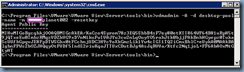
Executing the vdmadmin command to reset the key pair resolved the issue:

vdmadmin -A -d desktop-pool-name -m name-of-machine-in-pool -resetkey

C:\Program Files\VMware\VMware View\Server\tools\bin>vdmadmin -A -d desktop-pool

-name -m planet002 -resetkey

Agent Public Key

================

MIHwMIGoBgcqhkjOOAQBMIGcAkEA/KaCzo4Syrom78z3EQ5SbbB4sF7ey80etKII864WF64B81uRpH5t

9jQTxeEu0ImbzRMqzVDZkVG9xD7nN1kuFwIVAJYu3cw2nLqOuyYO5rahJtk0bjjFAkBnhHGyepz0Tuka

ScUUfbGpqvJE8FpDTWSGkx0tFCcbnjUDC3H9c9oXkGmzLik1Yw4cIGI1TQ2iCmxBblC+eUykA0MAAkBA

lgbnFPWs2bOZJHQqyOtFVDf5IndS2riwKqaJTTUxCDutBJg4AsJqRVVa/Ktfc2Nq1joL+FF6AbAOxMtG

tyHT

C:\Program Files\VMware\VMware View\Server\tools\bin>

image

Friday, November 2, 2018

Attempting to authenticate with SecurEnvoy passcode for VMware Horizon View fails with: “Access Denied” and “Incorrect Soft Token Code Received From Client”

Problem

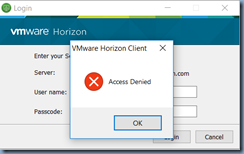
You’ve completed configuring VMware Horizon View with SecurEnvoy but when authentication fails with Access Denied:

image

Reviewing the SecurEnvoy logs reveal the following error:

Incorrect Soft Token Code Received From ClientIP=10.34.30.58 RemoteID=

image

Solution

One of the possible reasons why authentication would not work and this message is logged in the Log Viewer is if the Shared Secret configured on the VMware Horizon View Connection Server does not match the one configured in the corresponding Radius server in SecurEnvoy:

imageimage

The following message should be logged once the authentication succeeds:

Access Accepted with Soft Token From ClientIP=10.34.30.58 RemoteID=

image

Friday, October 19, 2018

Troubleshooting VMware Horizon View 7.5.1 Virtual Desktop in “Agent unreachable” status

I’ve had several colleagues reach out to me in the past to ask about how I normally troubleshoot an Agent unreachable issue when all of the usual checks were verified (e.g. desktop being powered on, an IP address was obtained, etc) so I thought I’d take the opportunity to write this blog post using a recent issue I encountered at one of the environments I work with.

Problem

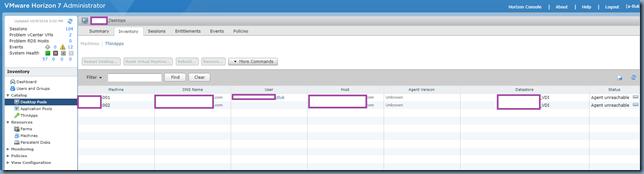
You’ve noticed that desktops in a Desktop pool has the Status reported as being Agent unreachable:

image

Clicking on the ellipsis displays the following details:

Status: Agent unreachable

Pairing state:Paired and secured

Configured by: <viewConnectionServerFQDN>

Attempted theft by:

image

Troubleshooting

Assuming the following obvious items have already been verified:

  1. IP address was obtained
  2. There is connectivity between the View Connection server and VDI
  3. Desktop is powered on
  4. All Horizon View Agent services have been started
  5. Desktop’s domain secure connection is not broken

… the first step for troubleshooting issues that have limited information provided in the error details is to review the Horizon View Agent logs on the problematic virtual desktop via the following folder:

C:\ProgramData\VMware\VDM\logs

image

What I typically do when in the log folder is to sort the files by Date modified so the most recently modified files are displayed on top.  For this example, the latest debug log that had been modified was:

debug-2018-10-09-154215.txt

… so I opened the file in Notepad and began reviewing the entries:

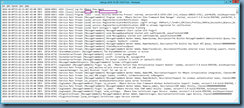
image

Parsing through the logs allowed me to identify the following 3 suspicious entries:

2018-10-09T15:42:25.726-03:00 DEBUG (0F6C-09CC) <Thread-4> [BrokerUpdateUtility] Published CHANGEKEY request

2018-10-09T15:42:34.277-03:00 DEBUG (0724-0728) <Main Thread> [wsnm_desktop] WTS_CONSOLE_CONNECT, sessionId=1

2018-10-09T15:42:35.745-03:00 DEBUG (0F6C-09CC) <Thread-4> [BrokerUpdateUtility] Timeout waiting for success response

image

2018-10-09T15:42:16.553-03:00 WARN (0724-079C) <PluginInitThread> [ws_configmgr] Update rejected, attempt to reconfigure as paired with missing key information

image

2018-10-09T15:44:23.232-03:00 INFO (0724-0F38) <JavaBridge> [wsnm_jmsbridge] wsnm_jms died, restarting in a minute

image

After reviewing the agent logs of the virtual desktop, I proceeded to log onto the VMware View Horizon Connection Server to review the server logs located in the folder:

C:\ProgramData\VMware\VDM\logs

The most recent modified log file was:

log-2018-10-09.txt

… so I opened the file in Notepad and began reviewing the entries until I found the following:

2018-10-09T00:00:08.386-03:00 WARN (0EC8-0A34) <DesktopControlJMS> [JMSMessageSecurity] Message could not be validated: Signature invalid for identity agent/4f631619-2cf1-4676-a63e-a37ecc4b9e80

2018-10-09T00:00:08.386-03:00 WARN (0EC8-0A34) <DesktopControlJMS> [JMSMessageSecurity] Identity validation failed: UNKNOWN

2018-10-09T00:00:08.386-03:00 WARN (0EC8-0A34) <DesktopControlJMS> [DesktopTracker] CHANGEKEY message from agent/4f631619-2cf1-4676-a63e-a37ecc4b9e80 is discarded as it cannot be validated

image

The entry references a GUID of a desktop and not its name so to determine which desktop this GUID belongs to, I launched adsiedit.msc on the View Connection server:

imageimage

Then used these instructions to open the local VMware Horizon View ADAM database:

Connecting to the View ADAM Database (2012377)
https://kb.vmware.com/s/article/2012377

Name: View ADAM Database

Distinguished Name: dc=vdi,dc=vmware,dc=int

Server: localhost:389

image

Once connected to the ADAM database, navigate to the Servers OU then locate the unique GUID in the right hand pane:

image

Open the properties of the object and navigate down to the attribute named pae-DisplayName to locate the name:

image

Solution

Quickly searching for the identified log entries above brought me to the following KB:

After reinstalling or upgrading the View agent, the View Administrator console reports the message: Agent Unreachable (2038679)
https://kb.vmware.com/s/article/2038679

Using the provided command::

vdmadmin -A -d desktop-pool-name -m name-of-machine-in-pool -resetkey

… located in the directory:

C:\Program Files\VMware\VMware View\Server\tools\bin

Resolved the issue.

The following are the screenshots of what the output for the command would look like:

image

Note that a restart is not required for the status of the VDIs to return to normal:

image