Pages

Showing posts with label Office 2016. Show all posts

Sunday, July 8, 2018

Creating an Exchange / Outlook warning banner for external recipients

Many of the clients I work with have been taken an interest in implementing warning banners for all emails received from outside of their organizations in an effort to combat the ever increasing phishing emails that make it through their SPAM filters.  A great write up by Joe Palarchio can be found here:

Office 365 – Providing Your Users Visual Cues About Email Safety
https://blogs.perficient.com/2016/04/04/office-365-providing-your-users-visual-cues-about-email-safety/

The blog post provides a great description for the configuration but many of the clients I work with felt the colours and border weren’t as prominent as they would like so I’d like to share the HTML code I use to generate the following banner for anyone who may want to use it:

image

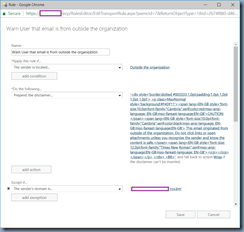
Note that this is a mail flow rule:

imageimage

The following is the HTML code:

<div style='border:dotted #003333 1.0pt;padding:1.0pt 1.0pt 1.0pt 1.0pt'>

<p class=MsoNormal style='background:#F4DF11'><span lang=EN-GB
style='font-size:10.0pt;font-family:"Cambria",serif;color:red;mso-ansi-language:
EN-GB;mso-fareast-language:EN-GB'>CAUTION:</span><span lang=EN-GB
style='font-size:10.0pt;font-family:"Cambria",serif;color:black;mso-ansi-language:
EN-GB;mso-fareast-language:EN-GB'> This email originated from outside of the
organization. Do not click links or open attachments unless you recognize the
sender and know the content is safe.</span><span lang=EN-GB style='font-size:
12.0pt;font-family:"Times New Roman",serif;mso-ansi-language:EN-GB;mso-fareast-language:
EN-GB'><o:p></o:p></span></p>

</div>
<BR>

-----------------------------------------------------------------------------------------------------------------------------------------

Note that my experience with the implementation banner was well received by IT infrastructure teams but often poorly received by users because such a banner fills up the body preview on smart phones rendering that feature to become useless so it would be wise to pilot this with users before implementing it globally.

Tuesday, January 3, 2017

Attempting to sign into Office 365 https://login.microsoftonline.com/ continuously loops after entering credentials

Problem

You have a new user account that was setup in an on premise Active Directory domain with an Office 365 license but noticed that launching any of this user’s Office applications will attempt to sign into Office 365 with his on premise AD account and would fail to retrieve the license and activate his Office. Reviewing his account on the account on Office 365’s Admin center confirm that he has a valid E3 license assigned to his account:

image

Attempting to test his account by signing into the portal https://login.microsoft.com:

image

… cause a constant loop with the as shown in the following 2 screenshots:

We don’t recognize this user ID or password

Be sure to type the password for your work or school account.

image

Redirecting…

We’re taking you to your organization’s sign-in page.

image

Attempting to unassigned and reassign E3 license does not correct the issue:

image

Solution

After trying numerous troubleshooting steps without any luck, what corrected the issue was the following:

  1. Unassigned the Office 365 E3 license via the Office 365 admin portal
  2. Remove the account from the on premise Active Directory
  3. Force DirSync to sync up the on premise AD with the Azure / O365 AD
  4. Verify that the account no longer exists on the O365 portal
  5. Recreate the account
  6. Force DirSync to sync up the on premise AD with the Azure / O365 AD
  7. Verify that the account exists on the O365 portal
  8. Reassign the Office 365 E3 license

I understand that this probably isn’t viable solution if this is an existing account that has been in use for a long period of time but the situation I was in involved a new account so I was able to perform the above without affecting an existing user.

Tuesday, December 13, 2016

A few virtual desktop Microsoft Office 2016 GPO First Run and Optimization Settings

The following are a few Microsoft Office 2016 optimization settings I’ve been using for clients to disable annoying first run wizards and visual enhancements that could potentially slow down performance.

image

User Configuration > Policies > Administrative Template > Microsoft Office 2016 > First Run >

Disable First Run Movie: Enabled

Disable Office First Run on application boot: Enabled

image

User Configuration > Policies > Administrative Template > Microsoft Office 2016 > Global Options > Customize

Menu animations: Disabled

image

User Configuration > Policies > Administrative Template > Microsoft Office 2016 > Miscellaneous

Disable Office animations: Enabled

Disable Office Backgrounds: Enabled

Disable web view in the Office file dialog boxes: Enabled

Do not use hardware graphics acceleration: Enabled

image

User Configuration > Policies > Administrative Template > Microsoft Office 2016 > Microsoft Office 2016 > Privacy > Trust Center

Disable Opt-in Wizard on first run: Enabled

image

I will continue to append to this post in the future.