Pages

Showing posts with label Lync. Show all posts

Saturday, March 30, 2019

Audio calls via a Lync Server 2013 Edge server gets stuck at connecting with no audio for 10 seconds then disconnects

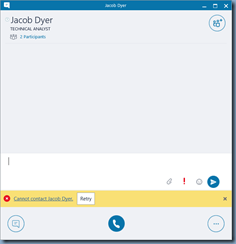
I was recently asked by a client to troubleshoot an issue with their Lync Server 2013 environment where users connecting remotely via the Edge server are unable to establish voice calls. A user would be able to successfully authenticate as well as see the call come in but when they pick up with their handset, they would not hear any audio and the call would disconnect within 10 seconds. Using the Skype for Business client would show the call in the Connecting call… status then disconnect:

While this type of issue can be caused by many reasons, this environment I had to troubleshoot the issue in had 3 contributing misconfigurations:

#1 – A/V Edge service NAT was not configured

The Edge server’s external interface IPs were all NAT-ed but the topology for the environment did not have the external IP address configured:

#2 – The DNS record of the Edge server’s internal interface was not correct

The Edge server for this environment was recently moved with the internal interface’s IP address was changed and since the server is not joined to the domain, the internal DNS A record which servers such as the front-end server uses to reach the Edge server was not updated.

#3 – Port 5062 was not opened between the Edge server and FE / SBA servers

The internal interface of the Edge server was in a secured network and TCP port 5062 used for authentication of A/V users was not opened. The following TechNet article provides more detail about the purpose of this port:

Edge Server environmental requirements in Skype for Business Server
https://docs.microsoft.com/en-us/skypeforbusiness/plan-your-deployment/edge-server-deployments/edge-environmental-requirements

----------------------------------------------------------------------------------------------------------------------------

Note that other than discovering audio does not work, the Remote Connectivity Analyzer tool that Microsoft provides can help with identifying such an issue: https://testconnectivity.microsoft.com

The following is the output from a test ran against the environment:

Testing remote connectivity for user tluk@domain.com to the Microsoft Lync server.
      Specified remote connectivity test(s) to Microsoft Lync server failed. See details below for specific failure reasons.
        Tell me more about this issue and how to resolve it

     
Additional Details
      Couldn't sign in. Error: User failed to get response from MRAS server.
SIP service request to MRAS server failed.
Error Message: A 504 (Server time-out) response was received from the network and the operation failed. See the exception details for more information..
Error Type: PublishSubscribeException.
Fault Code: .
Response Code: 504.
Response Text: Server time-out.
Diagnostic Header: ErrorCode=1038,Source=UKSBA03.contoso.COM,Reason=Failed to connect to a peer server,fqdn=ukles03.contoso.com:5062,peer-type=InternalServer,winsock-code=10060,ip-address=192.168.34.10,winsock-info=The peer did not respond to the connection attempt
Microsoft.Rtc.Signaling.DiagnosticHeader


Elapsed Time: 12486 ms.

Saturday, March 23, 2019

Attempting to use SEFAUtil.exe to configure call forwarding on a Lync Server 2013 server fails with: SEFAUtil.exe has stopped working

Problem

You attempt to use the SEFAUtil.exe executable in the Lync Server Resource Kit Tools to configure call forwarding on a Lync Server 2013 server but it immediately fails with:

SEFAUtil.exe has stopped working

Description:

Stopped working

Problem signature:

Problem Event Name: CLR20r3

Problem Signature 01: sefautil.exe

Problem Signature 02: 4.0.0.0

Problem Signature 03: 4cc149b9

Problem Signature 04: SEFAUtil

Problem Signature 05: 4.0.0.0

Problem Signature 06: 4cc149b9

Problem Signature 07: 1

Problem Signature 08: 7

Problem Signature 09: System.IO.FileNotFoundException

OS Version: 6.3.9600.2.0.0.272.7

Locale ID: 2057

Read our privacy statement online:

http://go.microsoft.com/fwlink/?linkid=280262

If the online privacy statement is not available, please read our privacy statement offline:

C:\Windows\system32\en-US\erofflps.txt

Closing the pop-up window then displays the following output:

PS C:\Program Files\Microsoft Lync Server 2010\ResKit> .\SEFAUtil.exe /server:contuklse03.contoso.com tluk@contoso.com /enablefwdimmediate /setfwddestination:marmstrong@contoso.com

Unhandled Exception: System.IO.FileNotFoundException: Could not load file or ass

embly 'Microsoft.Rtc.Collaboration, Version=4.0.0.0, Culture=neutral, PublicKeyT

oken=31bf3856ad364e35' or one of its dependencies. The system cannot find the fi

le specified.

File name: 'Microsoft.Rtc.Collaboration, Version=4.0.0.0, Culture=neutral, Publi

cKeyToken=31bf3856ad364e35'

at SEFAUtil.SefaTool.Execute()

at SEFAUtil.Program.Main(String[] args)

WRN: Assembly binding logging is turned OFF.

To enable assembly bind failure logging, set the registry value [HKLM\Software\M

icrosoft\Fusion!EnableLog] (DWORD) to 1.

Note: There is some performance penalty associated with assembly bind failure lo

gging.

To turn this feature off, remove the registry value [HKLM\Software\Microsoft\Fus

ion!EnableLog].

PS C:\Program Files\Microsoft Lync Server 2010\ResKit>

You document the Trusted Application and Trusted Application Pool, remove and recreate it but the error still persists.

Solution

One of the things I noticed for this environment was that the ResKit was installed in the Microsoft Lync Server 2010\ResKit directory so I initially reran the ResKit install (https://www.microsoft.com/en-us/download/details.aspx?id=36821) to see if it would upgrade it but the window I was presented with was to either repair or remove. I ended up choosing repair but this did not correct the issue. After not having any luck with other troubleshooting steps, I went ahead and uninstalled the 2010 tools and reinstalled into the Microsoft Lync Server 2013\ResKit and this corrected the issue. It appears the ResKit installer does not identify whether the existing install was for 2010 or 2013.

The following is the successful output:

PS C:\Program Files\Microsoft Lync Server 2010\ResKit> .\SEFAUtil.exe /server:contuklse03.contoso.com tluk@contoso.com /enablefwdimmediate /setfwddestination:marmstrong@contoso.com

User Aor: sip:tluk@contoso.com

Display Name: Terence Luk

UM Enabled: True

Simulring enabled: False

Forward immediate to: sip:marmstrong@contoso.com

PS C:\Program Files\Microsoft Lync Server 2013\ResKit>

Tuesday, June 12, 2018

Executing Test-CsFederatedPartner throws the error: “No matching cluster found in topology.”

Problem

You attempt to use the Test-CsFederatedPartner cmdlet (https://docs.microsoft.com/en-us/powershell/module/skype/test-csfederatedpartner?view=skype-ps) to test a configured partner federation but receive the following error:

PS C:\> Test-CsFederatedPartner -TargetFqdn sip.contoso.com -Domain contoso.com

Test-CsFederatedPartner : No matching cluster found in topology.

At line:1 char:1

+ Test-CsFederatedPartner -TargetFqdn sip.contoso.com -Domain

tokiomillenn ...

+ ~~~~~~~~~~~~~~~~~~~~~~~~~~~~~~~~~~~~~~~~~~~~~~~~~~~~~~~~~~~~~~~~~~~~~~~~~~~~~

~~~

+ CategoryInfo : ResourceUnavailable: (:) [Test-CsFederatedPartne

r], InvalidOperationException

+ FullyQualifiedErrorId : NoMatchingClusterFound,Microsoft.Rtc.Management.

SyntheticTransactions.TestFederatedPartnerCmdlet

PS C:\> Test-CsFederatedPartner -TargetFqdn lyncedge01.sourceDomain.com -Domain contoso.com

image

Solution

I’ve been asked about this error quite frequently every so often so I hope this blog post will help anyone who may be searching for this error when using the cmdlet. The most frequent cause of this issue is if you did not specify the correct value for the TargetFqdn switch as most administrators tend to misinterpret that as being the external partner’s Edge server SIP address and having this incorrect value would throw the error. The correct value for this switch is actually the internal FQDN name of the local Edge server. Using the correct value for this switch with the domain switch will allow the test to execute and return the result similar to the following output:

Target Fqdn : lyncedge01.sourceDomain.com

Result : Success

Latency : 00:00:00

Error Message :

Diagnosis :

image

Wednesday, May 16, 2018

Skype for Business Peer-to-Peer Session Detail Report reports: "No media quality data is available." for the "Media Quality Report"

Problem

You attempt to retrieve information about a bad call reported by a user so you launch the Skype for Business Monitoring Reports, drill down to the Peer-to-Peer Session Detail Report reports, expand the Media Quality Report section but noticed that No media quality data is available. Is displayed and there is no data logged:

image

Reviewing the event logs on the Skype for Business Front-End server reveals that the following error is logged:

Log Name: Lync Server

Source: LS Data Collection

Event ID: 56407

Level: Error

Failed to execute a stored procedure on the back-end.

Component: QoE Adaptor

Stored Procedure: QoeInsertSessionReport2

Error: System.Data.SqlClient.SqlException (0x80131904): Trying to pass a table-valued parameter with 109 column(s) where the corresponding user-defined table type requires 101 column(s).

at System.Data.SqlClient.SqlConnection.OnError(SqlException exception, Boolean breakConnection, Action`1 wrapCloseInAction)

at System.Data.SqlClient.TdsParser.ThrowExceptionAndWarning(TdsParserStateObject stateObj, Boolean callerHasConnectionLock, Boolean asyncClose)

at System.Data.SqlClient.TdsParser.TryRun(RunBehavior runBehavior, SqlCommand cmdHandler, SqlDataReader dataStream, BulkCopySimpleResultSet bulkCopyHandler, TdsParserStateObject stateObj, Boolean& dataReady)

at System.Data.SqlClient.SqlCommand.FinishExecuteReader(SqlDataReader ds, RunBehavior runBehavior, String resetOptionsString, Boolean isInternal, Boolean forDescribeParameterEncryption)

at System.Data.SqlClient.SqlCommand.RunExecuteReaderTds(CommandBehavior cmdBehavior, RunBehavior runBehavior, Boolean returnStream, Boolean async, Int32 timeout, Task& task, Boolean asyncWrite, Boolean inRetry, SqlDataReader ds, Boolean describeParameterEncryptionRequest)

at System.Data.SqlClient.SqlCommand.RunExecuteReader(CommandBehavior cmdBehavior, RunBehavior runBehavior, Boolean returnStream, String method, TaskCompletionSource`1 completion, Int32 timeout, Task& task, Boolean& usedCache, Boolean asyncWrite, Boolean inRetry)

at System.Data.SqlClient.SqlCommand.InternalExecuteNonQuery(TaskCompletionSource`1 completion, String methodName, Boolean sendToPipe, Int32 timeout, Boolean& usedCache, Boolean asyncWrite, Boolean inRetry)

at System.Data.SqlClient.SqlCommand.ExecuteNonQuery()

at Microsoft.Rtc.Common.Data.DBCore.Execute(SprocContext sprocContext, SqlConnection sqlConnection, SqlTransaction sqlTransaction)

ClientConnectionId:26e8fcf1-c35d-4284-adf6-7bfa82b60d24

Error Number:500,State:1,Class:16

Cause: Configuration issues, an unreachable back-end or an unexpected condition has resulted in the error.

Resolution:

Verify the back-end is up and this Skype for Business Server has connectivity to it. If the problem persists, notify your organization's support team with the relevant details.

image

Solution

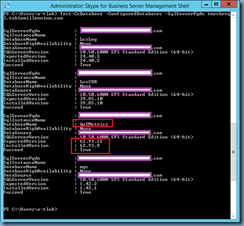
One of the possible causes to this would be if you have a version mismatch between the ExpectedVersion and InstalledVersion for the QoEMetrics database. To determine whether this is the cause, execute the following cmdlet:

Test-CsDatabase -ConfiguredDatabases -SqlServerFqdn <SQLserverHostingMonitoringDatabase>

Note the difference between the ExpectedVersion and InstalledVersion for the QoEMetrics database:

ExpectedVersion: 62.93.12

InstalledVersion: 62.93.8

image

In the event that the environment does have a mismatched version for SQL, execute the following cmdlet:

Install-CsDatabase -DatabaseType Monitoring -SqlServerFqdn <SQLserverHostingMonitoringDatabase> -DatabasePaths "Z:\Data\MonitoringStore\(default)\DbPath","Y:\Logs\MonitoringStore\(default)\LogPath"

**Replace the paths with the appropriate paths to the database and logs

A similar output will be displayed:

image

Execute the following cmdlet again to confirm that the database no longer has a mismatched version:

Test-CsDatabase -ConfiguredDatabases -SqlServerFqdn <SQLserverHostingMonitoringDatabase>

Note the matching versions between the ExpectedVersion and InstalledVersion for the QoEMetrics database:

ExpectedVersion: 62.93.12

InstalledVersion: 62.93.12

image

With the mismatched database version corrected, the Media Quality Report section will now have data recorded:

image

Monday, May 14, 2018

Dialing into Polycom hosted meeting with Skype for Business Server fails with: "Previous hop server component did not report diagnostic information";Domain-"

Problem

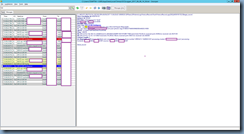
You’ve configured Skype for Business integration with Polycom RealPresence Collaboration Server 1800 to allow Skype for Business clients to join into scheduled Polycom meetings but notice that an attempt to dial into the meeting would ring but the Polycom does not answer. Performing a logging session reveals the following entries:

SIP/2.0 500 Server Internal Error

Previous hop server component did not report diagnostic information";Domain=”internalPolycomDomain.com”;PeerServer=”yourPolycomDMAserver.com”;source=”yourSfBFEserver.com”

image

image

Solution

I encountered this error after several components of the Polycom conferencing server were moved from one datacenter to another and the error messages provided by the trace did not help because it did not point me to the right direction. What did was logging into the RMX Manager and reviewing the Signaling Monitor status, which revealed the following:

Relay Server UDP Not Available

Relay Server TCP Not Available

image

What ended up causing this issue was that the relocated RMX server was no longer able to reach the Skype for Business Edge Server (not the front-end server) and reconfiguring the firewall to allow the required ports corrected the issue.

Thursday, March 8, 2018

Skype for Business Server 2015 logs the error: “GetAndPublish web service failed due to an internal error. This may impact user sign-in.”

Problem

You’ve received reports that users have experienced issues with logging into an audio conference as the leader with their PIN and noticed that your Skype for Business Server 2015 front-end server has the following error written in the Lync Server logs:

Log Name: Lync Server

Source: LS UserPin Service

47055

Level: Error

GetAndPublish web service failed due to an internal error. This may impact user sign-in.

Request Details - Entity: [agrant@contoso.com], Device Id: [6EFEFC0B-234D-55CA-A44F-061007CDAC2F], Authenticated User: [sip:agrant@contoso.com].

Additional Context: [CA_Failure: InternalError]

Cause: This is an unexpected failure

Resolution:

Re-start the web server. If you see this error continuously, examine the server traces and contact product support.

image

Solution

One of the reasons why this error would be thrown causing audio conferencing PIN login issues is if the front-end server is assigned a certificate that is configured with an unsupported Signature Algorithm such as the following example:

Signature algorithm: RSASSA-PSS

image

To correct the issue, either change the issuing certificate authority’s signature algorithm to a supported algorithm such as sha256RSA or obtain a certificate from an authority with a supported signature algorithm such as the following:

image

The above event log error will no longer be written and PIN sign in services will operate as expected once a certificate issued by a certificate authority with a supported signature algorithm is assigned

Friday, September 22, 2017

Attempting to assign a certificate to the Lync Server 2013 services via the Certificate Wizard console fails and generates the error message: “Command execution failed: The process does not possess the 'SeSecurityPrivilege' privilege which is required for this operation.”

Problem

You’ve created a new certificate for your Lync Server 2013 services and attempt to assign it to Server default and Web services internal:

image

However, the assignment fails and the following error message is displayed:

Command execution failed: The process does not possess the 'SeSecurityPrivilege' privilege which is required for this operation.

image

Solution

One of the reasons why the certificate assignment would fail with the error message above is if an administrator or group policy has removed the administrators group from the Lync Server’s Manage auditing and security log policy as shown in the following screenshot:

image

To correct the problem, simply grant the local administrators group the Manage auditing and security log policy permissions:

image

You should be able to assign certificates to Lync Server 2013 services once the above has been completed.

Wednesday, June 7, 2017

Attempting to call a Lync Server 2013 Enterprise Voice user fails with a fast busy

Problem

You have a user who is enabled for Enterprise Voice in a Lync Server 2013 environment that had no issues placing and receiving calls but recently noticed that users attempting to call them is now receiving a fast busy with the error message:

Cannot contact <userName>

image

Running a trace with Snooper on the server shows that a SIP/2.0 485 Ambiguous error is logged during the failed call:

TL_INFO(TF_PROTOCOL) [0]2160.20F4::06/06/2017-13:36:28.621.00008520 (SIPStack,SIPAdminLog::ProtocolRecord::Flush:ProtocolRecord.cpp(265))[4058195155] $$begin_recordTrace-Correlation-Id: 4058195155
Instance-Id: 495426
Direction: outgoing;source="local"
Peer: CONTles03.CONT.com:58390
Message-Type: response
Start-Line: SIP/2.0 485 Ambiguous
From: <sip:tluk@contoso.com>;tag=244c2c0e70;epid=98eec5ee8d
To: <sip:+44xxxxx9578@contoso.com;user=phone>;tag=872B83A7584D65996E00DA963EC419D0
Call-ID: 1c27d3fe51e6418892fe4e79cb4f564b
CSeq: 1 INVITE
Via: SIP/2.0/TLS 192.168.131.2:58390;branch=z9hG4bK323649EF.04A161E3BE17588C;branched=FALSE;ms-received-port=58390;ms-received-cid=36CFC00
Via: SIP/2.0/TLS 172.16.1.121:50637;received=216.249.42.188;ms-received-port=50637;ms-received-cid=AE8300
Content-Length: 0
ms-diagnostics: 4199;reason="Multiple users associated with the target phone number";HRESULT="0x8004C3CD";processing-cluster="CONTlse03.CONT.com";processing-frontend="CONTLSE03.CONT.COM";source="CONTLSE03.CONT.COM"
$$end_record

image

Solution

One of the reasons why this user would experience issues with inbound calls is if someone had recently created an account that uses the same number but with a different extension for their Line URI field.  To troubleshoot this, launch the Lync Server 2013 Control Panel and search for users with the problematic user’s number but without the extension.

For this example, the problematic user’s Line URI field is configured as such:

tel:+44xxxxxx9578;ext=9578

With the above information, add a Line URI filter configured to contain the string:

tel:+44xxxxxx9578

image

As shown in the screenshot above, two users have been returned.

Open the properties of the user accounts to compare the Line URI field and in the case of this example, the problem is caused by a typo in the Line URI field where:

User A: tel:+44xxxxxx9578;ext=9578

User B: tel:+44xxxxxx9578;ext=9579

User B’s Line URI was meant to be:

User A: tel:+44xxxxxx9579;ext=9578

… and because of the slight typo shown above, the Control Panel allowed the configuration to be made since the strings were unique but a call could not be routed properly because there were 2 matches to the number even though the extensions were different.

imageimage

Monday, January 23, 2017

Lync Server 2013 / Skype for Business Server 2015 federated contacts listed as “Presence unknown”

Problem

Companies federated with your Lync / Skype for Business environment have recently noticed that the status contacts in your organization briefly show as Updating…:

image

… then eventually changes to Presence unknown:

image

You’ve confirmed that the services on the Edge server are all Running:

image

However, reviewing the event logs show numerous errors logged in reference to the Lync Standard Server:

image

Log Name: Lync Server

Source LS Web Conferencing Edge Server

Event ID: 41987

Level: Error

Web Conferencing Server connection failed to establish.

Over the past 30 minutes Lync Server has experienced incoming TLS connection failures 120 time(s). The error code of the last failure is 0x80096004 (The signature of the certificate cannot be verified.

) and the last connection was from the host "".

Cause: This can occur if this box is not properly configured for TLS communications with remote Web Conferencing Server.

Resolution:

Check your topology configuration to ensure that both this host and remote Web Conferencing Server can validate each other TLS certificates and are otherwise trusted for communications.

image

Log Name: Lync Server

Source LS Protocol Stack

Event ID: 14428

Level: Error

TLS outgoing connection failures.

Over the past 86 minutes, Lync Server has experienced TLS outgoing connection failures 15 time(s). The error code of the last failure is 0x80096004(TRUST_E_CERT_SIGNATURE) while trying to connect to the server "svrlyncstd02.domain.internal" at address [10.1.1.66:5061], and the display name in the peer certificate is "Unavailable".

Cause: Most often a problem with the peer certificate or perhaps the host name (DNS) record used to reach the peer server. Target principal name is incorrect means that the peer certificate does not contain the name that the local server used to connect. Certificate root not trusted error means that the peer certificate was issued by a remote CA that is not trusted by the local machine.

Resolution:

Check that the address and port matches the FQDN used to connect, and that the peer certificate contains this FQDN somewhere in its subject or SAN fields. If the FQDN refers to a DNS load balanced pool then check that all addresses returned by DNS refer to a server in the same pool. For untrusted root errors, ensure that the remote CA certificate chain is installed locally. If you have already installed the remote CA certificate chain, then try rebooting the local machine.

image

Log Name: Lync Server

Source LS Protocol Stack

Event ID: 14366

Level: Error

Multiple invalid incoming certificates.

In the past 480 minutes the server received 30 invalid incoming certificates. The last one was from host 10.1.1.66.

Cause: This can happen if a remote server presents an invalid certificate due to an incorrect configuration or an attacker.

Resolution:

No action needed unless the number of failures is large. Contact the administrator of the host sending the invalid certificate and resolve this problem.

image

Attempting to browse the the FQDN of the Lync Standard Server from the Edge server displays the following webpage with a certificate warning:

· If you arrived at this page by clicking a link, check the website address in the address bar to be sure that it is the address you were expecting.

· When going to a website with an address such as https://example.com, try adding the 'www' to the address, https://www.example.com.

For more information, see "Certificate Errors" in Internet Explorer Help.

image

Solution

One of the reasons why presence would stop working and the event ID errors above to be thrown is if the Lync Edge server’s internal network interface certificate was recently updated by the issuing Root certificate issuing the updated certificate is not installed onto the Lync Edge server.  Note that the Lync Edge server is never joined to the domain so if the internal network interface certificate is issued by an internal CA then the root CA certificate along with the chain must be manually imported into the Trusted Root Certification Authorities certificate store on the Edge server:

image

Once this has been completed, proceed to restarting the Lync Edge server’s services and confirm that the following informational event logs are written:

image

Verify that the following page is now displayed when you browse the the FQDN of the Lync Standard Server from the Edge server:

Server Error

403 - Forbidden: Access is denied.

You do not have permission to view this directory or page using the credentials that you supplied.

image

Saturday, December 31, 2016

Skype for Business Server Access Edge service does not start

Problem

You’ve noticed that the Skype for Business Server Access Edge service on your Skype for Business Server 2015 Edge server is stopped and the following error is thrown when you attempt to start it:

Windows could not start the Skype for Business Server Access Edge on Local Computer. For more information, review the System Event Log. If this is a non-Microsoft service, contact the service vendor, and refer to the service-specific error code -2146762487.

imageimage

Reviewing the event log displays the following errors:

Log Name: System

Source: Service Control Manager

Event ID: 7031

Level: Error

The Skype for Business Server Access Edge service terminated unexpectedly. It has done this 1 time(s). The following corrective action will be taken in 180000 milliseconds: Restart the service.

image

Log Name: System

Source: Service Control Manager

Event ID: 7024

Level: Error

The Skype for Business Server Access Edge service terminated with service-specific error %%-2146762487.

image

Log Name: Lync Server

Source: LS Server

Event ID: 12303

Level: Error

The protocol stack reported a critical error: code 0x800B0109 (Configuration failure prevented the server from starting up). The service has to stop.

image

Log Name: Lync Server

Source: LS Server

Event ID: 12303

Level: Error

The protocol stack reported a critical error: code 0x800B0109 (CERT_E_UNTRUSTEDROOT). The service has to stop.

image

Log Name: Lync Server

Source: LS Protocol Stack

Event ID: 14623

Level: Error

A serious problem related to certificates is preventing Skype for Business Server from functioning.

Unable to use the certificate configured for the external edge of the Access Edge Server.

Error 0x800B0109(CERT_E_UNTRUSTEDROOT).

The certificate may have been deleted or may be invalid, or permissions are not set correctly.

Ensure that a valid certificate is present in the local computer certificate store. Also ensure that the server has sufficient privileges to access the store.

Cause: The Skype for Business Server failed to initialize with the configured certificate.

Resolution:

Review and correct the certificate configuration, then start the service again.

image

Log Name: Lync Server

Source: LS Protocol Stack

Event ID: 14397

Level: Error

A configured certificate could not be loaded from store. The serial number is attached for reference.

Extended Error Code: 0x800B0109(CERT_E_UNTRUSTEDROOT).

image

Clicking on the Details tab show the following:

<Event xmlns="http://schemas.microsoft.com/win/2004/08/events/event">

- <System>

<Provider Name="LS Protocol Stack" />

<EventID Qualifiers="33769">14397</EventID>

<Level>3</Level>

<Task>1001</Task>

<Keywords>0x80000000000000</Keywords>

<TimeCreated SystemTime="2016-12-30T01:27:45.000000000Z" />

<EventRecordID>154713</EventRecordID>

<Channel>Lync Server</Channel>

<Computer>svr-edge-01.ccs.int</Computer>

<Security />

</System>

- <EventData>

<Data>0x800B0109(CERT_E_UNTRUSTEDROOT)</Data>

<Binary>A6AC495DE63987EAE958F6506F58377D</Binary>

</EventData>

</Event>

image

One of the first troubleshooting steps I attempted was from the following blog post:

Attempting to follow the instructions provided by this blog post does not apply to your situation:

http://www.lyncexch.co.uk/lync-edge-january-2014-cu-update-issue/

However, using the following cmdlets to review the certificates’ serial numbers does not show a match for either:

  • A6AC495DE63987EAE958F6506F58377D
  • D77385F6056F859EAE78936ED594CA6A (reverse of the serial above)

Set-Location Cert:\LocalMachine\My

Get-ChildItem | FL

image

Get-ChildItem -Path 6224B3942798530F57A6F9BB560061BAF125DF1F | Format-List -Property *

image

**The serial for this certificate is 68000000BD4AC93CAEFE91A8BB0000000000BD

Get-ChildItem -Path 379944BB47EE3EE70E7ED9E5908041A5556F69CE | Format-List -Property *

image

**The serial for this certificate is 7D37586F50F658E9EA8739E65D49ACA6

Solution

As I’ve come across a similar problem in the past, I sort of had a feeling that this had to do with a certificate that was missing from the intermediate or root store of the Edge server.  To determine this, open the Certification Path of the certificate being used for the Edge interface:

image

Note that the issuing Certificate Authorities are:

  • GeoTrust Global CA
  • RapidSSL SHA256 CA

In this environment, the Root certificate GeoTrust Global CA was already in the Trusted Root Certification Authorities but the RapidSSL SHA256 CA was not in the Intermediate Certification Authorities:

image

I proceeded to obtain the issuing intermediate certificate via RapidSSL’s website:

https://knowledge.rapidssl.com/support/ssl-certificate-support/index?page=content&id=INFO1548

image

https://knowledge.rapidssl.com/support/ssl-certificate-support/index?page=content&actp=CROSSLINK&id=SO28616

image

Installed the certificate:

image

Then was able to successfully start the Skype for Business Server Access Edge service:

image