Pages

Wednesday, January 13, 2016

Unable to sign into on-prem Skype for Business after installing patches in December 2015

I’ve had a few clients and colleagues notice that they are no longer able to sign into Skype for Business after installing Windows updates sometime in December.  The error message they receive when they attempt to sign in is as follows:

Can’t sign in to Skype for Business

The address you typed is not valid.

Valid addresses use the format username@domain (someone@example.com). Make sure there are no spaces in the address.

Click Back to retype the address.

image

What I’ve noticed back in December was that the only way to fix this issue was to uninstall the updates outlined in the following KB article:

MS15-128: Description of the security update for Lync 2013 (Skype for Business): December 8, 2015
https://support.microsoft.com/en-us/kb/3114351

Now that we’re into the 2016 new year, it looks like Microsoft has released the following KB that outlines this issue:

"The address type is not valid" error when you sign in to Lync 2013 (Skype for Business) by using domain\username format
https://support.microsoft.com/en-us/kb/3114687

… and released a patch offerred in the following KB to fix the issue:

January 12, 2016, update for Lync 2013 (Skype for Business) (KB3114502)
https://support.microsoft.com/en-us/kb/3114502

The 64-bit patch found in the KB above is name lync2013-kb3114502-fullfile-x64-glb.exe and is 106,360KB in size.  I’ve tested this with a few SfB clients that exhibited this issue and can confirm that it fixes the issue.

Monday, January 11, 2016

Unabled to delete mailbox in Exchange 2013 Exchange Administrative Center with the error: “Active Directory operation failed on domainController.com. This error is not retriable. Additional information: Access is denied. Active directory response: 00000005: SecErr: DSID-03151D15, problem 4003 (INSUFF_ACCESS_RIGHTS), data 0”

Problem

You’re logged into the Exchange 2013 server Exchange Administrative Center and attempt to delete a user’s mailbox but receive the following error:

Active Directory operation failed on domainController.com. This error is not retriable. Additional information: Access is denied. Active directory response: 00000005: SecErr: DSID-03151D15, problem 4003 (INSUFF_ACCESS_RIGHTS), data 0

image

Solution

One of the causes for this error message is that the Active Directory account you are attempting to delete does not have Inheritance enabled.  To correct the issue, simply enable inheritance in the security policy for the account before attempting to delete it in Exchange 2013’s Exchange Administrative Center:

image

image

image

Friday, January 8, 2016

Disabling “Enable Protected Mode at startup” and “Enable Enhanced Security” for Adobe Acrobat Reader DC 2015

I recently had to troubleshoot an issue with PDFs failing to launch within an Internet Explorer window which lead to a resolution that required two security features in Adobe Acrobat Reader DC 2015 to be disabled and thought that I’d write this post to demonstrate the process so I could reference it when I write the post describing that issue.  Note that I am not recommending to disable these features as it renders the reader much less secure so please carefully evaluate other alternatives if they exist.

The reader I’ll be modifying will be the Adobe Acrobat Reader DC 2015 Release | Version 2015.009.20079

image

The two features we’ll be disabling are:

Enable Protected Mode at startup

… and:

Enable Enhanced Security

… listed in the Security (Enhanced) category:

image

To disable the Enable Protected Mode at startup configuration, navigate to the following registry key:

HKEY_CURRENT_USER\Software\Adobe\Acrobat Reader\DC\Privledged

… then modify the bProtectedMode REG_DWORD value to 0 to disable and 1 to enable:

image

To disable the Enable Enhanced Security configuration, navigate to the following registry key:

HKEY_CURRENT_USER\Software\Adobe\Acrobat Reader\DC\TrustManager

… then modify the bEnhancedSecurityStandalone REG_DWORD value to 0 to disable and 1 to enable:

image

Perform the same change to bEnhancedSecurityInBrowser if you want the same change for PDFs launched in browsers.

To automate these configuration changes, you can either use a GPO that launches a batch file containing REG ADD:

reg add "HKCU\Software\Adobe\Acrobat Reader\DC\Privileged" /v "bProtectedMode" /t REG_DWORD /d 0 /f

reg add "HKCU\Software\Adobe\Acrobat Reader\DC\TrustManager" /v "bEnhancedSecurityStandalone" /t REG_DWORD /d 0 /f

reg add "HKCU\Software\Adobe\Acrobat Reader\DC\TrustManager" /v "bEnhancedSecurityInBrowser" /t REG_DWORD /d 0 /f

… or use Group Policy Preferences to add/update the key.

Monday, January 4, 2016

Installing and configuring Windows 10 KMS Activation with Windows Server 2012 R2

I’ve recently been involved with deploying a new Windows 10 VMware Horizon View pool to pilot the new operating system with the latest Office 2016 suite and ran into KMS activation issues because the Windows Server 2012 R2 KMS server was not configured properly so I thought it would be a good idea to outline the steps here so I could reference this in the future.

Begin by confirming that your Windows 10 desktop is indeed not activating by simply launching the Activation window on the desktop and attempt to activate.  If you’re sure that you already have 25 desktops with unique CMIDs activating but activation on the Windows 10 desktop still throws the following error:

Windows is unable to reach your company’s activation service. Please connect to your corporate network. If you are connected and continue to see the error, contact your system administrator. You can also click on error detail to find the exact error. Error code: 0xC004F074

image

… then proceed by ensuring that you have completed the steps outlined in the following KB:

Error 0xC004F015 when you try to activate Windows 10 Enterprise on a Windows Server 2012 R2 KMS host
https://support.microsoft.com/en-us/kb/3086418

What I’ve noticed in the environment I was working in was that if I attempted to apply the new Windows Srv 2012R2 DataCtr/Std KMS for Windows 10 product key onto the existing Windows Server 2012 R2 KMS server that already has a KMS key via the GUI:

image

… I would actually receive the following error:

That key can’t be used to activate Window son this PC-it can only be used to set up a key management service. Contact your system administrato or try a different key.

image

What actually needs to be done is to uninstall the existing key prior to applying the new one.  Before uninstalling the existing key, execute slmgr.vbs /dlv and note the Description:

Description: Windows(R) Operating System, VOLUME_KMS_WS12_R2 channel

image

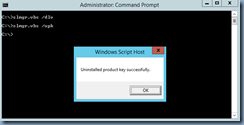
Proceed by executing slmgr.vbs /upk to uninstall the existing KMS key:
image

With the old key uninstalled, execute the following:

slmgr.vbs /ipk <yourUniqueKMSProductKey>

image

With the new key successfully installed, executing slmgr.vbs /dlv should now display the following Description:

Description: Windows(R) Operating System, VOLUME_KMS_2012-R2_WIN10

image

Navigating back to the Windows 10 desktop should now allow you to activate successfully:

image

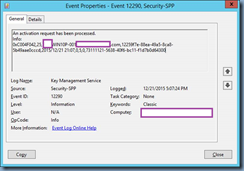
As mentioned above, the KMS server requires at least 25 Windows 10 desktops with unique CMIDs before it will activate desktops so if you see the following information event on your KMS server’s Key Management Service Log:

image

An activation request has been processed.

Info:

0xC004F042,25,WIN10P-001.domain.com,12259f7e-88ea-49a5-8ca8-5b49aae0cccd,2015/12/21 21:07,0,5,0,73111121-5638-40f6-bc11-f1d7b0d64300
image

… then this means that you have not reached the threshold of 25 desktops which is signified by the:

0xC004F042,25

When the threshold is met, the following information log will be written:

image

An activation request has been processed.

Info:

0x0,25,WIN10P-001.domain.com,43155fc4-20ec-4079-b1c8-2af013fb7f43,2015/12/23 15:52,0,1,259200,73111121-5638-40f6-bc11-f1d7b0d64300

image

Sunday, January 3, 2016

Upgrading from VMware Horizon View 6.0.1 to 6.2.1 causes connections to throw the error: “Unable to connect to desktop: There is no available gateway for the display protocol. Try again, or contact your administrator if this problem persists.”

Problem

You attempt to upgrade your existing VMware Horizon View 6.0.1 infrastructure to 6.2.1 but noticed that after upgrading your View Connection and Security servers you receive the following error message when connecting to a virtual desktop:

Unable to connect to desktop: There is no available gateway for the display protocol. Try again, or contact your administrator if this problem persists.

image

Attempting to connect from an older VMware View client throws the following error:

The View Connection Server connection failed. The handle is in the wrong state for the requested operation.

image

Reviewing the Events log in th View Manager displays the following error message:

Severity: Audit failure

Message: Unable to launch from Pool <poolID> for user <domain\userID>: No co-management availability for protocol PCoIP

image

Solution

This isn’t the first VMware Horizon View 6.2.1 upgrade I’ve done but it is the first that I had to jump from 6.0.1 to 6.2.1 and because I worked on this upgrade during a small window and was unable to get connectivity to work even though I tried upgrading the View agent to a newer version, I ended up rolling back to 6.0.1 then opened up a ticket with VMware.

What I learned from the VMware support engineer was that older agents would not work with 6.2 or later versions because TLS 1.0 is disabled and since I had the View Connection and Security servers at 6.2.1 and the agents still at 6.0.1 FP2, these error messages were thrown (I’m not sure why the initial test I did when upgrading the agent didn’t work during the first window).

The following is what I learned after scheduling a second window to test performing the upgrade again:

1. Attempting to use the following KB to configure TLS 1.0 did not work for me: http://kb.vmware.com/kb/2130798

2. Disabling Use PCoIP Secure Gateway for PCoIP connects to machine fixed the issue:

image

This solution wasn’t practical for me as it would allow internal connections but external connections through the View Security Server would not work.

3. Upgrading the View Agent from 6.0.2.2331487:

image

… to 6.2 or higher would correct the issue:

6.2.1.3284564

image

6.2.0.3005627

image

4. If you have any View clients older than Horizon 3.3 (either on Windows, Windows Embedded, or any thin/zero client OS such as HP ThinPro) then you’ll also need to upgrade them or they won’t be able to connect to the desktop.

Update – January 6, 2015

I’m not sure if this was added at a later time because i did not see this note when I downloaded 6.2.1 in December but the Notes section on the download product page explains the potential issues you may face if you’re using an older Horizon Client:

To improve security, by default, View 6.2.1 does not support SSLv3 and does not accept incoming connections that use security protocol TLS 1.0. This will affect Horizon Client 3.3 and earlier versions, which can only use TLS 1.0. For instructions on how to enable TLS 1.0, see the View 6.2.1 release notes.

image

Here is an example of what happens if you connect with an older VMware View 5.0.0 build-481677 client externally through a security server:

image

image

The View Connection Server connection failed. A security error occurrred.

image

Another symptom I’ve noticed when attempting to connect with an older unsupported VMware Horizon View 3.1.0 build-285638 client internally through a connection server is that the authentication works and you are able to initiate the connection to the desktop but you are then quickly kicked off with the message:

The connection to the remote computer ended.

image

Update – January 14, 2015

I’ve managed to do tests with the registry keys that enable TLS 1.0 and the results can be found here:

Enabling TLS 1.0 for VMware Horizon View 6.2.1 to allow Horizon View 3.3 or older clients to connect
http://terenceluk.blogspot.com/2016/01/enabling-tls-10-for-vmware-horizon-view.html

Wednesday, December 23, 2015

VMware Horizon View Virtual Desktops Stuck in Customizing Status

Problem

You've created a new pool of virtual desktops in your VMware Horizon View environment but noticed that while the virtual machines get created, they never get past the customizing status:


After waiting 10 minutes or more, the customizing status switches to error with the following message:

View Composer agent initialization state error (16): Failed to activate license (waited 1235 seconds)

Pairing state:
Configured by:
Attempted theft by:


Solution

The error above indicates that the newly deployed VDIs are unable to contact or is able to contact but unable to activate with the KMS server in the environment. One of the troubleshooting steps you can take to verify this is to configure the master image of the virtual desktop to skip the KMS activation by completing the following:

Open the Registry Editor and navigate to:

HKEY_LOCAL_MACHINE\SYSTEM\ControlSet001\Services\vmware-viewcomposer-ga

Edit the SkipLicenseActivation REG_DWORD key and change the value from 0 which is off to 1 which is on:


Performing this change will allow the VMware Horizon View Manager to skip the Windows KMS activation and complete the pool deployment.  If this change corrects the issue then further troubleshooting will be required to determine why KMS activation is not completing.

Tuesday, December 22, 2015

Event ID 1310 warning constantly logged on Exchange 2013 server

I recently ran into an issue that took quite a bit of time for me to find a resolution for after going through numerous troubleshooting steps so I thought I'd write this blog post in hopes that I'd be able to save others the hours I spent.

Your environment consists of the following:
  1. A single Exchange 2013 server with both the Mailbox and Client Access roles installed
  2. The version is 15.0 (Build 1156.6) - CU11
  3. The operating system is Windows Server 2012 R2 with the latest patches installed as of December 18, 2015
You notice the following warnings consistently logged in the application logs:

Log Name: Application
Source: ASP.NET 4.0.30319.0
Event ID: 1310
Level: Warning
User N/A


Event code: 3008 

Event message: A configuration error has occurred. 
Event time: 12/18/2015 6:36:46 PM 
Event time (UTC): 12/18/2015 10:36:46 PM 
Event ID: 10a3589bc8624ee292c0117bcd54bb1c 
Event sequence: 1 
Event occurrence: 1 
Event detail code: 0 
Application information: 
    Application domain: /LM/W3SVC/1/ROOT/OAB-1233-130949518065162062 
    Trust level: Full 
    Application Virtual Path: /OAB 
    Application Path: D:\Program Files\Microsoft\Exchange Server\V15\FrontEnd\HttpProxy\OAB\ 
    Machine name: SVR-MAIL-03 
Process information: 
    Process ID: 2232 
    Process name: w3wp.exe 
    Account name: NT AUTHORITY\SYSTEM 
Exception information: 
    Exception type: ConfigurationErrorsException 
    Exception message: Could not load type 'Microsoft.Exchange.Security.OAuth.OAuthHttpModule'.
   at System.Web.Configuration.ConfigUtil.GetType(String typeName, String propertyName, ConfigurationElement configElement, XmlNode node, Boolean checkAptcaBit, Boolean ignoreCase)
   at System.Web.Configuration.Common.ModulesEntry.SecureGetType(String typeName, String propertyName, ConfigurationElement configElement)
   at System.Web.Configuration.Common.ModulesEntry..ctor(String name, String typeName, String propertyName, ConfigurationElement configElement)
   at System.Web.HttpApplication.BuildIntegratedModuleCollection(List`1 moduleList)
   at System.Web.HttpApplication.GetModuleCollection(IntPtr appContext)
   at System.Web.HttpApplication.RegisterEventSubscriptionsWithIIS(IntPtr appContext, HttpContext context, MethodInfo[] handlers)
   at System.Web.HttpApplication.InitSpecial(HttpApplicationState state, MethodInfo[] handlers, IntPtr appContext, HttpContext context)
   at System.Web.HttpApplicationFactory.GetSpecialApplicationInstance(IntPtr appContext, HttpContext context)
   at System.Web.Hosting.PipelineRuntime.InitializeApplication(IntPtr appContext)

Could not load type 'Microsoft.Exchange.Security.OAuth.OAuthHttpModule'.
   at System.Web.Compilation.BuildManager.GetType(String typeName, Boolean throwOnError, Boolean ignoreCase)
   at System.Web.Configuration.ConfigUtil.GetType(String typeName, String propertyName, ConfigurationElement configElement, XmlNode node, Boolean checkAptcaBit, Boolean ignoreCase)


Request information: 
    Request URL: https://localhost:443/OAB/ 
    Request path: /OAB/ 
    User host address: 127.0.0.1 
    User:  
    Is authenticated: False 
    Authentication Type:  
    Thread account name: NT AUTHORITY\SYSTEM 
Thread information: 
    Thread ID: 21 
    Thread account name: NT AUTHORITY\SYSTEM 
    Is impersonating: False 
    Stack trace:    at System.Web.Configuration.ConfigUtil.GetType(String typeName, String propertyName, ConfigurationElement configElement, XmlNode node, Boolean checkAptcaBit, Boolean ignoreCase)
   at System.Web.Configuration.Common.ModulesEntry.SecureGetType(String typeName, String propertyName, ConfigurationElement configElement)
   at System.Web.Configuration.Common.ModulesEntry..ctor(String name, String typeName, String propertyName, ConfigurationElement configElement)
   at System.Web.HttpApplication.BuildIntegratedModuleCollection(List`1 moduleList)
   at System.Web.HttpApplication.GetModuleCollection(IntPtr appContext)
   at System.Web.HttpApplication.RegisterEventSubscriptionsWithIIS(IntPtr appContext, HttpContext context, MethodInfo[] handlers)
   at System.Web.HttpApplication.InitSpecial(HttpApplicationState state, MethodInfo[] handlers, IntPtr appContext, HttpContext context)
   at System.Web.HttpApplicationFactory.GetSpecialApplicationInstance(IntPtr appContext, HttpContext context)
   at System.Web.Hosting.PipelineRuntime.InitializeApplication(IntPtr appContext)


Custom event details: 


Through the searches I've done on the internet, one of the forum recommendations I found here: https://social.technet.microsoft.com/forums/exchange/en-US/00893e96-9fa3-4ceb-a547-93d37a4b25a0/oab-not-working was to review the OAB IIS settings as per the following TechNet article: 

Default settings for Exchange virtual directories

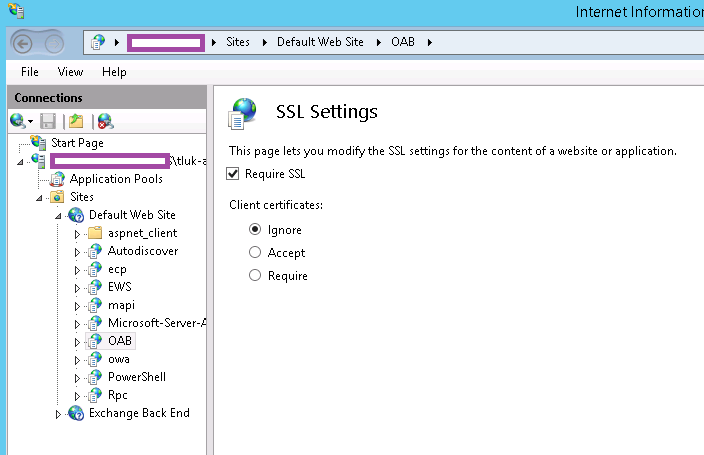
The above article indicates that the SSL Settings is recommended to be Not Required but what I've found was that the other 2 single Exchange 2013 server environments I had access to that were working actually had the setting enabled:


I did try to disable the Require SSL option and then Reset the directory:


... but this did not fix the issue and the Require SSL option would be re-enabled after a reset.

One of the differences I found between this environment with the problem and the other two was that the Application Pools setting for the MSExchangeOABAppPool had a .NET CLR version of .NET CLR Version v4.0.30319:


... while the other 2 environments I had access to were listed as .NET Framework version of .NET Framework v4.0.30319:


However, after having no success with trying to figure out whether this could be changed because the drop down menu did not have such an option, I logged onto another environment with Exchange 2013 and noticed that it had the same .NET Framework v4.0.30319 for the application pool so I gave up on this.

Next, I used the Get-OabVirtualDirectory | FL cmdlet to copy the exact settings of a server without this error:


Configure the problematic server with the same settings above with the Set-OabVirtualDirectory cmdlet did not correct the issue.

Next, I began comparing the folder C:\Program Files\Microsoft\Exchange Server\V15\FrontEnd\HttpProxy\oab where the virtual directory is mapped to and noticed that the problematic server had the following single web.config file:


The file size was 1KB and the content had only a few lines:


Meanwhile the 2 other servers that did not have this issue had a much larger web.config file with more content and it also had 2 other files;

  1. global.asax
  2. web.config.bak

Note that both of them had different file sizes and amount of lines in the web.config file.


After trying a few other solutions without results, I came across the following TechNet article that described how to recreate the OAB folder:

Remove, Re-Create, and Reconnect an Offline Address Book Virtual Directory

I proceeded to use the Get-OABVirtualDirectory cmdlet to save the configuration, the Remove-OABVirtualDirectory to delete the directory, the New-OABVirtualDirectory to recreate the folder, then used the Set-OABVirtualDirectory cmdlet to configure the newly created OAB folder with the same settings as documented earlier.

Following the above steps recreated the web.config file with more content (larger than 1KB) as well as the two additional global.asax and web.config.bak files in the same folder.  Restarting the server a few times and reviewing the event logs show that the warning was no longer logged.